Managing vocabularies
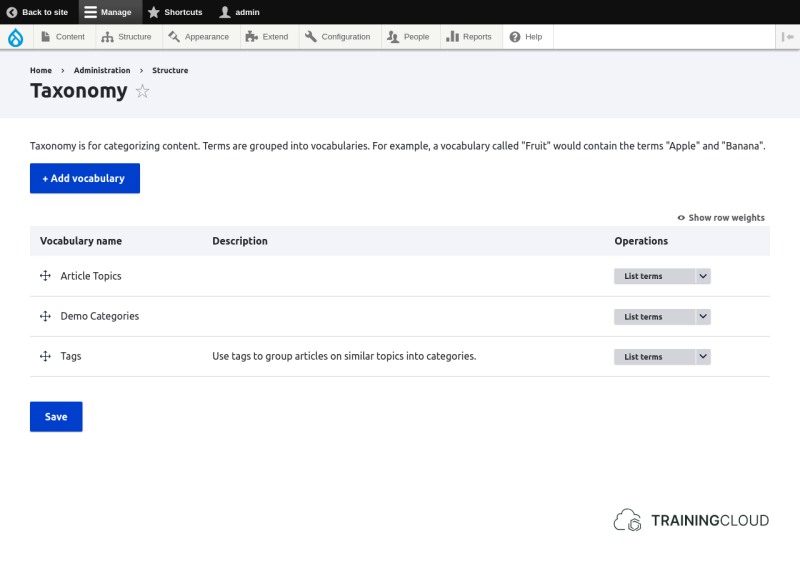
You can see and manage all of your vocabularies at Manage > Structure > Taxonomy.
Click on "Add vocabulary" to create a new vocabulary, or click on "list terms" to see an existing vocabulary's terms.
Managing terms
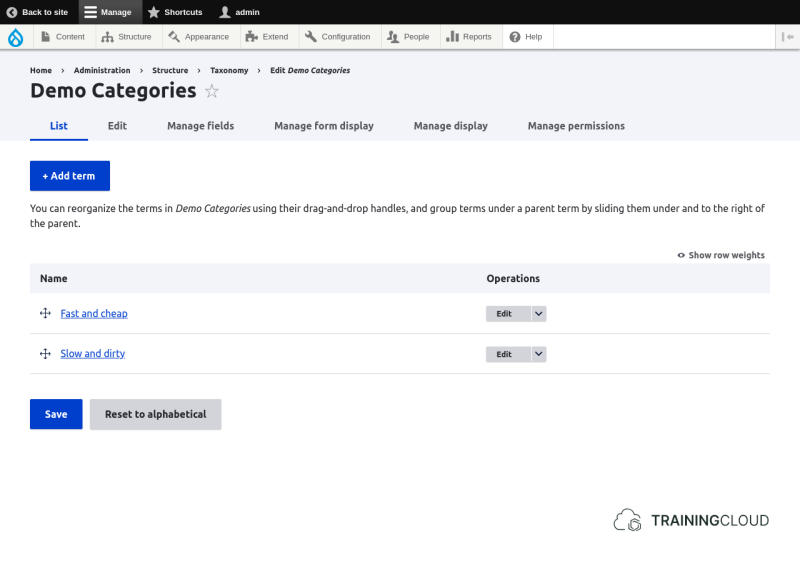
You can manage each vocabulary's terms at Manage > Structure > Taxonomy > [Vocabulary name] > List terms.
Click on "Add term" to create a new term in this vocabulary, or click on "edit" to manage an existing term's details:
Term order and hierarchy
'Term order' refers to the order in which a vocabulary's terms are listed.
Term hierarchy' refers to the hierarchical structure of a vocabulary's terms: which terms are parent terms, child terms, or sibling terms.
You can configure term order and hierarchy by hovering over a term's four-sided arrow icon, dragging, and then dropping each term vertically or horizontally.
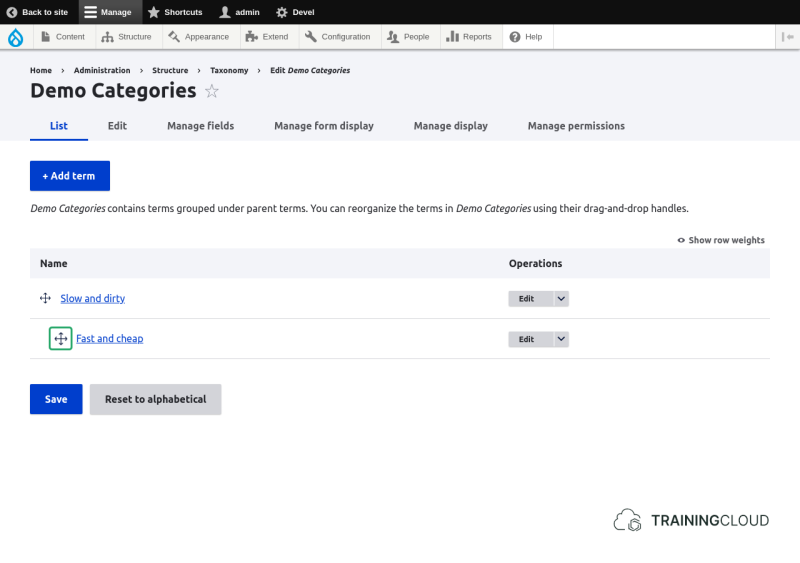
Don't forget to save your changes after reordering terms. An often-made mistake is to reorder terms, followed by clicking on a term's 'edit' button to modify a term. This will lead you to a page to edit that term, but the previous reordering actions will not be automatically saved.
This behaviour is the same throughout Drupal's administration interface: every screen that lets you reorder items requires you to explicitly save your reordering changes before you perform the next task.
Creating or editing terms
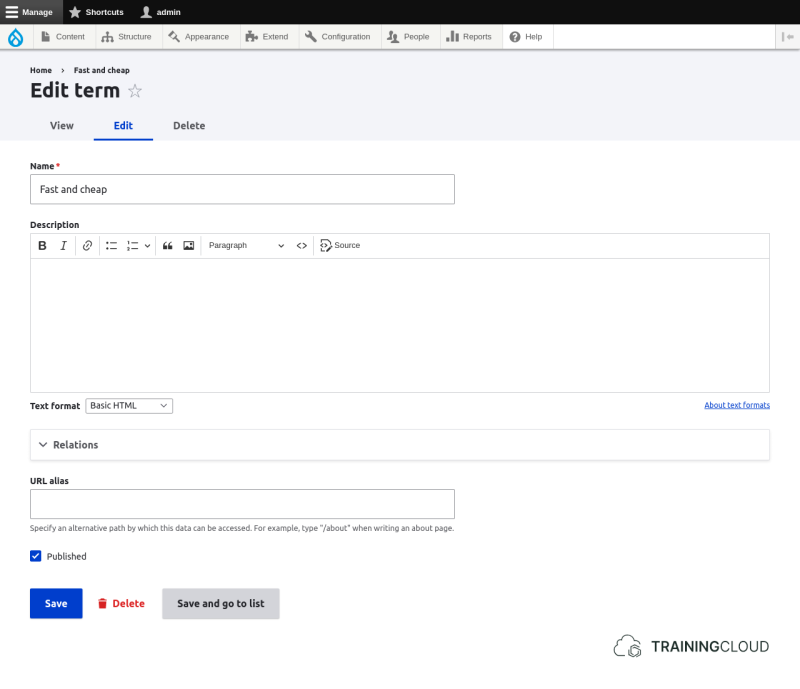
When working with terms, you will mostly fill in or edit the Name field, and leave all other fields as they are.
Nevertheless, here's an overview of all the default fields on taxonomy terms:
The label of the term as it will be displayed.
A description of the term. This field is not displayed to any end user by default.
This term's parent term(s), if any.
You do not have to manage this manually - the value is taken automatically from the vocabulary's drag-and-drop term hierarchy.
The term's weight.
You do not have to manage this manually - the value is taken automatically from the vocabulary's drag-and-drop term hierarchy.
In other words: when you drag and drop the terms to change the term hierarchy, these changes are automatically recorded in the Parent terms and Weight fields.
An optional alias for the page that lists all content that has been categorised with this term. By default this path is /taxonomy/term/[numerical id].
Example: Article topics
Let's look at a practical example.
Imagine a news section for a global humanitarian organisation's website. As an editor you want to categorise each of your news articles with one or more of the following categories and/or subcategories:
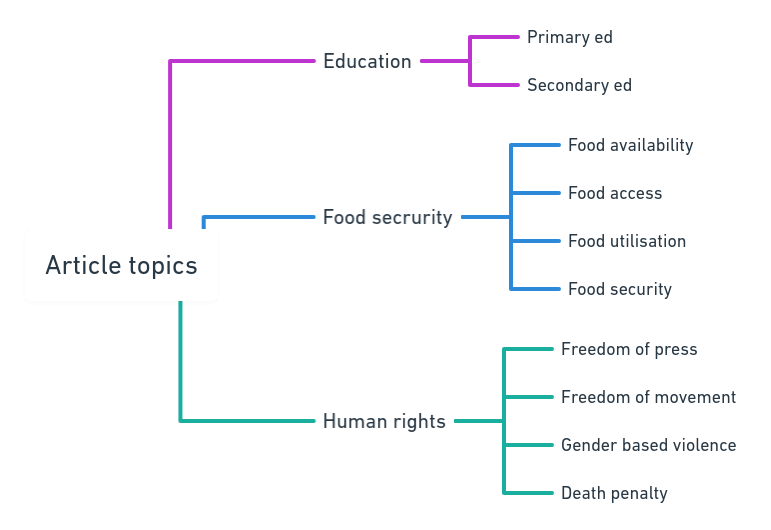
The most common way to do this in Drupal is to create a new vocabulary, give it a useful name, and add all the terms you want to be able to categorise your articles with.
The second step will be to add a taxonomy term field to the Article content type to let editors select one or more term for each article.
Activity 1: Create a vocabulary and add terms
- Create a new vocabulary named 'Article topics'
- Add the 3 parent terms 'Education', 'Food security', 'Human rights'
- For each of the 3 parent terms add the child terms listed in the example diagram
- Drag and drop the terms horizontally and diagonally until each child term is listed under the corresponding parent term, in the same order as shown in the diagram
If everything went well, your vocabulary should look like this:
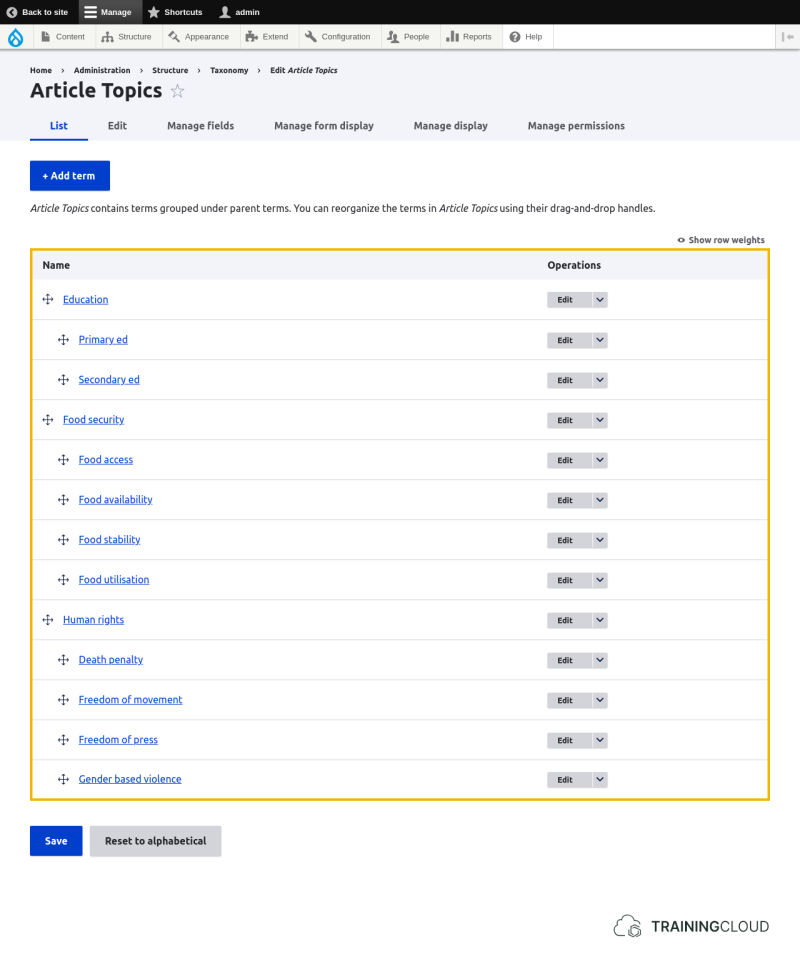
At this point you have created a vocabulary, added the terms you need, and rearranged them into a tree structure.
The next step is to tell Drupal that you want to use these terms to categorise news articles:
Activity 2: make news articles categorisable
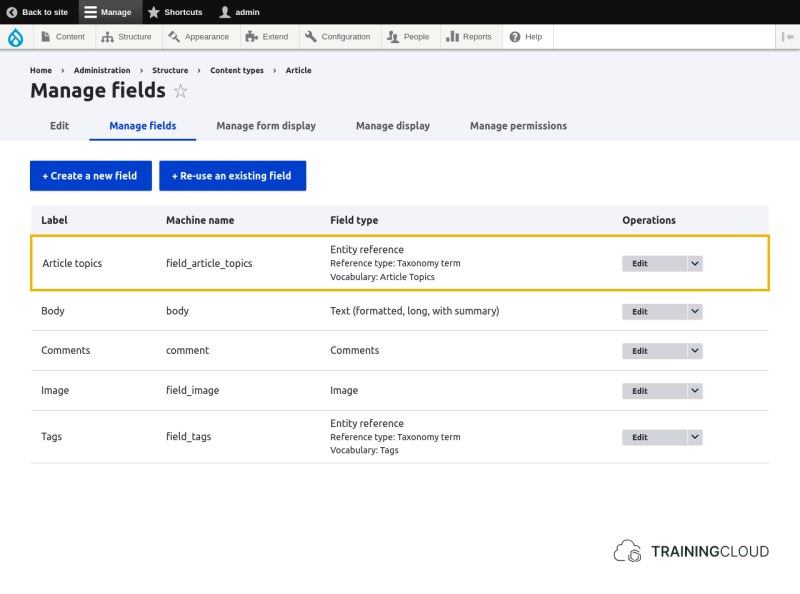
- Add a new field of the type 'taxonomy term' to the 'Article' content type
- Configure the field to use the 'Article topics' vocabulary
- Configure the field to allow an unlimited number of values
- If you're not sure how to add fields to a content type, refer back to the section on managing fields
- You can manage a content type's fields at Manage > Structure > Content types > [Name of content type] > Manage fields
If everything went well, your new field should be listed among the Article content type's fields, and the form that lets you create or edit articles should show an autocomplete field where you can enter one or more terms, separated by a comma:
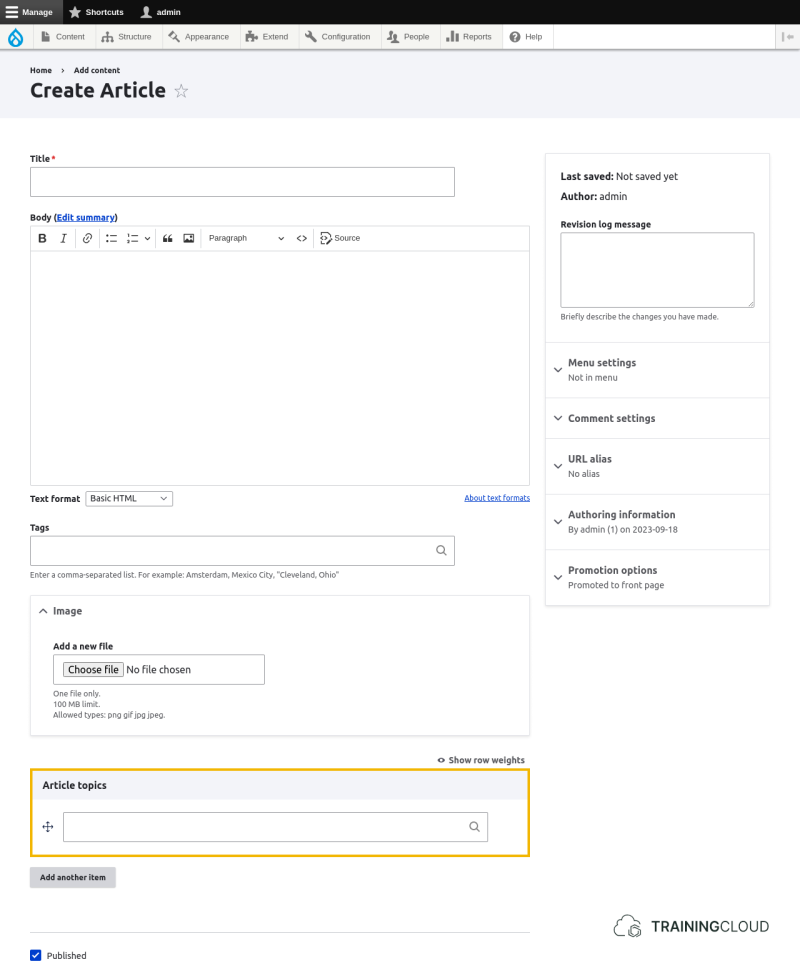
In the next activity you'll change this autocomplete field widget to a more user-friendly widget: a set of checkboxes.
After you've changed the field configuration, reload the article creation form or edit an existing article. If everything went well, the form should look like this:
Activity 3: use checkboxes instead of autocomplete to select terms
When you add a taxonomy term field to a content type, the default data input widget is an autocomplete field.
For some scenarios this may be appropriate, but often you'll want to change this to a select list or radio button list (if only one value is allowed), or a checkbox list (if multiple values are allowed).
Instructions
- In the Article content type's Manage form display settings, change your new field's widget to 'checkboxes'
If you're not sure how to manage a field's input widgets, refer to the unit on managing a field's form display.
By default, a node's selected taxonomy terms are shown as links (to a page that lists all content categorised with that term) at the bottom of the page:
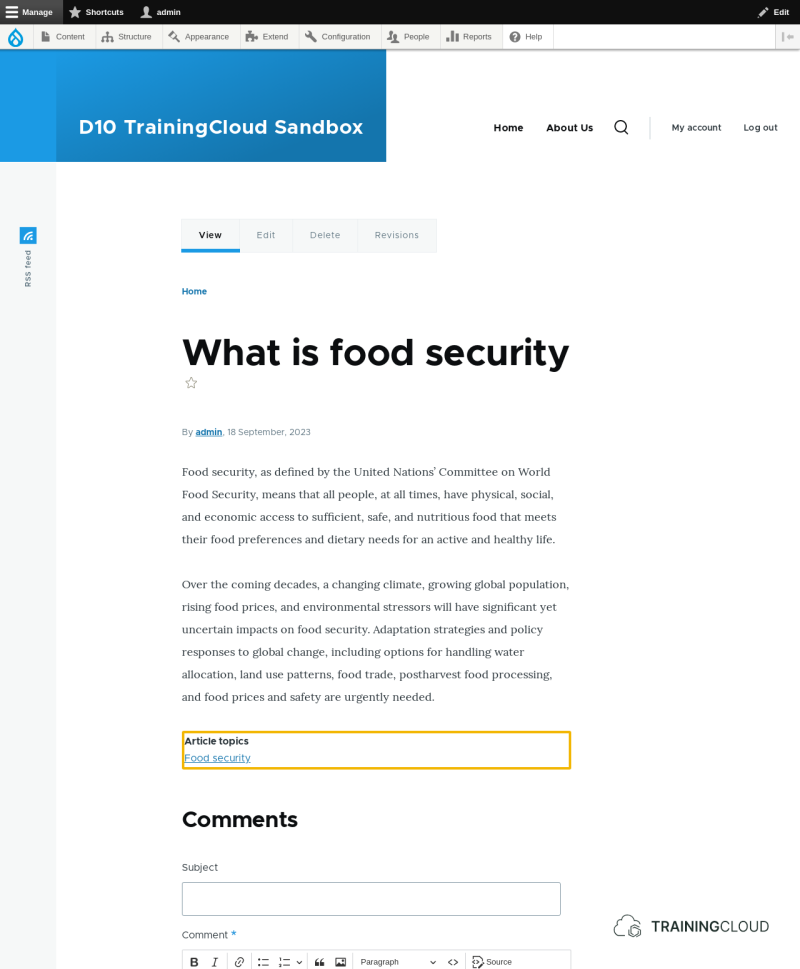
Let's improve the positioning and change the link into plain text.
Activity 4: display article categories as plain text
- In the Article content type's Manage display settings, move the field to the top to make it appear above the article's image and body
- On the same configuration page, change the field's settings to prevent it from being displayed as a link
- You can manage a content type's field display settings at Manage > Structure > Content types > [Name of content type] > Manage display
- If you're not sure how to change a field's display settings, refer to the unit on managing fields and field display
If you can't find the field display setting you're looking for, try clicking the little "cog" or "wheel" icon that appears on the right hand side of most of the listed fields on the content type's 'Manage display' tab.
If all went well, articles should now be displayed like this:
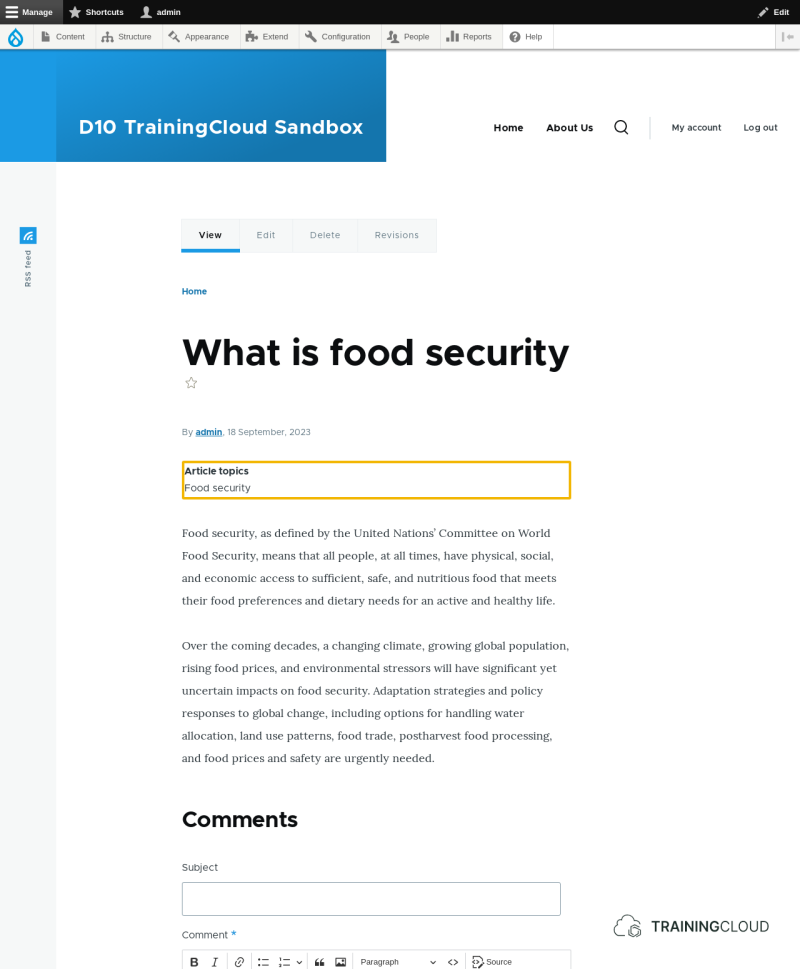
Summary
- You can manage vocabularies and terms at Manage > Structure > Taxonomy.
- You can drag and drop terms horizontally and vertically to change their order and hierarchy.
- You must add a taxonomy term field to a content type if you want to make content of that type categorisable.
- In the taxonomy term field's settings you specify how many values are allowed and which vocabulary / vocabularies the categories provide the category options.