In this section:
- You will learn where to find a node's revisions.
- You will learn what really happens when you revert to an earlier version
- You will learn how installing the Diff module introduces the ability to compare revisions.
- You will learn how to compare revisions, and change the way that comparison is presented on screen.
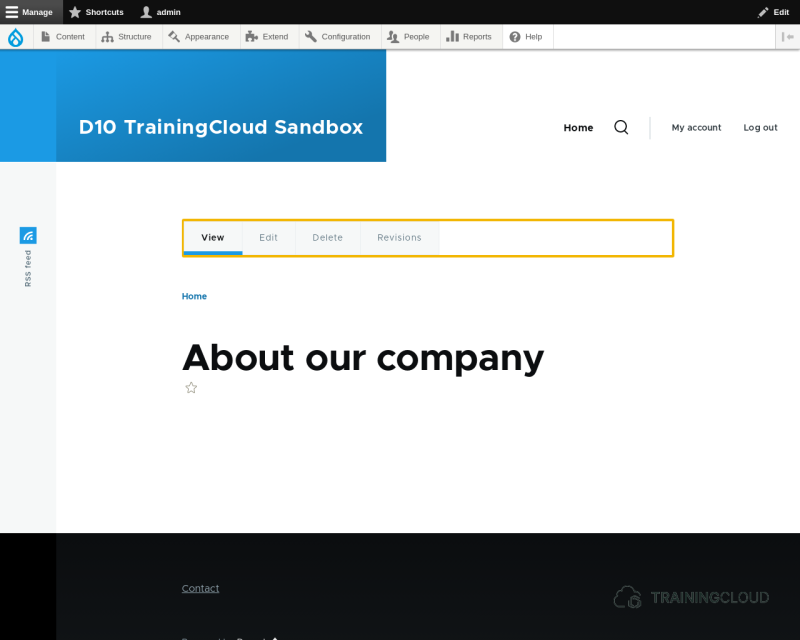
As soon as you've updated a piece of content for the first time, a new 'Revisions' task tab appears next to 'View', 'Edit', and 'Delete':
Clicking the revisions tab leads to an overview of all revisions for the current node:
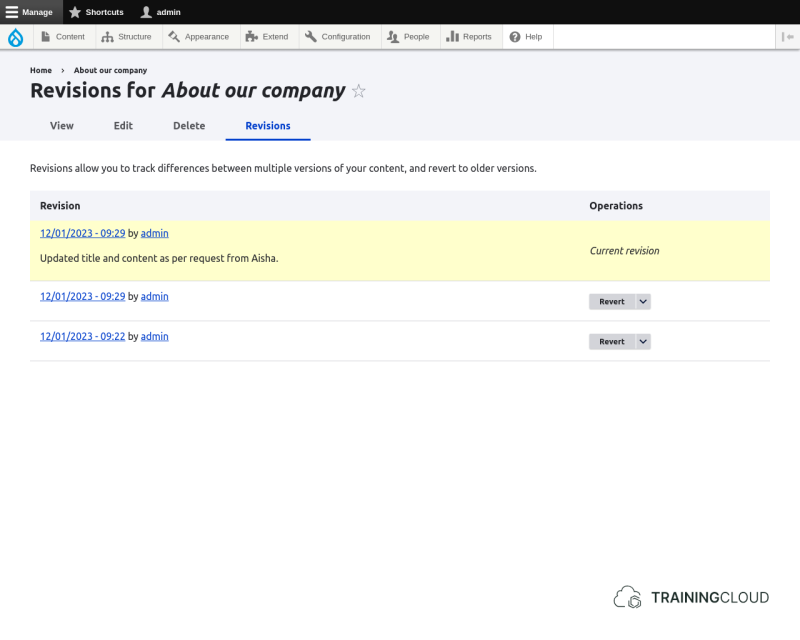
The overview shows a chronological list of all revisions with an indication of which is the currently published revision, and the revision log message if it was filled in when the revision was created.
→ You can click on the date of each revision to see that version of the content.
→ You can revert or delete a revision via the buttons on the right hand side.
What happens when I revert to an earlier revision?
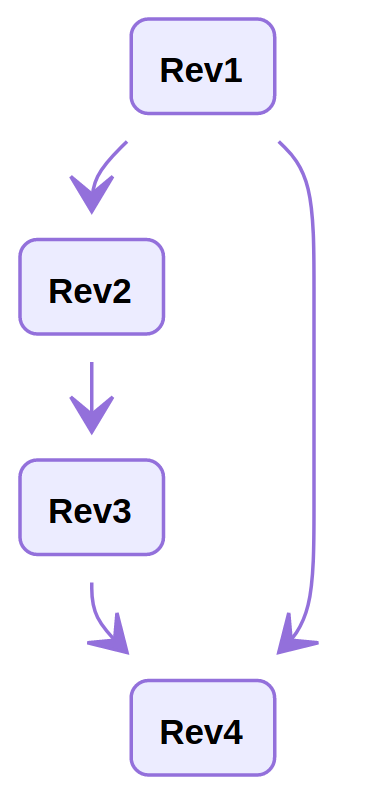
Assume you have three revisions, as shown in the example. When you revert to the oldest revision (the very first version), the other versions will not be deleted. Instead, Drupal creates a new, fourth revision that is identical to the first version.
This way reverting to an earlier version is not a destructive operation: you never lose historical data, and can still change your mind and revert back to version 2 or 3 later on, which wouldn't be possible if Drupal simply deleted version 2 and 3 when you want to revert to version 1.
Activity 1
- Choose a node and create a handful of revisions.
- Review the revisions you made via the node's 'Revisions' tab.
Activity 2
- Revert to an earlier version of the node and verify if Drupal has indeed created a new revision that is identical to the one you wanted to revert to.
Should I ever delete individual revisions?
Probably not. Deleting revisions defeats the purpose of having them in the first place.
However, there are certain scenarios where you might really want to delete individual revisions, such as:
- You pasted the nuclear launch codes into your article by mistake.
- You added passwords or credit card information.
- You added sensitive product information of top secret work in progress.
When you absolutely want to remove all traces of the historic information and prevent other editors from ever (accidentally) reverting to revisions with sensitive information, it makes sense to remove these revisions altogether.
Comparing revisions
To compare revisions you need to install the small but very useful Diff module, which is not part of Drupal core.
Your TrainingCloud sandbox site contains this module, but it is not enabled by default.
Activity 3:
- Find the Diff module at Manage > Extend, check the corresponding checkbox, scroll down, and click 'Install'.
→ if everything went well, you should see a green status message saying "Module Diff has been enabled."
Once Diff is enabled, you can start comparing revisions:
- Radio buttons now let you select two revisions for comparison.
- A new 'Compare selected revisions' buttons appears.
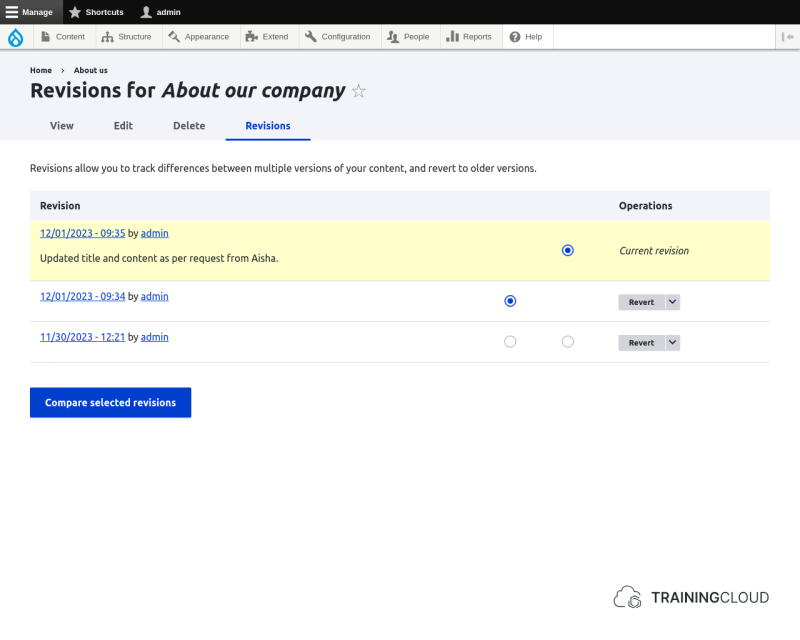
Here's what the comparing two revisions looks like:
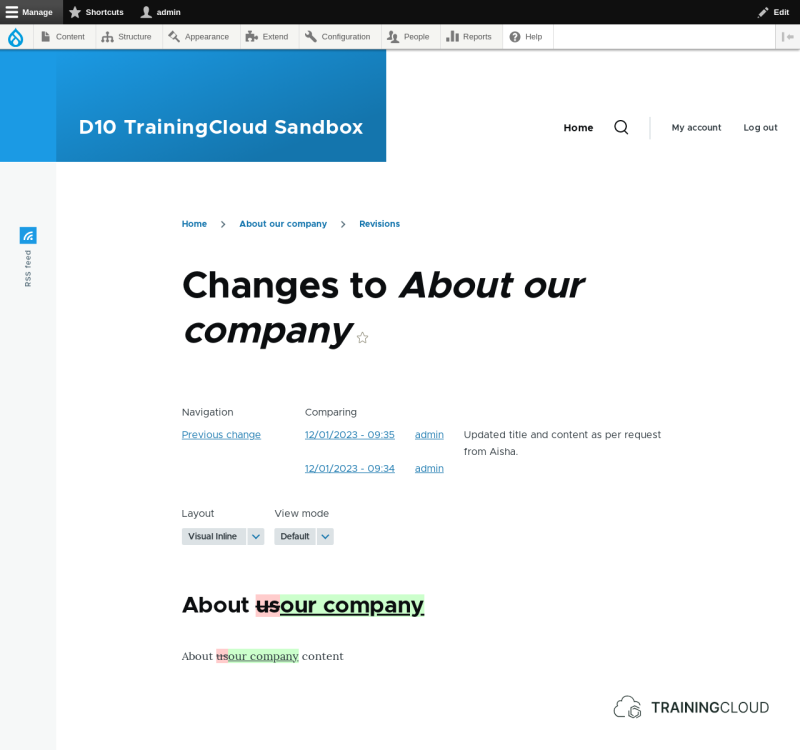
→ The 'Layout' selector lets you change the way the differences are visualised.
→ The 'View mode' selector lets you change the view modes you want to compare. View modes are an advanced topic, out of scope for this course.
You should choose the layout that you find most easy to work with - this preference changes from person to person.
Here's the same comparison as before, this time using the 'Split fields' layout:
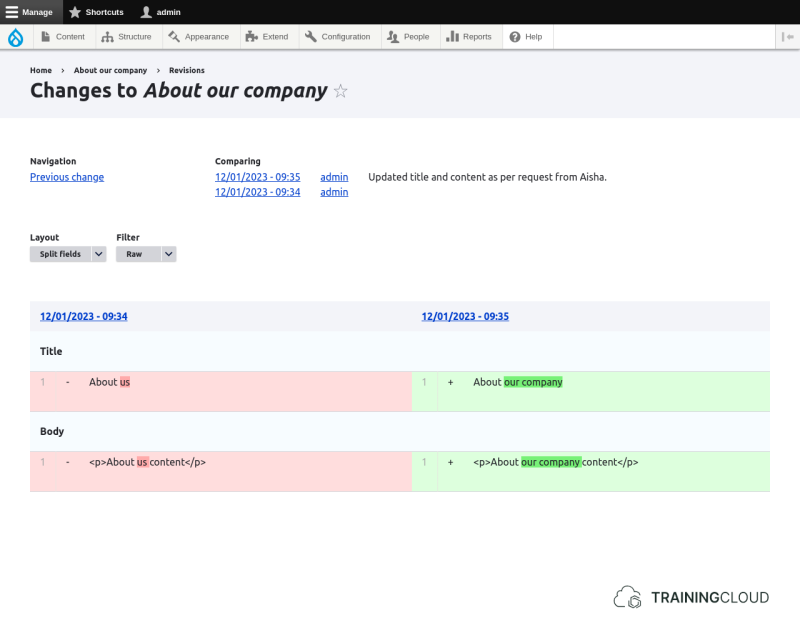
→ Notice the 'Filter' options, which let you see the comparison with HTML tags ('raw') or without the HTML tags ('Strip tags').
Activity 4
- Play around with the different Layouts and their options, and decide which comparison works best for you.
Activity 5
- Update an article and make changes to every field you can, including replacing the image.
- Do you think Drupal will be able to meaningfully compare all fields, including the image field?
- Use your preferred way to compare all the changes you made.
Summary
- You can see each node's revisions on their 'Revisions' tab.
- Reverting to an earlier revision creates a new revision identical to the revision you wanted to revert to.
- You can delete individual revisions, but probably shouldn't.
- Installing the Diff module adds the ability to compare revisions.