In this unit
- You will learn how and where to configure each Content Type.
- You will learn about a Content Type's basic properties and default settings.
Your available Content Types are listed at Manage > Structure > Content Types:
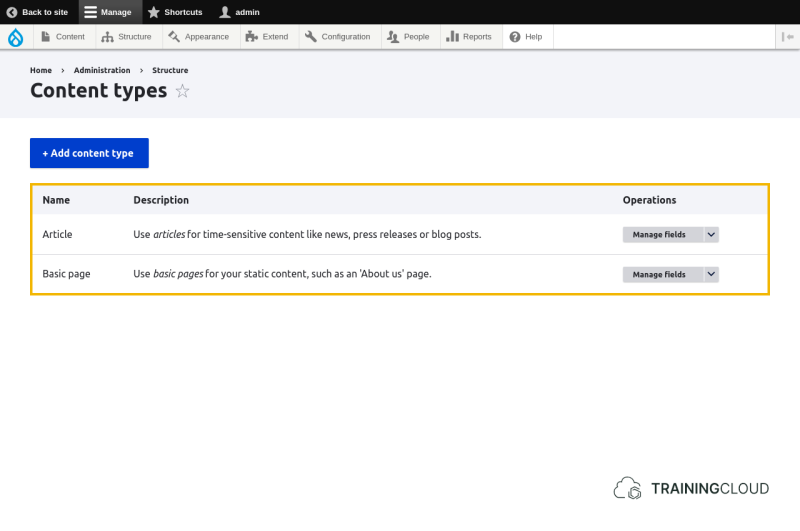
Clicking on 'Manage fields' or any of the other actions in the dropbutton brings you to the Content Type management page where you find the local task tabs:
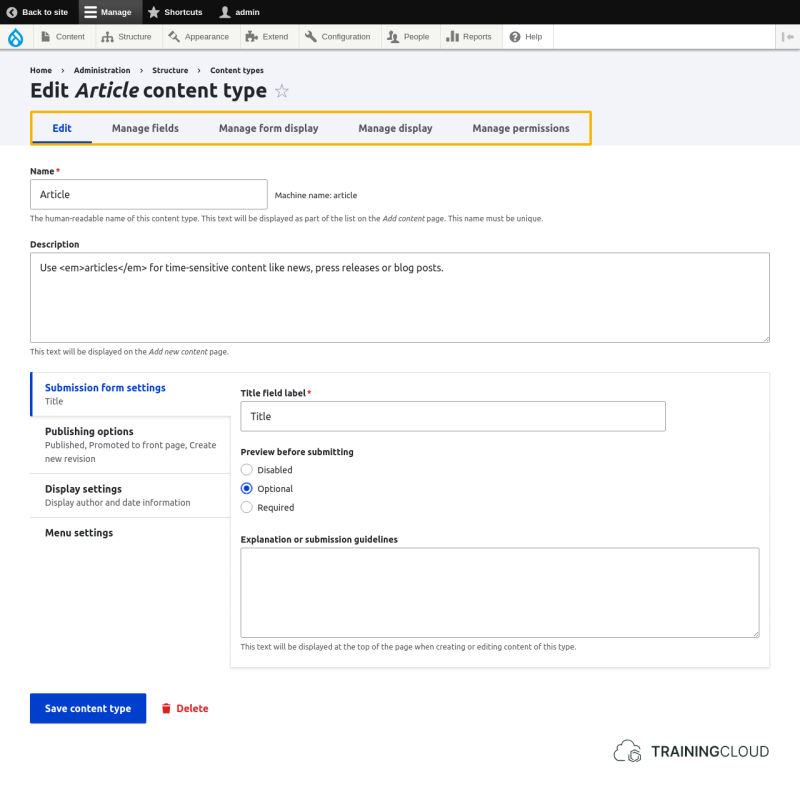
Lets you edit:
- The Content Type's basic settings such as its title and description, and whether to make previewing optional or mandatory (or hide it altogether).
- The Content Type's default settings for each node of that type, such as 'promoted to front page', publication status, and into which menus a user can place the node
Lets you add new fields to the Content Type, and modify the configuration of the existing fields.
Lets you define which fields are shown and hidden, in which order they are to be displayed, and which input widgets to present to the editor.
Lets you define which fields and labels are shown, and in which order they are to be displayed.
Activity 1
- Compare the basic settings of the Article and Basic Page Content Types.
- Identify the setting that makes Articles appear on the home page (but not Basic Pages)
- Identify the setting that makes "Submitted by [username] on [date]" appear on Articles (but not on Basic Pages).
- Identify the setting that ensure 'Create new revision' is always selected by default for each Content Type.
Activity 2
- Change the configuration of the Basic Page so Basic Pages appear on the home page after publication.
- This makes new Basic Pages appear on the home page. Does it retroactively make Basic Pages that already existed also appear on the home page?
- Restore the original Basic Page configuration so Basic Pages no longer appear on the homepage by default.
- Does this retroactively remove Basic Pages (that were already added to the home page) from the home page?
Activity 3
- Disable the preview functionality for Articles.
- Try it out and notice that the preview button on the node create form and node edit form for Articles has disappeared.
Working with Fields
At this point you probably expect to learn how to add fields to Content Types, how to configure the display properties of fields, and how to configure the data entry forms used to create or edit nodes.
All of this is discussed in the collection Working with Fields, where you will learn that you can add fields to Users and Blocks, as well as to Nodes, using the exact same process and user interface.
Since Content Types, Users, and Blocks all share the field management mechanism, Working with Fields gets its own dedicated collection.
Summary
- You can modify the configuration of each Content Type.
- You can modify basic properties and default settings of each Content Type.
- Changing the default settings of a Content Type only affects new nodes of that type. It does not retroactively change existing nodes of that type.