In this unit:
- you'll learn about block types and create your own content blocks.
So far you've only worked with blocks provided by modules. Now it's time to make some blocks of your own.
On the Block layout page at Manage > Structure > Block layout, you find two tabs:
- Block layout
- Custom block library
The custom block library
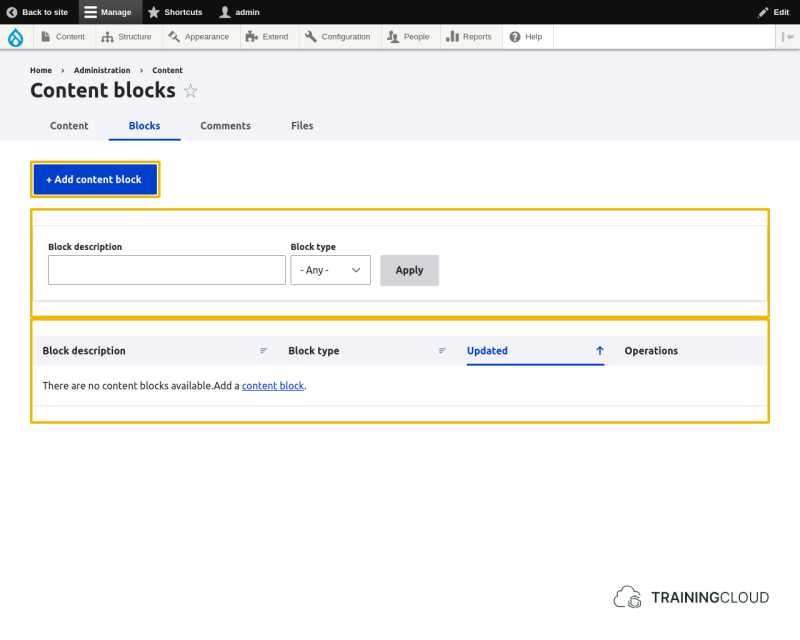
The custom block library contains all your content blocks, and lets you create new blocks via the Add content block button:
Activity 1
- Compare the Custom block library with your Content dashboard at Manage > Content.
- Note the similar layout
- Note the similar search and filter options
- Note the similar button to create new content / blocks
Activity 2
- Create a new content block titled 'Hello World'
- Return to the Block layout page and now add your new Hello World block to a theme region of your choice.
Hide hints
show hints
Activity 3
- Now you've created your first block, reflect on the similarities and differences between creating content and creating blocks.
Activity 4
- Compare the configuration options of your content block with the default configuration options all blocks share, as discussed in a previous section.
Hide hints
show hints
Content block types
On the Custom block library page (Manage > Structure > Block layout > Custom block library) you see a tab named Block types. You there is also a Block type filter with one option named 'Basic block'.
This all implies that different block types can exist. This is correct, but going into detail here is outside the scope of this course.
Summary
- You learned where and how to create content blocks.
- You learned that creating blocks is very similar to creating content
- You learned about the existence of Block Types.