In this unit
- You will learn where and how to configure blocks
- You will learn how to create multiple instances of the same block
- You will make blocks appear or disappear based on visibility settings
You can configure each block at Manage > Structure > Block library by clicking its 'Configure' button:
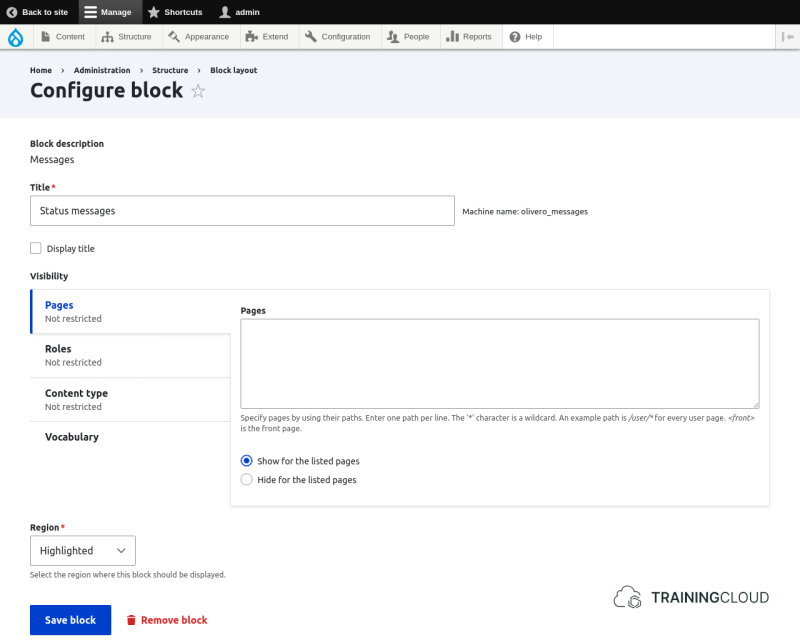
The above screenshot shows the configuration options of the 'Messages' block (which shows the green / yellow / red status messages you see sometimes).
This particular block is as basic as it gets, and only has the default block configuration every type of block has in common:
Block label (title) displayed to site visitors after you place the block in a region.
Visibility settings
Show this block only on pages that display content of the given type(s). If you don't select any content types, the block will be shown on all pages that meet your other display conditions regardless of content type.
Show this block only on specified pages, or exclude this block from specified pages.
Show this block only to users with the selected role(s). If you don't select any roles, the block will be visible to all users.
Set the block region where the block should appear on your site. You can also choose the region directly on the main Blocks administration page.
More complex blocks often have more configuration options, but they will always have at least the options shown above.
Activity 1
- Compare the configuration options of the following blocks, paying attention to the options they have in common, and the options that are specific per block type:
- Messages
- Site branding
- Main navigation
Activity 2
- Reconfigure the Site branding block in such a way that the site logo is no longer displayed on any page on the site.
Activity 3
- Reconfigure the Powered by Drupal block so it only shows for people who are logged in. Visitors who are not logged in should not see the block.
- TIP: open your sandbox site in a second, different browser. This will allow you to have one browser where you're logged in to the site, and one browser where you're not, allowing you to easily switch between both.
Activity 4
- Reconfigure the Who's online block so it is only displayed along nodes of the type Article. It should not be displayed on any other pages, including the home page.
Activity 5
- Place the Who's new block in the first sidebar and configure it so it is only displayed on the homepage.
- TIP: read the all the bits of help text you find on the block configuration page.
Activity 6
- Reconfigure the Who's new block so it shows on every page except the homepage.
Activity 7
- Leaving the Who's new block in the First sidbar, try to place another copy of that block in the Second sidebar, but configure it so its title is not shown.
if you performed this task correctly, you should see the Who's new block appear in both sidebars, once with a title, and once without a title.
Summary
- You can configure every block placed in a theme region
- All blocks share the same basic configuration options
- Each type of block can have additional configuration options
- You can place multiple instances of the same block in different regions
- Configuring one instance of a block does not impact other instances of that same block
- You can configure a block's visibility settings based on:
- User role(s)
- Page path(s)
- The type of content alongside which the block appears