In this unit
- You will learn how to place blocks in theme regions.
- You will learn different ways of moving blocks from one region to another.
- You will learn how to temporarily disable blocks.
You can place and configure blocks at Manage > Structure > Block Layout.
Depending on the theme selected via the theme selection tabs, you see a table with the theme's regions one below the other, with each region showing which blocks it currently holds:
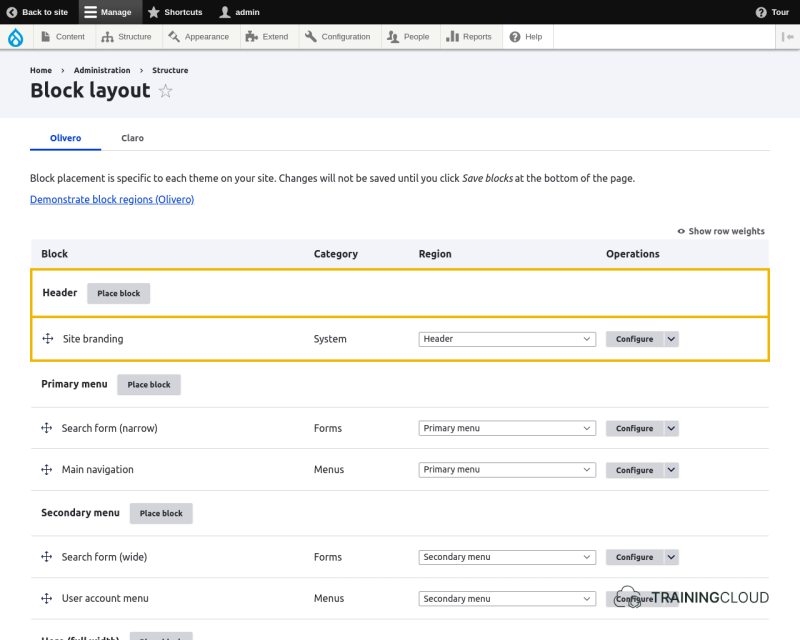
Placing blocks
You can place a block in a region by clicking the region's 'Place block' button and selecting one of the available blocks from the popup window that appears.
- You will then be asked to configure the chosen block.
- You don't need to change any configuration if you want to use the block's default configuration.
- We will discuss the block configuration options in detail in the next section.
Don't forget to click the Save button to complete the block placement process.
Activity 1
- Place the 'Powered by Drupal' block in the 'Sidebar' region.
- Use the block's default configuration options.
- Navigate to the home page to verify your block is being shown in the sidebar (right hand side of the screen).
Hide hints
show hints
Activity 2
- Place the 'Who's online' block in the 'Sidebar' region. Use the block's default configuration options.
Hide hints
show hints
Activity 3
- You have just placed 2 blocks in the sidebar. They are visible on the homepage but not on any of the administration pages like the Content Dashboard or the Block Layout page. Why is that?
Hide hints
show hints
Activity 4
- On the Block Layout page, change the order of the blocks in the sidebar, making sure the 'Who's online' block is shown first, followed by the 'Powered by Drupal' block.
- You can use the same drag-and-drop mechanism as the one you used to reorder menu items.
Hide hints
show hints
Activity 5
- On the Block Layout page there are two mechanisms to move blocks from one region to another.
- Use one mechanism to move the 'Powered by Drupal' block to the 'Social Bar' region.
- Use the other mechanism to move the 'Who's new' block to the 'Footer Top' region
Hide hints
show hints
Activity 6
- Your 'Powered by Drupal' block should now be placed in the sidebar. This block doesn't have a title.
- Configure the block in such a way that its title is shown as well
Hide hints
show hints
Activity 7
- Notice the 'Configure' button next to each block has a little arrow which, when clicked, shows additional actions you can perform.
- Disable the 'Who's online' block.
- What's the difference between removing a block and disabling it? The end result to visitors looks the same.
Summary
- You learned how to place blocks in regions and how to move blocks to different regions.
- You customised the configuration of one block
- You temporarily disabled one block while keeping its configuration intact.