In this unit
- you will learn how to edit menus
- you will learn how to add menu links to menus
- you will learn about the different components that make up a menu link
You can find an overview of the available menus at Manage > Structure > Menus.
Clicking any menu's 'Edit menu' button lets you manage that menu's links:
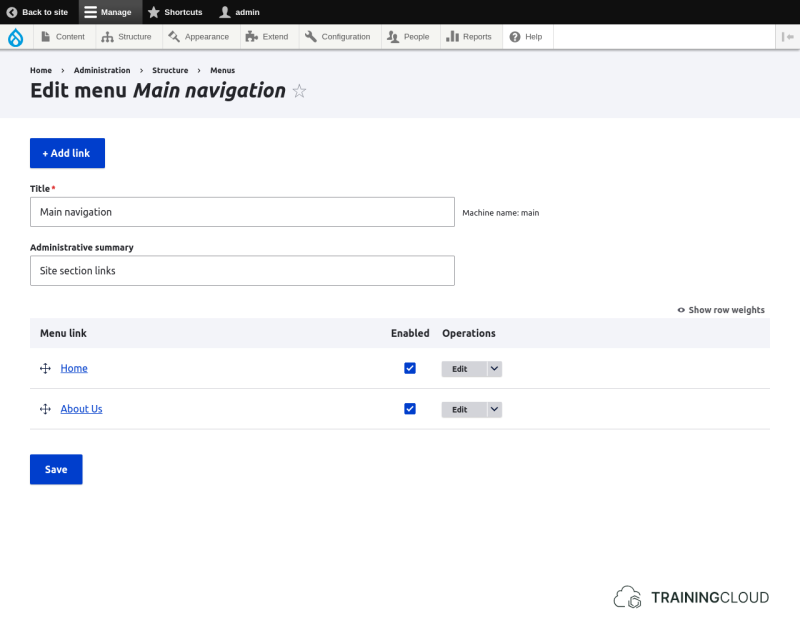
Creating / editing a menu link
Clicking any menu link's 'Edit' button leads to that link's configuration form:
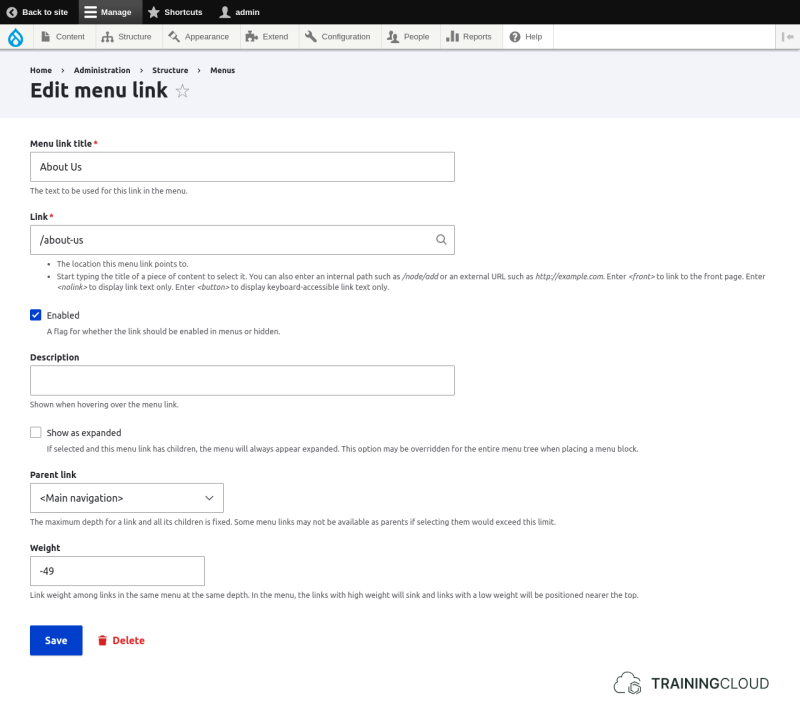
The menu link text that will be displayed ('About us')
- The page this link points to. The circle icon on the right side of the field indicates this is an autocomplete field. Start typing, and Drupal will offer a list of matching content items to link to.
- The value can be an internal link (autocompleted by Drupal), or external (if preceded by http:// or https://).
- The number between parentheses refers to the content item's internal id. This can help you differentiate between two items that happen to have the same title.
Indicates whether the link should be shown in menus or (temporarily) hidden.
Tooltip text that is shown when hovering with the mouse over the menu link.
- Indicates whether this menu link's child items (if any) should be shown as well.
- Expanded display may be overridden when this menu is shown in a block (which has its own specific display options).
- The way child items are displayed differs from theme to theme. Some themes don't display them at all, while others display them as fancy javascript-driven flyout menus.
- Indicates your menu item's place in the menu tree's hierarchy.
- This is an alternative interface to the drag and drop interface you find on the menu management level: dragging a menu item horizontally also lets you specify the item's place in the menu tree.
- Select
<Menu name>(e.g.<Main navigation>) to make your menu item a top level menu item without any parent items. - Or select
--Some page titleto make your menu item a child item of the 'Some page title' menu link
- This field lets you specify the display order of the menu item relative to other menu items on the same hierarchical level.
- This value is automatically set when you change the display order of all of a menu's links with the drag and drop interface.
- It's a good practice to leave this field untouched and use the drag and drop sorting mechanism. However, you can use this field if you're unable or unwilling to use the drag and drop mechanism.
Creating a menu link from within the content creation form
So far we've described how to add menu items to a menu via the menu management screens.
Drupal also lets you create menu links for content items via the 'Menu Settings' properties on the content creation/edit forms:
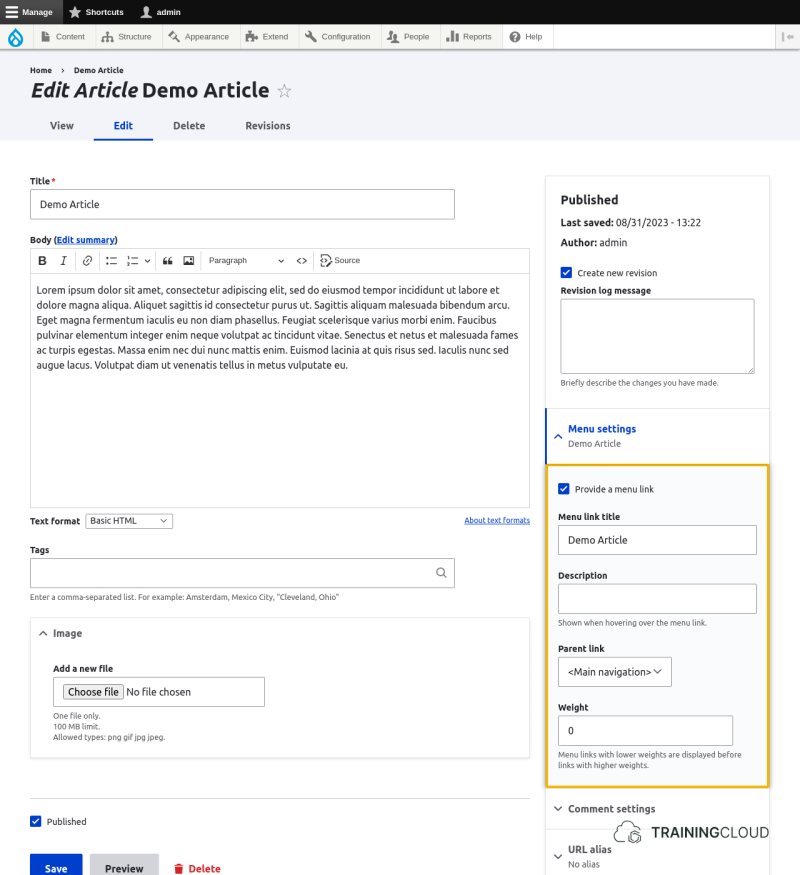
Whether you create a menu link via the menu management screens or via a content item's 'Menu Settings' properties, the end result is the same: a new menu link gets added to a menu.
You may use whichever method you prefer; there is no 'better' or 'most appropriate' choice. Some people prefer creating menu links while they are creating content, while others prefer to go into the menu management interface to create / edit / reorder their menu links.
Making (new) menus appear on your page
Every menu automatically has a corresponding menu block, available for you to assign to any of your site's theme regions Manage > Structure > Block layout.
→ See the course section "Working with Blocks and Theme Regions" to learn more about Blocks.
Activity 1
- Create a basic page titled 'About us'.
- Create a basic page titled 'Our services'.
- Create a basic page titled 'Training'.
- For each of these newly created pages, add a menu link to the 'Main navigation' menu via the menu management screens at Manage > structure > menus.
- Use the drag and drop arrows to ensure the following menu item order:
- Home
- About us
- Our services
- Training
- Navigate to the home page
→ If all went well, your 'Main navigation' menu should now contain three items ('Home', 'About us', Our services') in the specified order.
Activity 2
- Create a new content item titled 'Consulting'
- Via the content item's 'Menu Settings' options, create a menu link for the new content item, as a child item of 'Our services', and making it appear after 'Training' (not before!)
- Use the 'weight' field in the content item's 'Menu Settings' properties to indicate the order of appearance of 'Consulting' relative to 'Training'
→ If all went well, your 'Main navigation' menu now has the following structure:
- Home
- About us
- Our Services
- Training
- Consulting