Objectives & prerequisites
Learn how to set up a Drupal site inside a DDEV environment.
In this unit, you will:
- Set up a DDEV environment suitable for D10 projects.
- Use the command-line to fetch the latest Drupal source code.
- Use the command-line to perform the Drupal installation.
You should already be familiar with:
- Basic command-line operations.
- Setting up a DDEV environment
Familiarity with basic Composer commands is helpful but not required.
Overview
In this unit we'll cover the standard procedure to set up a Drupal site inside a DDEV environment:
- Create a DDEV environment of the type Drupal10.
- Fetch Drupal source code with Composer.
- Fetch Drush (a command-line utility) with Composer.
- Use Drush to perform the Drupal site installation.
- Visit the site to verify it was installed correctly.
Let's get to it.
Create a DDEV environment
We'll assume you keep all of your projects in ~/projects, so that's where you'll create your DDEV environments.
Step 0: Change into your projects directory
sarah@laptop: ~$ cd ~/projectsStep 1: Create new directory
sarah@laptop: ~/projects$ mkdir demoStep 2: Change into project directory
sarah@laptop: ~/projects$ cd demo
sarah@laptop: ~/projects/demo$
Step 3: Configure DDEV project
At this point you run the ddev config command to tell DDEV to initialize a new project and/or set some basic configuration options.
You can either run ddev config interactively and answer the questions you're being asked, or run the command without interaction and provide the answers as command-line options as one single command.
The result is the same, and you can change all of the options later on in the environment's .ddev/config.yml file.
Option 1: Non-interactive configuration
sarah@laptop: ~/projects/demo$ ddev config --project-type=drupal10 --docroot=web→ the above command instructs DDEV to set create a new environment ready for Drupal 10, and use or create a directory named web as the docroot.
Example:
sarah@laptop: ~/projects/demo$ ddev config --project-type=drupal10 --docroot=web

Creating a new DDEV project config in the current directory (/home/sarah/projects/demo)
Once completed, your configuration will be written to /home/sarah/projects/demo/.ddev/config.yaml

Configuring a 'drupal10' project with docroot 'web' at /home/sarah/projects/demo/web
Configuration complete. You may now run 'ddev start'.
Option 2: Interactive configuration
sarah@laptop: ~/projects/demo$ ddev config

Creating a new DDEV project config in the current directory (/home/sarah/projects/demo)
Once completed, your configuration will be written to /home/sarah/projects/demo/.ddev/config.yaml

Project name (demo): demo
The docroot is the directory from which your site is served.
This is a relative path from your project root at /home/sarah/projects/demo
You may leave this value blank if your site files are in the project root

Docroot Location (current directory): web

Project Type [backdrop, craftcms, django4, drupal10, drupal6, drupal7, drupal8, drupal9, laravel, magento, magento2, php, python, shopware6, silverstripe, typo3, wordpress] (php): drupal10
Configuration complete. You may now run 'ddev start'.
Go ahead and start the environment. For troubleshooting tips, refer to the unit on setting up DDEV environments.
Running Composer inside the web container
It's now time to create a new Drupal project and fetch the source code.
To do so you will need to use Composer, the package manager Drupal has been using since Drupal 8.
You must run Composer commands inside your web container, not on your host machine as the operating system, php version, and other factors are taken into account to decide which Composer packages can be installed. And your Host's environment is almost certainly going to be different from your web container environment.
For instance: if your DDEV environment uses PHP 8.3 and your host operating system uses php 7.4, trying to fetch Drupal 10 from your host OS will fail because Drupal 10 requires a PHP version higher than 7.4.
You have two options: tell DDEV to run your Composer command inside the web container, or enter into the web container yourself and run Composer there. The results are the same; the choice is yours.
Here are two different ways of running composer inside DDEV's web container:
Example 1: tell DDEV to run composer inside the web container
sarah@laptop: ~/projects/demo$ ddev composer --version→ the above command instructs ddev to run Composer inside the web container
Example 2: enter into the web container and run composer there
sarah@laptop: ~/projects/demo$ ddev ssh
sarah@demo-web: /var/www/html$ composer --version
Notice the new ddev ssh command, which lets you enter into the web container as if you were connecting to a remote server.
You can leave the web container again with the exit command:
sarah@demo-web: /var/www/html$ exit
sarah@laptop: ~/projects/demo$
Create Drupal 10 project using Composer
As recommended in the official Drupal documentation: to install Drupal 10 use the drupal/recommended-project Composer template. It ensures that Drupal's Core dependencies are the exact same version as the official Drupal release, and makes sure Composer places contributed modules and themes where Drupal expects them.
sarah@laptop: ~/projects/demo$ ddev composer create drupal/recommended-projectYou may be asked to confirm that you trust certain components to be installed:
Do you trust "drupal/core-project-message" to execute code and wish to enable it now?If so, choose "Yes" each time:
If everything went well, Drupal's source code and dependencies have all been downloaded, and DDEV has added its database credentials and other development-related settings at web/sites/default/settings.ddev.php.
At this point your Drupal 10 site is ready to be installed.
You can verify this by visiting your project's URL (use ddev status to find it), or use the ddev launch shortcut command.
You should be directed to Drupal's web-based installer:
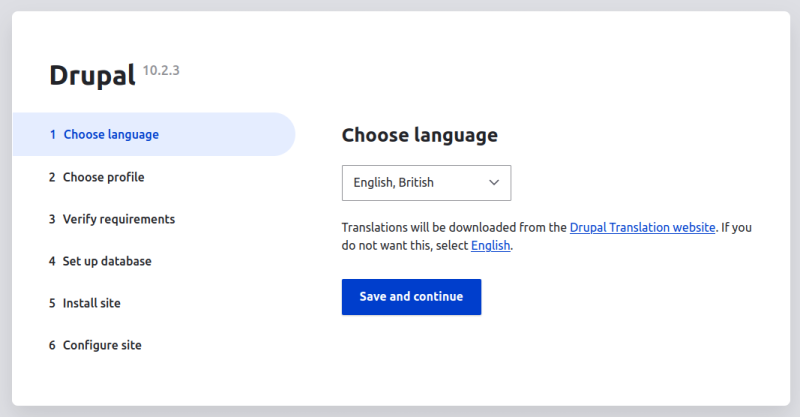
→ Don't do anything here. In this tutorial you're going to install Drupal using the command-line instead of the web installer.
Install Drush
To install Drupal via the command-line, you need to install Drush.
Drush is a command line utility for managing Drupal sites. It offers many useful commands and code generators, runs update.php, executes SQL queries, runs content migrations, and much more. Developers can easily extend Drush by defining custom Drush commands.
The following command installs Drush locally in your web container:
sarah@laptop: ~/projects/demo$ ddev composer require drush/drushHow to run Drush in your web container
From this point on you can run Drush either from outside the container or from within the container - similar to how you use composer.
Option 1: Tell DDEV to run Drush inside the web container
sarah@laptop: ~/projects/demo$ ddev drushOption 2: Enter into the web container and run Drush there
sarah@laptop: ~/projects/demo$ ddev ssh
sarah@demo-web: /var/www/html$ drush
Install Drupal using Drush
You can use the drush site:install command to install Drupal entirely from the command-line:
sarah@laptop: ~/projects/demo$ ddev drush site:install --account-name=admin --account-pass=admin -yThe above command installs Drupal, and sets both the username and password of user/1 (superuser) to "admin".
If you now navigate to your local project in your browser (or use ddev launch), you should see your Drupal site's home page.
You can log in with:
- username: admin
- password: admin
Alternatively you can use the drush uli command, which will generate a one-time login link so you don't even need to provide a username and password:
sarah@laptop: ~/projects/demo$ ddev drush uliYou should see output and a clickable link like this:
https://demo.ddev.site/user/reset/1/3108733959/o3A9DlwwGUSdRTQoXp3E1bLo-bCTjIPYeX2kXuZ8dAA/loginIf everything went well, you should now be logged in as user/1 on your new Drupal 10 site.
Demo
Activity 1
- Follow the procedure described in this unit to set up a new D10 site named demo2.
- Generate a one-time login link with Drush and use it to log in.
Use drush uli to generate a one-time login link.
Activity 2
- Use
ddev helpto find the right command to delete DDEV environments. - Delete the demo2 environment you just created.
- After deletion, inspect what's left in the demo2 directory.
Activity 3
What is the difference between running composer and ddev composer, and between running drush and ddev drush?
These commands must be run inside the web container. If you first enter into into the web container with ddev ssh, you can run the commands composer and drush directly.
If you don't want to enter into the web container, but want to stay in your Host OS's filesystem, you can tell DDEV to run the commands inside the web container for you, with ddev composer and ddev drush respectively.
Activity 4
You are setting up a DDEV environment for a new Drupal site. You run ddev drush from your Host OS and you see the following error message:
drush is not available What could be wrong?
You have not yet installed Drush inside your web container.
Activity 5
You try to use composer create drupal/recommended-project, but Composer says your PHP version does not match the minimum requirements.
However, running php --version inside your web container shows you have the right PHP version to install Drupal 10.
What could be wrong?
Are you running composer create [...] in the right place?
You are probably be running composer create [...] in your Host OS instead of inside your web container. As a result Composer checks if your Host OS has the right dependencies for a D10 installation.
What you really needed to do is run composer create [...] inside your web container, where Composer will make sure that the web container has all the right dependencies.
Either enter into the web container before running composer create, or stay in your Host OS and run ddev composer create [...]
Summary
- Use
composer createto set up the source code for a new Drupal site correctly. - Use Composer to install Drush, a command-line tool to manage Drupal sites.
- Use Drush to perform the Drupal site installation.
D10 inside DDEV step by step
mkdir demo
cd demo
ddev config --project-type=drupal10 --docroot=web
ddev start
ddev composer create drupal/recommended-project
ddev composer require drush/drush
ddev drush site:install --account-name=admin --account-pass=admin -y
ddev launch