Objectives & prerequisites
In this unit you'll learn how to create and restore logical and physical database backups with DDEV.
You will:
- Use the right DDEV commands to create and restore logical database backups.
- Use the right DDEV commands to create and restore physical database backups.
- Choose which type of backup to use.
- Basic command-line usage.
- Setting up a DDEV environment.
Overview
DDEV provides two sets of commands for working with backups:
ddev export-dbandddev import-dbddev snapshot
These commands are abstractions: you can use them regardless of which of the supported database types your project uses.
For example: when you run ddev export-db, behind the scenes DDEV will use either mysqldump, mariadb-dump, or pg_dump depending on which type of database you are using.
The DDEV commands export-db and import-db are used to create and restore logical backups - also called SQL dumps.
The snapshot command is used to create and restore physical backups - also called snapshots.
Logical backups
Logical backups are human-readable exports, typically of database structure and data. They're most often used to restore a backup onto a different server and support partial backups as well.
Logical backups are scripts that recreate database structure and import data.
Physical backups
Physical backups are complete copies of a database's binary files and contain all of the structure, data, and configuration. They're most often used to restore a backup to the same server when bad things have happened, and typically don't support partial backups (not taking into account incremental backups, which are outside of the scope of DDEV and this article)
Physical backups are mostly complete copies of a database itself.
→ To learn more, see our unit on logical and physical database backups.
Creating a SQL dump with export-db
Command
ddev export-db Usage
ddev export-db [project] [flags]The name of the project is optional if you're inside a ddev project directory.
Flags are optional
Interesting flags
--file--bzip2--gzip=[false|true]
Example: create a gzip-compressed backup archive
ddev export-db --file=db/backup123.sql.gz→ The above command creates the exported data as a gzip-compressed archive, also known as a zip file.
Example: create a bzip2-compressed backup archive
ddev export-db --file=db/backup123.sql.bz2 --bzip2→ The above command creates the exported data as a bzip2-compressed archive. Bzip2 compression is available on most systems and creates smaller archives than gzip.
Example: create a standard, non-compressed backup
ddev export-db --file=db/backup123.sql --gzip=false→ The above command creates the exported data as a plain-text SQL file.
Where to place backup files
From a technical point of view it doesn't really matter where you store your backups, as long as you store them outside of your docroot directory (the directory that contains your web application's public-facing code) and ensure you don't commit them to your git repository or other version control system.
Keeping the backups outside your docroot prevents them from accidentally being accessible via the web.
Preventing the backups from being added to your git repository is good for a number of reasons:
- it keeps the size of the repository under control (DB backups can become quite large)
- it prevents DB backups with confidential data from being accessible to developers who have access to the codebase but shouldn't have full access to the data.
To prevent backups from being added to git, you can:
- Store them outside your environment directory.
- Store them inside your project directory, but add that directory to your
.gitignorefile to ensure git ignores it and all of its contents.
We typically store our database dumps in a folder named db inside the DDEV environment directory but outside the docroot:
myproject/
├── .ddev/
├── db/          <--  backups
├── docs/
├── web/         <--  docroot
└── .gitignore   <--  .gitignore file
Importing a SQL dump with import-db
Command
ddev import-dbUsage
ddev import-db [project] [flags]The name of the project is optional if you're inside a DDEV project directory. Flags are optional
Interesting flags
--file--database
Example: import an uncompressed SQL dump
ddev import-db --file=db/backup123.sqlExample: import a zipped SQL dump
ddev import-db --file=db/backup123.sql.gzExample: import SQL dump into a different database than the default one
ddev import-db --database=my_other_database --file=db/backup123.sql.gz Creating a database snapshot
DDEV's snapshot command creates a database snapshot, a physical database backup, and stores it in your environment's .ddev/db_snapshots directory.
Command
ddev snapshotUsage
ddev snapshot [projectname projectname...] [flags]If you run this command from inside your environment directory, you don't need to provide a project name; otherwise you do need to do so, to avoid DDEV from being confused about which database it is you want to snapshot.
Interesting flags
--all--list--name
Example: create a snapshot
ddev snapshot→ a snapshot with the name of the format PROJECTNAME_TIMESTAMP will be created in your environment's .ddev/db_backups directory.
If your project name is demo, a snapshot created on Jan 28th 2024 would be named demo_202401281236.
Example: create a snapshot with a custom name
ddev snapshot --name=my_snapshot_3Example: create snapshots of all of your environments
ddev snapshot --allExample: list all of the current environment's snapshots
ddev snapshot --listRestoring a database snapshot
Command
ddev snapshot restoreUsage
ddev snapshot restore [snapshot_name] [flags]Interesting flags
--latest
Example: restore and choose among available snapshots
ddev snapshot restoreExample: restore a specific snapshot
ddev snapshot restore my_demo_3Example: restore the latest snapshot
ddev snapshot restore --latestManaging snapshots
All snapshots are automatically saved to your environment's .ddev/db_backups directory. You can manually remove snapshots you no longer need, or remove all of them with ddev snapshot --cleanup.
Should I use SQL dumps or snapshots?
If the purpose of creating a backup is to recreate the database structure and its contents on a different machine - your colleague's laptop, a production server, ... you should create a SQL dump.
If your purpose is to create a backup for safety reasons while you're developing so you can recover from something that may go wrong (a bad update, a bad data sync, ...), both SQL dumps and snapshots are a good option.
ddev snapshot is often the most practical, since creating and restoring snapshots is generally more performant than importing/exporting SQL dumps. You also don't need to specify a filename or location, and can rely on the commands ddev snapshot and ddev snapshot restore --latest.
Where can I find the database connection details?
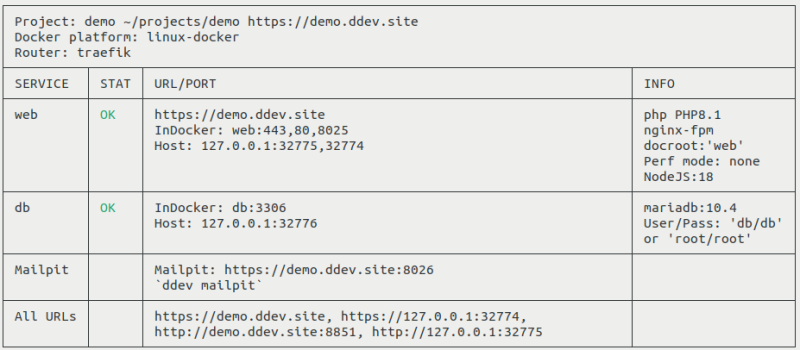
If you want to use alternative database management applications or custom code to connect to your database, you can get the db connection info using ddev status.
The ddev status command shows (among other things) your database's hostname, port, and two sets of username/password credentials: db/db (standard credentials to be used by your application) and root/root (superuser credentials meant for you to perform administrative tasks).
Example:
Summary
ddev import-dbandddev export-dbcreate logical database backups, most suited for exporting a DB on one machine and importing it into another.ddev snapshotcreates physical database backups, most suited for restoring an earlier backup into the same database.ddev import-dbandddev export-dbare more flexible but less performant thanddev snapshot.ddev snapshottends to be quicker to use as there's less to type and the command is more performant.- Store your SQL dumps outside of your web application's docroot for security reasons and ensure backup files are ignored by your version control system.
- DDEV stores your snapshots in each environment's
.ddev/db_backupsdirectory.