Objectives & prerequisites
In this unit you will use drush to:
- Display your Drush version.
- Display all available Drush commands.
- Display more information about any Drush command
- Display Drush output in different formats
- Basic command-line usage.
Displaying your Drush version
As with most command-line tools, you can use Drush with the --version option to see which version you have installed:
sarah@demo-web: /var/www/html$ drush --version
Drush Commandline Tool 12.4.3.0
Listing all available Drush commands
Which Drush commands you have available depends on which version of Drush you are using and which additional Drupal modules (that provide Drush commands) are installed.
You can list all available commands, grouped by topic / namespace, by running drush list. However, since list is the default command when no other command is specified, you can also leave it out and just run drush. Both have the same result:
sarah@demo-web: /var/www/html$ drush listor
sarah@demo-web: /var/www/html$ drush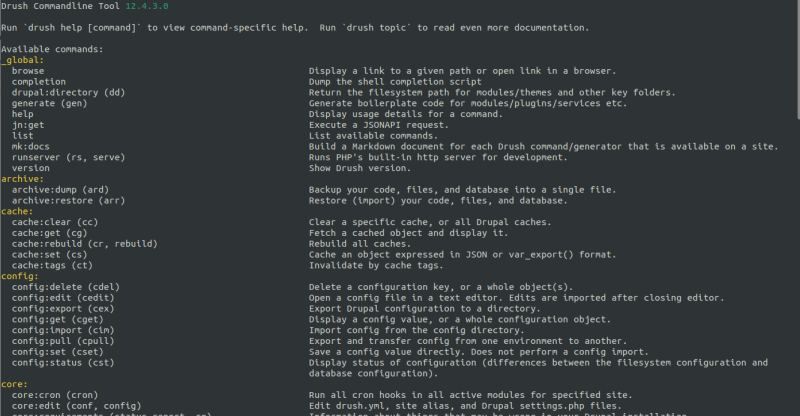
→ Partial output of the drush list command.
All the available Drush commands are grouped by namespace, and show:
- The full command name (e.g.
cache:rebuild). - The command alias(es) if available (e.g.
rebuildandcr). - A short Description.
Listing commands by namespace
Use drush --filter=[namespace] to show only the commands for the given namespace.
Example
drush --filter=cache
Displaying more information about a command
Use drush help [command] to see a command's full description and available options.
Example 1
drush help cache:rebuild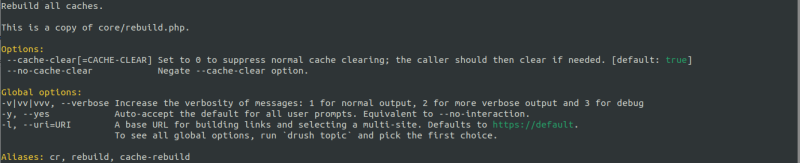
Example 2
drush help user:login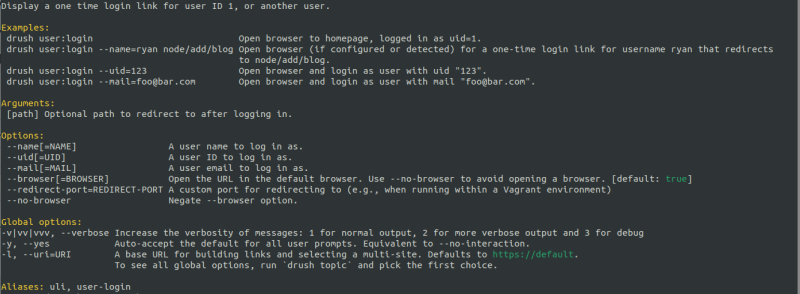
Activity
Run drush help user:login and read the help information.
- What does this command do?
- When could the
user:logincommand be useful?
- Show usage information for the
drush helpcommand. - Scenarios:
- You have forgotten your password.
- You have forgotten another user's password.
- You want to log in as another user without knowing that user's password and without resetting the password.
Activity
Which command would you run to generate a login link for a user with id 42?
drush user:login --uid=42
Displaying Drush output in different formats
Human-readable vs Machine-readable
By default Drush displays information in a human-readable format.
While easy to read for humans, this unstructured format makes it hard to use in automation scripts where you may want to retrieve certain bits of information and act upon them.
For instance, you might want to write a script that:
- lists all views
- checks if a certain view is present
- If present but disabled: enable it.
- If not present: require a specific module with composer, install it with
drush, and enable the view.
Without having access to the list of views in a structured format, you would have to perform messy text search operations to find the information you're looking for.
If the output is in a structured format, it becomes much less complex to automate the retrieval of the information you need.
However, machine-readable output is not always human-readable, and that's OK because it's meant to be consumed and processed by machines (scripts, custom Drupal modules, deployment systems, ...) instead of humans.
Consider, for instance, how the output for drush --format=json is not ideal for human consumption:
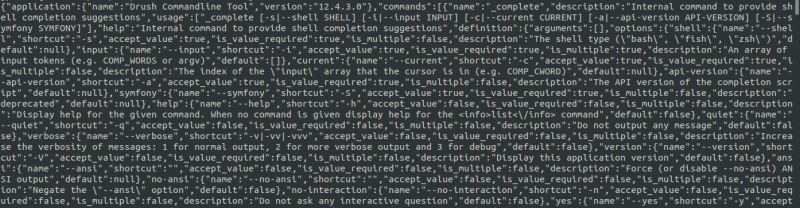
Available formats
The most common machine-readable formats are:
Apart from the default human-readable format and the JSON format, the available output formats vary for each command.
Use drush help [command] to find out which types of output the command supports.
Example: Show available output types
drush help views:list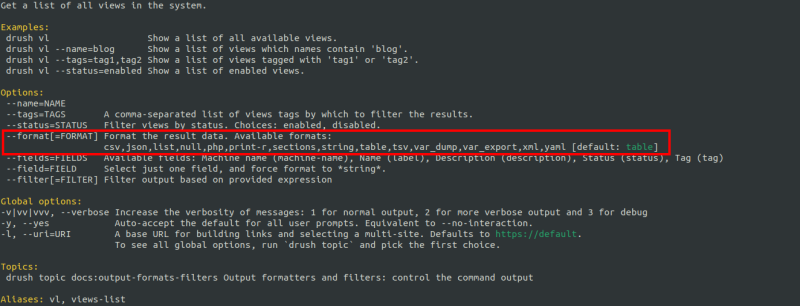
Example: list all Views (default output)
drush views:list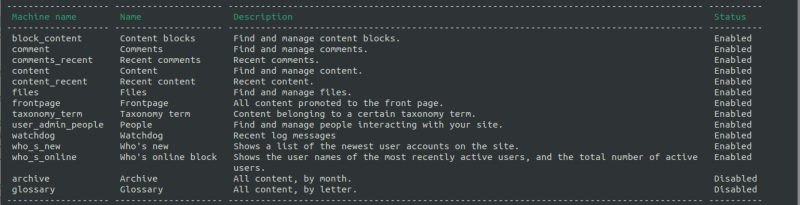
Example: list all Views (JSON output)
drush views:list --format=json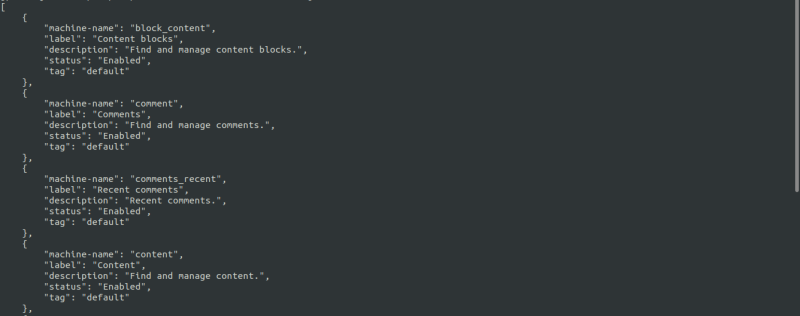
Example: list all Views (CSV output)
drush views:list --format=csv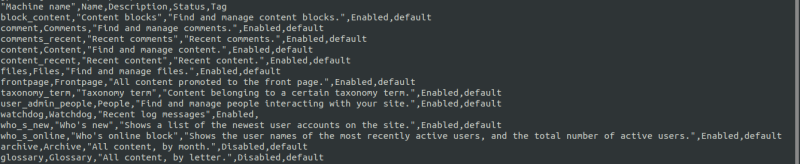
Example: list all Views (XML output)
drush views:list --format=xml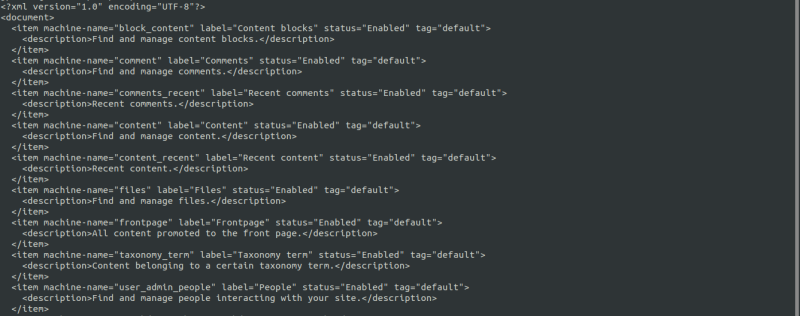
Activity
- Find out which Drush command to use to list all installed modules and themes.
- Find out which option to use to only list the installed themes.
- Combine both and generate a human-readable list of all the installed themes.
- use
drush --listto see all available commands - use
drush help [command]to see that command's usage information
drush pm:list--type=themedrush pm:list --type=theme
Activity
Find out which formatting options are available for the pm:list command, and run the command from the previous activity (drush pm:list --type=theme) with each of the available formatting options to compare the difference.
drush pm:list --format=jsondrush pm:list --format=xml- ...
Summary
- Use
drush --versionto display which version you have installed. - Use
drushordrush listto display all available commands. - Use
drush --filter=[namespace]to display available commands for the given namespace. - Use
drush help [command]to display a command's usage including formatting options. - The default human-readable and JSON formats are available for each Drush command.
- Use the
--formatoption to specify a format.