Objectives & prerequisites
- Create or update a user with Drush
- Display information about a user with Drush
- Generate a one-time login link with Drush
- Reset a user’s password with Drush
- Block or unblock a user with Drush
- Assign and remove roles with Drush
- List, create, and delete roles with Drush
- Basic command-line usage
Introduction
As the administrator of a live website, you'll often need to create users, reset passwords, log in as a different user, and block certain users.
While you can do all of those things via the web interface, using Drush is often faster and allows for automated actions as well.
Creating users with Drush
Use user:create to create a new user.
Example
drush user:create aisha

[success] Created a new user with uid 2
--------- ----------- ----------- --------------- -------------
 User ID   User name   User mail   User roles      User status
--------- ----------- ----------- --------------- -------------
 2         aisha                   authenticated   1
--------- ----------- ----------- --------------- -------------
You can provide more user information as well:
Example
drush user:create takagi --mail=takagi@example.com --password="Red Castle"

[success] Created a new user with uid 3
--------- ----------- -------------------- --------------- -------------
 User ID   User name   User mail            User roles      User status
--------- ----------- -------------------- --------------- -------------
 3         takagi      takagi@example.com   authenticated   1
--------- ----------- -------------------- --------------- -------------
Activity
Use the help command to learn more about all the command-line options you can use with the user:create command.
Activity
Create 5 users. Be sure to use the example.com domain name when you specify their email address, as that domain name is safe to use for documentation and illustration.
To learn more about example.com:
Displaying user information with Drush
Use drush user:information to display basic user information.
Example:show user by username
drush user:information takagi
--------- ----------- -------------------- --------------- -------------
 User ID   User name   User mail            User roles      User status
--------- ----------- -------------------- --------------- -------------
 3         takagi      takagi@example.com   authenticated   1
--------- ----------- -------------------- --------------- -------------
Example:show multiple users
drush user:information admin, takagi
--------- ----------- -------------------- --------------- -------------
 User ID   User name   User mail            User roles      User status
--------- ----------- -------------------- --------------- -------------
 1         admin       admin@example.com    authenticated   1
                                            administrator
 3         takagi      takagi@example.com   authenticated   1
--------- ----------- -------------------- --------------- -------------
Example: show user by email address
drush user:information --mail=takagi@example.com
--------- ----------- -------------------- --------------- -------------
 User ID   User name   User mail            User roles      User status
--------- ----------- -------------------- --------------- -------------
 3         takagi      takagi@example.com   authenticated   1
--------- ----------- -------------------- --------------- -------------
Example: show user by id
drush user:information --uid=3
--------- ----------- -------------------- --------------- -------------
 User ID   User name   User mail            User roles      User status
--------- ----------- -------------------- --------------- -------------
 3         takagi      takagi@example.com   authenticated   1
--------- ----------- -------------------- --------------- -------------
Generating one-time login links with Drush
When users forget their password, they can request a one-time login link that logs them in and gives them the option to change their password.
You can use user:login to generate such links from the command-line.
As an administrator this lets you generate these links for users who have trouble receiving the link by email.
It's also a handy way to log in to a system as a different user than your own user account, without knowing or changing that user's password. Of course only administrators with command-line access to the local or remote hosting environment can run Drush commands.
Example: generate login link for user/1
drush user:login

https://demo.ddev.site/user/reset/1/1710424895/7B7K06ehcjbEoA-j1BrQyY_KnPk75QhyZ4dgIbtBfLw/login
Example: generate login link for user by name
drush user:login --name=takagiExample: generate login link for user by email address
drush user:login --mail=takagi@example.comExample: generate login link for user by user id
drush user:login --uid=3Activity
- Create a one-time login link for one of the users you created.
- Use the link to log in.
- Log out.
- Try to use the same login link again.
- Are you sure you only tried to follow the generated link once?
- Are you currently logged out of the site you're trying to log into? You can't log in as a different user if you're already logged in.
Resetting user passwords with Drush
Instead of logging in to Drupal and resetting passwords, you can use drush user:password to reset any user's password.
Example
drush user:password takagi "Nakatomi1988"Blocking and unblocking users
Administrators can block users, or they can get blocked if they attempt to log in too rapidly too many times.
You can block and unblock users from the command-line with the user:block and user:unblock commands.
Example: blocking a user by name
drush user:block takagi
[success] Blocked user(s): takagi
Example: blocking a user by id
drush user:block --uid=3
[success] Blocked user(s): takagi
Example: unblocking a user by email
drush user:unblock --mail=takagi@example.com
[success] Unblocked user(s): takagi
Activity
- Learn more about the command-line options for user:block and user:unblock.
- Compare the options
--delete-contentand--reassign-contentwith the "Registration and cancellation options" you find at Administration > Configuration > People > Account settings.
Activity
Which other commands are available in the "user" namespace?
Assign and remove roles with Drush
Use user:role:add to assign a role to one or more users.
Use user:role:remove to remove a role from one or more users.
Example: a role to one user
user:role:add 'administrator' aishaExample: a role to multiple users
user:role:add 'editor' aisha,takagiExample: a role to multiple users by id
user:role:add 'editor' --uid=3,4,7,42Example: remove a role from multiple users by email address
user:role:remove 'supervisor' --mail=aisha@example.com,takagi@example.comListing roles with Drush
Use role:list to display all the roles that match the criteria.
The --filter option lets you filter on roles that only contain a certain permission, or have a certain role id (rid) or label.
Example: list all roles
drush role:list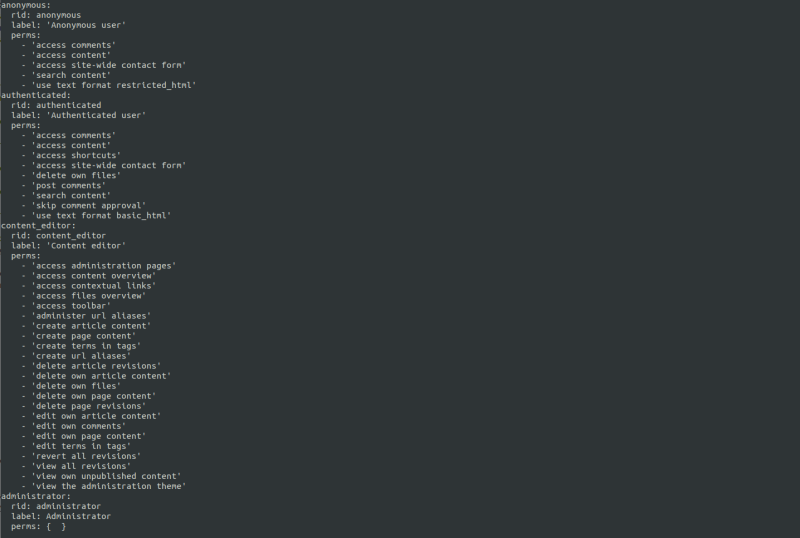
Example: show role by role id
drush role:list --filter="rid=content_editor"Example: show role by label
drush role:list --filter="label=Content editor"Example: show roles by permission
drush role:list --filter="access administration pages"Activity
You use the following command:
drush role:list --filter="Access content"but the result is:
{ }What could be the reason you get an empty result?
- There could be a spelling mistake in the permission. Remember that the Linux command-line is case sensitive!
- There are no roles that contain the given permission.
Creating and deleting roles with Drush
Use role:create to create roles.
Use role:delete to delete roles.
Example
drush role:create basic_editor
[success] Created "basic_editor"
Let's check what the role looks like:
drush role:list --filter="rid=basic_editor"
Example
drush role:create advanced_editor "Advanced editor"drush role:list --filter="rid=advanced_editor"
Activity
What is the difference in outcome between:
drush role:create basic_editordrush role:create advanced_editor "Advanced editor"
- If you only provide a role id, the new role's label will also be set to the role id, but with an uppercase.
- If you provide the label as well, that label will be used as provided.
Activity
Find out which other commands are available in the role namespace.
Summary
- Use
user:createto create users. - Use
user:informationto list users and their info. - Use
user:loginto create one-time login links. - Use
user:passwordto reset a user's password. - Use
user:blockto block users. - Use
user:unblockto unblock users. - Use
user:role:addto assign roles to users. - Use
user:role:removeto remove a role from users. - Use
role:listto list roles. - Use
role:createto create roles. - Use
role:deleteto delete roles.