Objectives & prerequisites
- Install or uninstall modules and themes with Drush
- Install or reinstall a site with Drush
- Create or import database dumps with Drush
- Run scheduled tasks (cron) with Drush
- Run database updates with Drush
- Clear or rebuild caches with Drush
- Basic command-line usage.
- Basic Composer usage.
Installing / uninstalling modules or themes
Once you have downloaded modules or themes with Composer, you need to tell Drupal to install them.
You can do this via Drupal's administration interface, or via drush pm:enable.
Example
sarah@demo-web: /var/www/html$ composer require drupal/some_module
[...]
Using version ^1.1 for drupal/some_module
sarah@demo-web: /var/www/html$ drush pm:enable some_module
[success] Successfully enabled: some_moduleActivity
Find out which other commands are available in the "pm" namespace, and what they do.
pm:enable: install a modulepm:uninstall: uninstall a modulepm:list: list all available modules and themes
Activity
It looks like there are no commands in the "pm" namespace to install / uninstall themes. Is there a different namespace that contains useful commands for this?
The "theme" namespace contains commands for installing and uninstalling themes:
theme:enable: install a themetheme:uninstall: uninstall a theme
Activity
What is the difference between:
pm:enableandpm:installtheme:enableandtheme:install
pm:installis an alias ofpm:enable. They refer to the same command.theme:installis an alias oftheme:enable. They refer to the same command.
Installing / reinstalling Drupal
Installing a site
Once you have set up a local development environment and Drupal and Composer are present, it's time for the initial Drupal installation.
Drupal sites are typically installed via the web installer, but in this unit you'll learn how to perform unattended (re)installations with Drush - installations that don't require human interaction to complete.
Use the drush site:install command to install Drupal from the command-line.
Example
sarah@demo-web: /var/www/html$ drush site:install --account-name=admin --account-pass=admin -yThe above command installs Drupal, and sets both the username and password of the superuser account (user/1) to "admin". The -y option tells Drush to assume "yes" on all questions.
If you didn't specify an admin password, one is automatically created during the installation process:
[notice] Starting Drupal installation. This takes a while.
[notice] Performed install task: install_select_language
[notice] Performed install task: install_select_profile
[notice] Performed install task: install_load_profile
[notice] Performed install task: install_verify_requirements
[notice] Performed install task: install_verify_database_ready
[notice] Performed install task: install_base_system
[notice] Performed install task: install_bootstrap_full
[notice] Performed install task: install_profile_modules
[notice] Performed install task: install_profile_themes
[notice] Performed install task: install_install_profile
[notice] Performed install task: install_configure_form
[notice] Performed install task: install_finished

[success] Installation complete.  User name: admin  User password: pFtuGfrfBt
If you're coming back to a local site you installed earlier and can't remember the password for user/1, you can always generate a one-time login link with drush user:login:
sarah@demo-web: /var/www/html$ drush user:login
https://demo.ddev.site/user/reset/1/1710567082/NTvVQb4Z--W2iEWMP6Ba0xjKOLd0ogvNEnjKmNg7TT4/login
Reinstalling a site
Use site:install to install or reinstall a site.
The site:install command drops (removes) all tables in the target database before (re)creating them and populating them with data, so reinstalling a site is exactly the same thing as installing a new site.
Activity
Learn more about the site:install command and its available options.
You already know you can pass the --account-name and --account-password options. Which other options could be interesting when setting up a new site?
Creating database dumps
When working with databases, you can take physical or logical database backups.
Physical backups, also called snapshots, are copies of the actual binary data files used by the database management system. There is no Drush command to create database snapshots (but there is a DDEV command for this).
Logical backups, also called (SQL) dumps, are text files that typically contain:
- code to (re)create table definitions
- code to insert data into the (re)created tables
- the data that needs to be inserted
The Drush command to create database dumps is sql:dump.
By default this command sends the entire dump to your terminal window. This isn't very useful, so you probably want to make sure the dump is saved as a file instead. There are a few ways to do this. Both methods are equivalent; the differences are mostly a matter of personal preference:
Redirecting dump output to a new file
Use sql:dump > path/to/dump.sql to create a database dump at the specified location.
→ The above example sends the result of sql:dump to the specified file.
The > character is called the output redirection operator, and is used to send a program's output elsewhere.
See https://www.redhat.com/sysadmin/redirect-operators-bash for more information about redirect operators.
Example
sarah@demo-web: /var/www/html$ drush sql:dump > db/dump.sqlLetting Drush create the dump file
Use drush sql:dump --result-file=path/to/dump.sql to create a database dump at the specified location.
Example
sarah@demo-web: /var/www/html$ drush sql:dump --result-file=db/dump.sqlThe above command saves the dump file to /var/www/html/db/dump.sql.
Activity
You are currently located in /var/www/html/web, your Drupal root directory.
You want to create a database dump located in a folder named "backups":
demo/
├── .ddev/
└── backups/
└── web/
What is the exact command you would use to do this?
With output redirection
sarah@demo-web: /var/www/html/web$ drush sql:dump > ../backups/dump.sqlAlternatively, you change directory first, and then run the command:
cd ..
sarah@demo-web: /var/www/html$ drush sql:dump > backups/dump.sql
Or even:
cd ../backups
sarah@demo-web: /var/www/html$ drush sql:dump > dump.sql
With the --result-file option
sarah@demo-web: /var/www/html/web$ drush sql:dump --result-file=../backups/dump.sqlAlternatively:
cd ..
sarah@demo-web: /var/www/html$ drush sql:dump --result-file=backups/dump.sql
Or:
cd ../backups
sarah@demo-web: /var/www/html$ drush sql:dump --result-file=dump.sqlImporting database dumps
The sql:cli command lets you execute SQL queries directly on Drupal's database.
You can specify a query right there on the command line, or you can use a file that contains one or more commands... which is exactly what an SQL dump file is.
Remember: an SQL dump file is a text file that typically contains:
- SQL queries to (re)create table definitions
- SQL queries to insert data into the (re)created tables
- The data that needs to be inserted
Example
sarah@demo-web: /var/www/html$ drush sql:cli < db/dump.sql→ The above command sends the dump file to the sql:cli command, which executes the SQL queries found in the file.
The < character is called the input redirection operator, and is used to send a file to a program that expects to receive input.
See https://www.redhat.com/sysadmin/redirect-operators-bash for more information about redirect operators.
Activity
- Create a database dump of your Drupal site.
- Change the name of your site at Administration > Configuration > System > Basic site settings.
- Import the database dump.
- Reload your site's homepage.
The old site name should be restored.
- Did you import the correct dump?
- Did you clear the caches after importing the dump?
Naming database dumps
It's a good idea to routinely create database dumps: you never know when you'll make a mistake and potentially lose a lot of work.
If you start creating multiple backups, you want to give them unique names to make sure you don't always overwrite the same dump file.
Consider using some of the following elements when choosing a filename for your dump:
- project name
- reason for dump
- timestamp (date and time)
At TrainingCloud we typically use the following pattern: YYYY-MM-DD_HHMM_project_name:
- YYYY: year (2024)
- MM: month (02)
- DD: day (07)
- HH: hour (14)
- MM: minute (39)
Example
2024-02-07_1439_myblog.sqlUltimately the exact pattern doesn't really matter, as long as it's unique and describes for which project and when and why it was taken.
This takes a bit more effort than using names like dump1.sql and dump2.sql, but you'll thank yourself later when you have a directory full of dump files and you're not sure which one you need...
Running scheduled tasks (cron)
Cron jobs are tasks on Unix-like operating systems, scheduled to run automatically at specified dates, times, or intervals. They are similar to Scheduled Tasks on Windows systems.
Drupal will "run cron" every 3 hours by default.
You can run the job manually or change the cron settings at Administration > Configuration > System > Cron.
Drupal core and contributed modules can (and do) define their own cron jobs, all of which are executed when "cron is run".
Using Drush to run cron
Use drush core:cron, or the shorter drush cron alias to run cron from the command-line.
Running database updates
Whenever you update Drupal core or contributed modules, it might be necessary to "run database updates", which over the years has come to mean:
- updates that change the database schema (new tables, new columns, changed column types, ...)
- updates that change data in the database
- updates that perform other one-time tasks necessary for the newer modules to work correctly.
Database updates are can be run by navigating to update.php, or via drush updatedb / drush updb:
sarah@demo-web: /var/www/html$ drush updatedb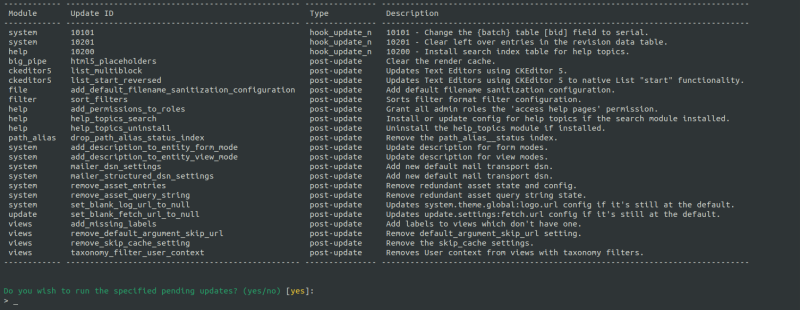
Important
You should always check for (and run) database updates after updating Drupal core or contributed modules. Failing to do so may make the site insecure and/or unstable.
Clearing or rebuild caches
While you're developing a site or after you've updated Drupal core or contributed modules, you often need to clear one or more of Drupal's caches.
Drush offers two commands:
cache:clearcache:rebuild
Drush cache:clear
Use drush cache:clear to select a cache to clear.
Example
sarah@demo-web: /var/www/html$ drush cache:clear
Choose a cache to clear [render]:
 [0] drush
 [1] theme-registry
 [2] router
 [3] css-js
 [4] render
 [5] plugin
 [6] bin
 [7] container
 [8] views
> _
Drush cache:clear [cache_type]
Use cache:clear [cache_type] to clear a specific cache without being asked which one.
Example
sarah@demo-web: /var/www/html$ drush cache:clear css-js
[success] 'css-js' cache was cleared.
Drush cache:rebuild
To clear all caches together, use drush cache:rebuild.
Rebuilding the cache is recommended instead of clearing each cache separately because of the sometimes tricky cache-interdependency issues that can arise. However, rebuilding the cache takes longer than clearing a single cache.
General advice: always use cache:rebuild unless you really only want to clear one specific cache.
Example
sarah@demo-web: /var/www/html$ drush cache:rebuild
[success] Cache rebuild complete.
Activity
Describe the difference between cache:clear and cache:rebuild.
cache:clear requires you to clear each cache separately; clearing a cache is faster than rebuilding all the caches.
cache:rebuild clears all caches at the same time and avoids problems related to cache-interdependency.
Activity
Describe the difference between the following two commands.
sarah@demo-web: /var/www/html/web$ drush sql:dump > ../backups/dump.sqlsarah@demo-web: /var/www/html/web$ drush sql:dump --result-file=../backups/dump.sqlThe first command uses the output redirection operator to send the result of the dump to a file at the specified location.
The second command uses the --result-file option to create the dump file at the specified location.
Regardless of the used method, the dump file should be identical.
Activity
List 5 typical website maintenance tasks you can perform with Drush.
- create / import database dumps
- clear caches
- install / update modules and themes
- install / reinstall a site
- run cron
Summary
- Use
drush pm:installto install Drupal modules. - Use
drush pm:uninstallto uninstall Drupal modules. - Use
drush theme:installto install Drupal themes. - Use
drush theme:uninstallto uninstall Drupal themes. - Use
drush site:installto (re)install a Drupal site. - Use
drush sql:dumpto create a database dump. - Use
drush sql:clito import a database dump. - Use
drush cache:clearto clear individual caches - Use
drush cache:rebuildto safely clear all caches together. - Use
drush cronto execute all scheduled tasks. - Use
drush updatedbto run all pending database updates.