In this unit:
- You will learn about View modes.
- You will learn how to configure field display options per View mode.
- You will learn how to show/hide fields.
- You will learn how to customise the formatting options of each field.
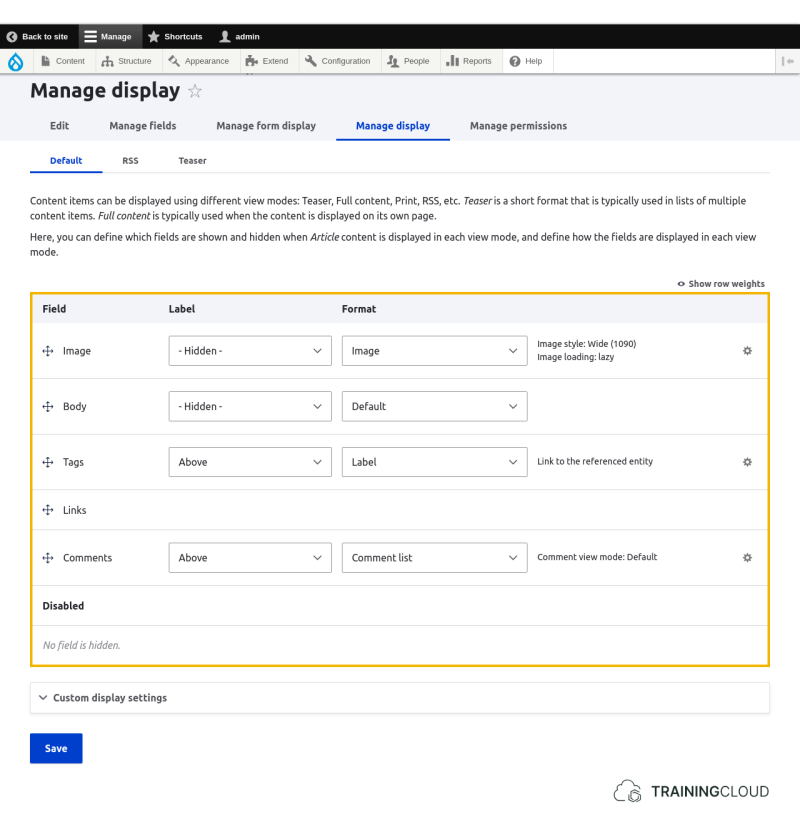
At Manage > Structure > Content Types > Article > Manage Display you can define which fields are show or hidden, and how the fields should be displayed:
View Modes
Before we look at the various display options, there's a new concept you should learn first: View modes:
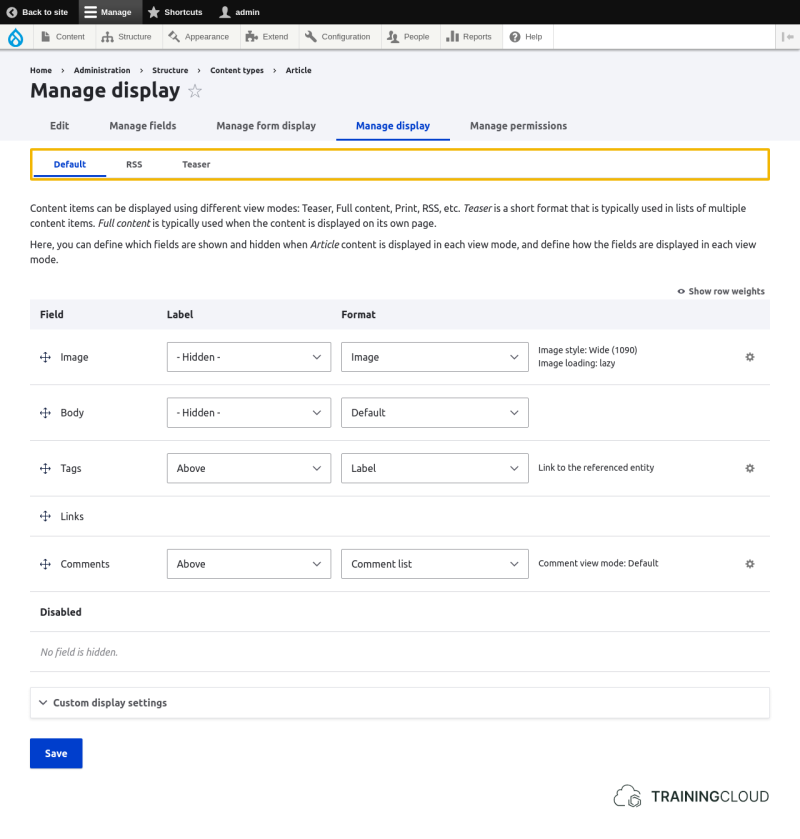
View modes are a concept unique to Drupal.
The idea behind view modes is this to introduce multiple possible modes of representation for each type of entity: as site builders we don't always want to display the same content the same way on different pages.
Example scenarios:
-
We want to display articles in a kind of summary mode where we show a small thumbnail and only the first paragraph, while on the full article page we want to show a large image and the full body.
-
When we display content of the type 'Vehicle' in a list of vehicles, we only want to show the thumbnail, title, price, and year of construction. None of the other fields should be shown.
Drupal's answer to this is to introduce the concept of View modes:
-
Each type of entity can have multiple View modes - different modes of representation.
-
For each View mode you can decide which fields are shown/hidden, and how each particular field should be displayed when content is shown using that View mode.
In other words, for each type of entity we don't just manage the field display options; we mange a set of display options for each View mode.
The Three Standard View modes
There are three standard view modes enabled:
-
Default
- Used when an entity is shown in full
- Example: view any Article or Basic Page in full
-
Teaser
- Used when an entity is shown in a kind summary of preview mode
- The list of content published to the home page uses the 'Teaser' mode for each item in the list.
-
RSS
- Used in RSS feeds
- Each Drupal site publishes an RSS feed of its contents by default. Each item in the RSS feed uses this View mode.
- If you're not familiar with RSS and / or have no interest in RSS, feel free to ignore this View mode.
Enabling more view modes
Underneath the list of fields at Manage > Structure > Content Types > Article > Manage Display you can find the 'Custom Display Settings' field set which, when opened, lets you enable additional View modes you can then use and configure.
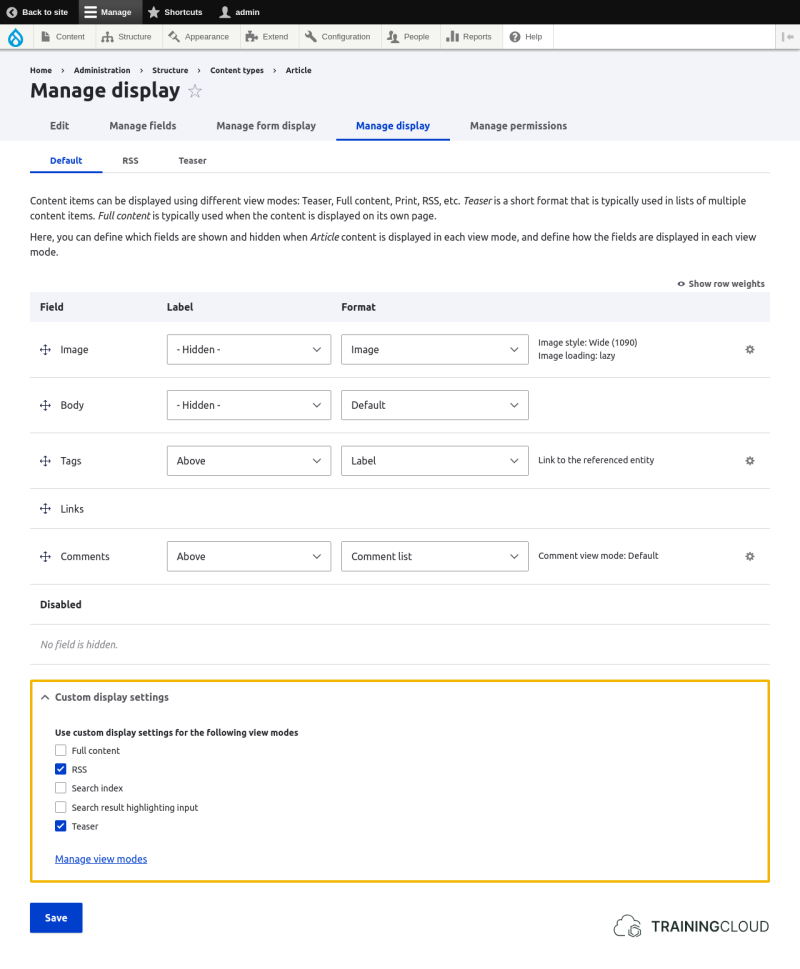
For this introductory course we will stick to the Default and Teaser View modes.
Though you can create your own custom View modes at Manage > Structure > Display Modes > View Modes, we won't go into detail in this course.
Activity 1
- Open the 'Manage display' tab for Articles.
- For the 'Default' and 'Teaser' View modes:
- Compare which fields are shown/disabled.
- Compare the Image style settings of the Image field
- For the 'Default' and 'Teaser' View modes:
Activity 2
- Open the 'Manage display' tab for Articles.
- For the 'Default' View mode:
- Hide the label of the Tags field.
- Notice you have the choice between 'hidden' and 'visually hidden'. They both seem to do the same thing, but they don't. What do you think the difference might be?
- For the 'Teaser' View mode:
- Hide the Image field
- For the 'Default' View mode:
- View a full article that contains an image. Notice that the image is shown.
- View the home page. Notice that no Article images are shown.
→ after this task, go back and make the Image field on Articles visible again in both View modes.
Activity 3
- Open the 'Manage display' tab for Articles.
- For the 'Teaser' View mode, change the Image style from "Thumbnail (100x100)" to "Medium (200x200)" by clicking on the cog icon on the right hand side. Be sure to click the "Update" button to update the field format settings, and then click the 'Save' button at the bottom to save all changes.
- Verify on the home page that Article images in 'Teaser' View mode now display larger images.
Activity 4
- Open the 'Manage display' tab for Articles.
- For the 'Default' View mode, change the Image style to "None (original image)"
- Verify the effect by viewing an Article with a particularly large image.
→ after this task, go back and undo all the changes you made to the Image field on Articles.
Activity 5
- Open the 'Manage display' tab for Articles.
- Inspect the formatting options of the other Article fields to get a feel for which display settings you can customise.
Summary
- View modes let you customize an entity type's display options for different modes of representation.
- Nodes, Custom Blocks and User Accounts can all use View modes because View modes are part of the Field UI that all of these share.
- You can hide fields and labels, and customize certain formatting options depending on the type of field.
- Setting a label to 'visually hidden' hides it from view but leaves it present in the HTML source code; setting it to 'hidden' removes it from the source code entirely.