In this unit
- You will learn where to add fields to Content Types.
- You will learn about the default field types Drupal offers.
- You will learn how you can add additional field types.
- You will learn the basic mechanics of adding and configuring fields
Adding fields
All content Types have basic settings and fields such as Title, Author, Creation Date, and Publication status.
On top of those, you can add your own fields through the Field UI.
Let's see this in action for Articles at Manage > Structure > Content Types > Article > Manage fields > Add field:
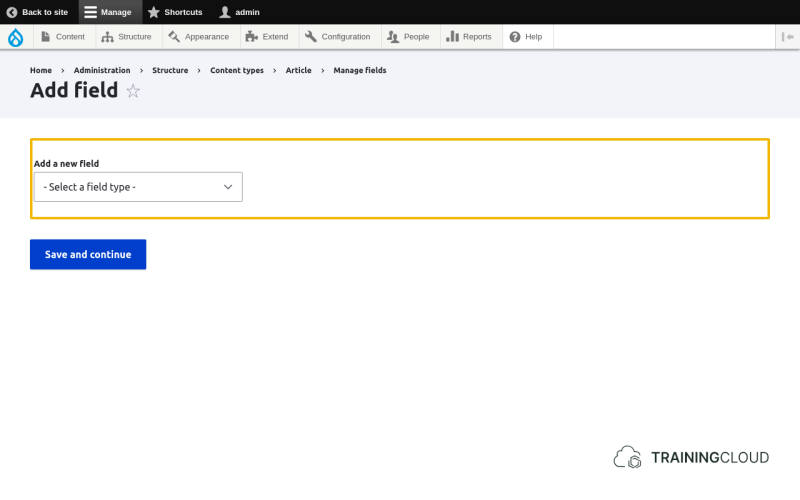
Field type
Your first decision will be which type of field to add, and will depend on which type of data you want to store in that field:
- A date?
- A number?
- A file?
- An image?
- A short bit of plain text?
- A long chunk of rich text?
Choosing the right field type is important
The choice of field type not only determines what you can store in this field, but also:
- which input widgets editors can use to enter data into that field
- Which validation criteria you can specify
- Which display options you have to present the data to the outside world
A few examples:
- For number fields you can specify minimum and maximum values, and display a unit of measure before or after the field value.
- For date fields you can specify a single date, or a start and end date. They have a built-in calendar widget for easy date selection and have date-related validation rules.
- For image fields you can impose certain image dimensions, maximum file size, and specify which format to use when displaying the image.
- For file fields you can specify which file types are allowed.
What about other field types?
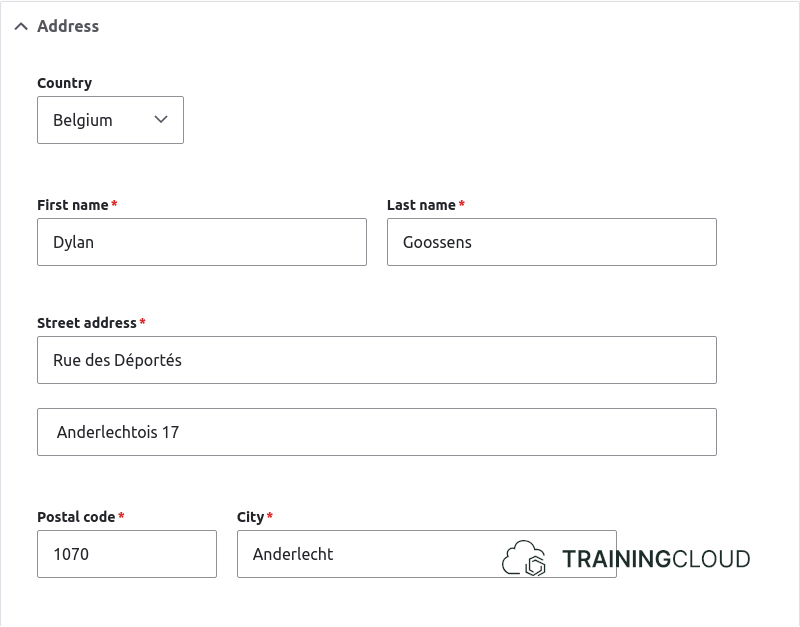
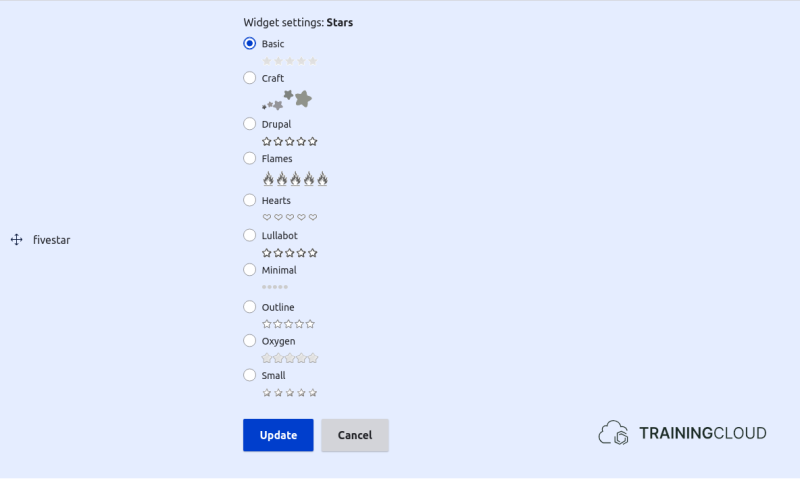
Though Drupal comes with a little over 20 different field types, additional modules can provide additional field types.
An example of this is the Youtube module, which adds a field of the type 'Youtube' where you only have to paste in a youtube video link or video ID, and the video player with the correct video will automatically be loaded when you view the node:
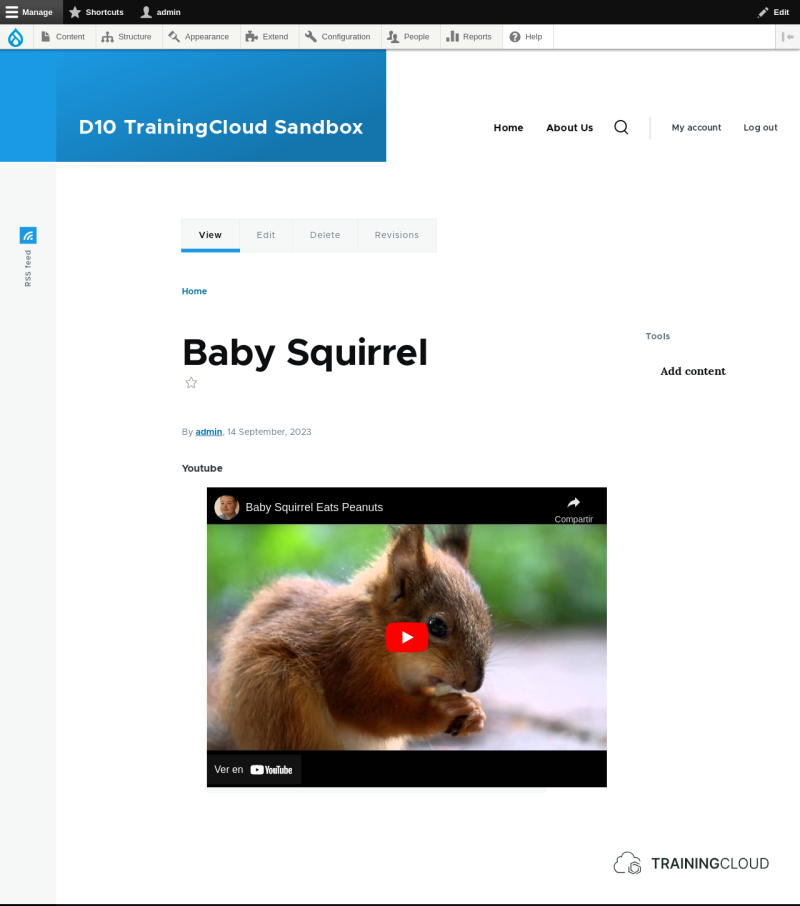
Other examples include:
- the Address Module (first screenshot)
- Fivestar Voting Module (second screenshot)
Field name
A field has a label (the name displayed in the user interface) and a machine name (a unique identifier used internally).
The machine name is generated automatically based on the label you provide, but you can edit it if you are an advanced user and have a compelling reason to do so. Once the field configuration is saved, you can no longer change the machine name.
You'll be able to change the field's label later on though, but the machine name stays locked.
Field configuration options and settings
All fields have a number of settings in common:
- Label
- Help text (instructions for editors on how to use this field)
- Required?
- Default value
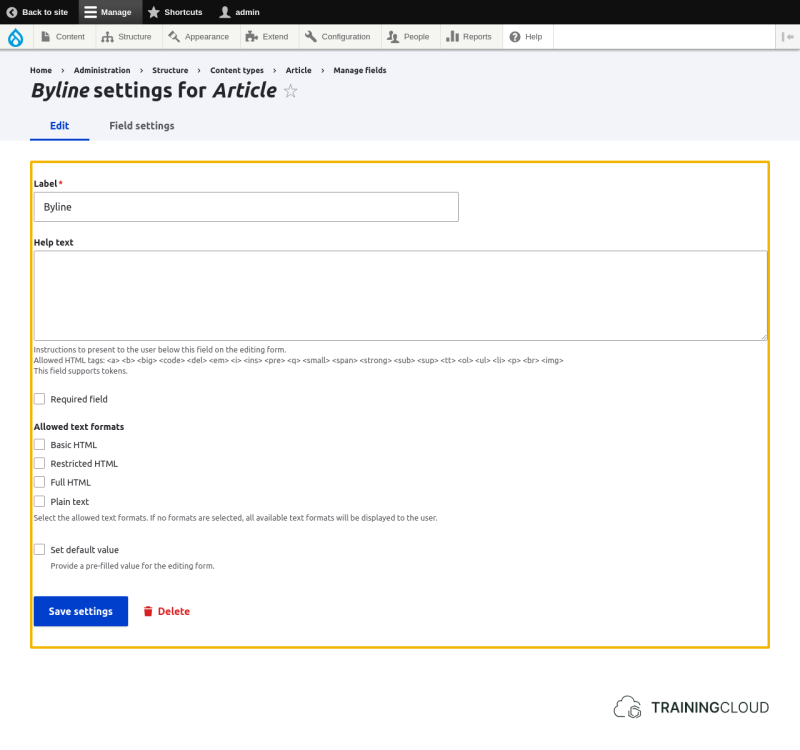
In addition to those common settings, every field type can add its own specific configuration options.
The Field settings tab shows a particular set of settings that are related to how the data is stored in the database. You can only change most of these settings as long as you haven't entered any data in this field on any node. Once you've done so, some or all of the fields become uneditable.
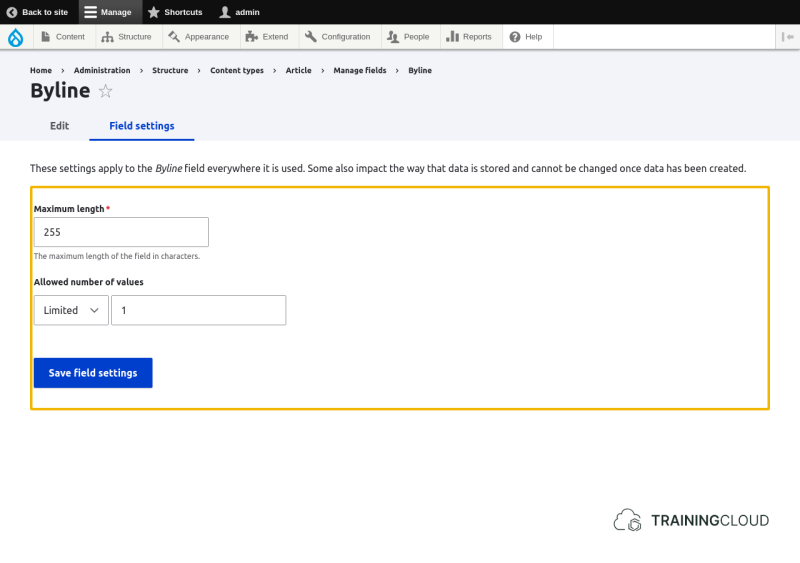
Activity 1
- Add a new field to the Article Content Type to give editors the option to insert a byline (a printed line of text that accompanies an article)
- Name it 'Byline'
- Choose 'Text (plain)'
- Use all the default field configuration options and settings
- Be sure to save your field settings page.
- Edit an existing article, locate your new Byline field, fill in a value, and look at the result.
Activity 2
- Following user feedback you want to change where the field value is displayed.
- Via the Article Content Type's Manage Display page, drag the field to the top and save.
- Verify that the byline is now indeed shown underneath the Article's title and above the Article's body.
Activity 3
- Now that the Byline field is displayed at the top below the title field, you also want the change where the field appears on the Article edit form. We have not yet explicitly discussed how to modify a Content Type's form settings, but the process is almost identical to Activity 2.
- Via the Article Content Type's Manage Form Display, drag the Byline field to above the body field and save.
- Edit an article and verify that the Byline form element is now displayed underneath the Title field.
Activity 4
- Edit the Byline field settings at Manage > Structure > Content Types > Article > Manage fields and make it a mandatory field.
Activity 5
- You have decided to add a new field to the Article Content Type to let the responsible editor enter their email address so people an email their feedback.
- You could use the 'Text (plain)' or 'Email' field types. Both of them let the editor add their email address. Why is the 'Email' field type more appropriate? What does it offer that a plain text field doesn't?
- Give the field an appropriate name and use the 'Email' field type.
Activity 6
- Add a new field that allows the editor to add a list of related links to the article.
- Give the field an appropriate name.
- Ensure that editors can add more than one link
- Experiment with the setting 'Allowed link type'. What's the difference between internal and external links?
- Experiment with the setting 'Allow link text'. What happens when you set it to 'Disabled'?
Activity 7
- Now that you've added fields to the Article Content Type, change the display settings via Manage Display:
- Ensure that the Byline field is shown on the 'Default' and 'Teaser' Display modes.
- Ensure that the Related links field is only shown on the 'Default' Display mode, not on the 'Teaser' Display mode.
List fields
In the field type categories 'Number' and 'Text' you find list fields. These let users select values from a predefined list, rather then offering a free text field for data input.
List fields have a particular way of letting you specify the allowed values on the Field settings tab. Its help text gives some explanation:
- Enter one value per line, in the format key|label.
- The key is the stored value.
- The label will be used in displayed values and edit forms.
- The label is optional: if a line contains a single string, it will be used as both key and label.
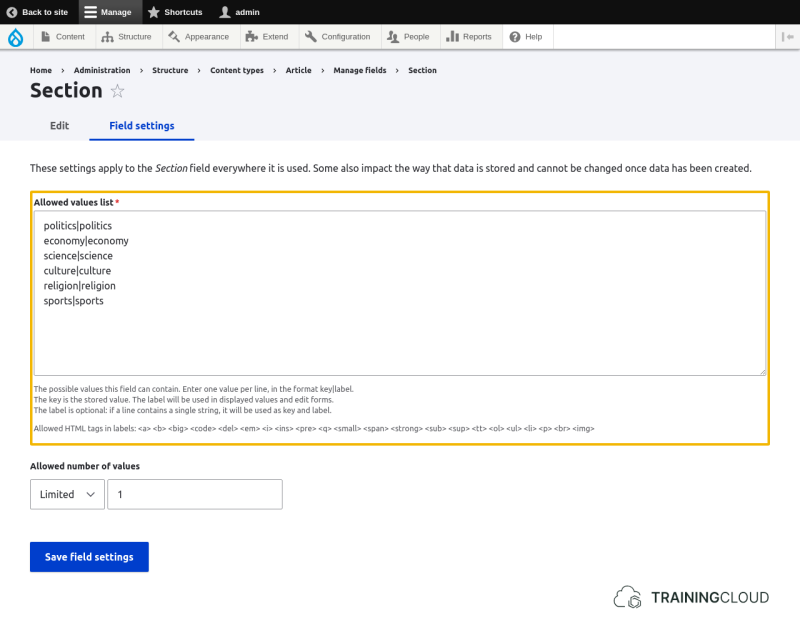
Most of the time, you will want to keep it simple use the same value for key and value.
However, sometimes you may want to display certain values to the editor, while actually storing different values in the database.
Example 1:
Assume you want to show the options 'yes' and 'no', but store the values '1' and zero. Your 'Allowed list values' would then be:
1|yes
0|no
Example 2
Assume you want to show the options 'France', 'Belgium', and 'Germany', but store the values 'FR', 'BE', and 'DE'. Your 'Allowed values list' would then be:
FR|France
BE|Belgium
DE|Germany
Activity 8
- Add a field of the type 'List (text)' to the Article Content Type.
- Name it 'Section'
- Provide selection values 'sports', 'politics', 'economy', 'science', 'culture', and 'religion'
- Ensure you configred the field correctly by editing an existing article and selecting a section value.
Activity 9
- Modify the new Section field by adding a new section 'technology'
Activity 10
- Add a new short text field to the Article Content Type, where users can only enter a plain text value. Give it any name you want.
Activity 11
- Add a new long text field to the Article Content Type, where users can only enter plain text. Give it any name you want.
Activity 12
- Add a new long text field to the Article Content Type, where users can enter formatted (rich) text. Give it any name you want.
Activity 13
- The field types 'Text (formatted, long)' and 'Text (formatted, long, with summary)' are similar but not identical. Add a field of each type and try to work out what 'with summary' refers to, and how to use it.
Summary
- You can add fields to fieldable entities such as Nodes, User Accounts, and Custom Blocks.
- The process of adding fields to Nodes is identical to the process of adding fields to other fieldable entity types.
- Drupal offers roughly 20 field types by default.
- You can install additional modules to make more field types available.
- All fields share some basic configuration options, and every field type can add its own additional configuration options.
- Certain field settings related to how data is stored in the database cannot be changed later.