In this section
- You will learn about Drupal's Text Formats
- You will see how and where Text Formats are configured
- You will learn how to use the WYSIWYG Rich Text editor
When you edit a node with a body field, you'll see the Rich Text Editor that lets you use bold, italic, insert links/images, and so on. The 'Text format' select list below the body field lets you select any of the available text formats.
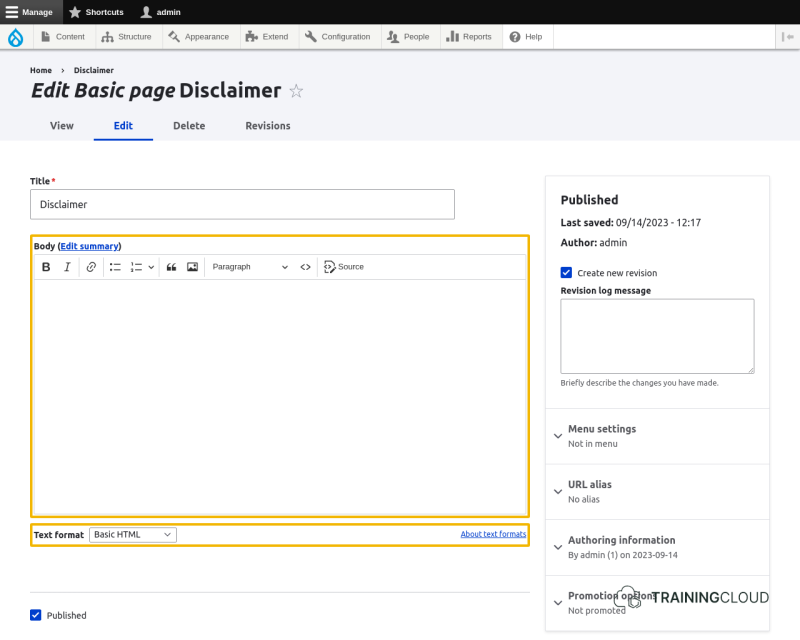
Exploring the Rich Text editor
The Rich Text editor comes preinstalled with a number of text editing features and buttons.
Let's go over them from left to right:
Makes selected text bold.
Makes selected text italic.
Turns selected text into a link.
You can use relative links (such as /blog/hello-world), or absolute links (such as http://example.com/about).
Note:
- To make links open in a new tab or window, you need to install a third party module such as the Editor Advanced Link module.
Turns a selected link back into plain text.
Inserts or removes a bulleted list.
Inserts or removes a numbered list
Adds a quote.
Lets you upload an image and insert it into the textarea.
Note:
- Using this default image button you can't reuse images you uploaded earlier. If you want to insert an image you inserted into a different textarea earlier on, you'll have to upload it again, effectively creating to separate copies of that image on the server.
- Larger and more complex Drupal sites often replace this basic image upload button with a button that opens an advanced media browser that lets you reuse images. There are several ways such media browsers can be set up, but this is beyond the scope of this course. By default no media browser is set up.
Formats the selected text using the chosen format.
The standard paragraph formats are:
- Normal
- Header 1 to Header 6
Changes the What-You-See-Is-What-You-Get editor into a HTML editor where you see and edit the HTML that was generated based on your input.
You should only use this feature if you want to insert HTML for which the editor doesn't have any specific buttons, and if you know how to write HTML code.
What are Text Formats?
Text formats change how HTML tags and other text are processed and displayed on your site. When users create content using a Rich Text Editor, a text format is associated with the content, and the full, original text is stored in the database. When the content is shown to the end user, it has been processed according to the rules associated with the chosen text format.
In simpler terms:
- On INPUT, Drupal stores the original content users enter in Rich Text Fields (including html tags, javascript, and so on).
- On OUTPUT, Drupal processes the content and if necessary removes html tags and other things that, according to the text format, should not be present on output.
Why do Text Formats exist?
Each text format is associated to one or more user roles. This way you can:
- Allow trusted users to use permissive text formats
- Restrict untrusted users to text formats like Basic HTML, which filters out dangerous HTML tags.
"Dangerous HTML"?
Dangerous html is a cross-site scripting (XSS) problem: a security vulnerability typically found in websites.
In a site that is not well protected, malicious users can enter script into web pages that are viewed by other users (for example, in a comment or in the body of a page).
A cross-site scripting vulnerability may be used by attackers to login as another user. It is important to configure the text formats of your website to prevent such abuse.
(Source: drupal.org)
→ To learn more about Cross-site scripting, see:
Were are the Text Formats configured?
You can find and modify the Text Formats at Manage > Configuration > Content authoring > Text formats and editors.
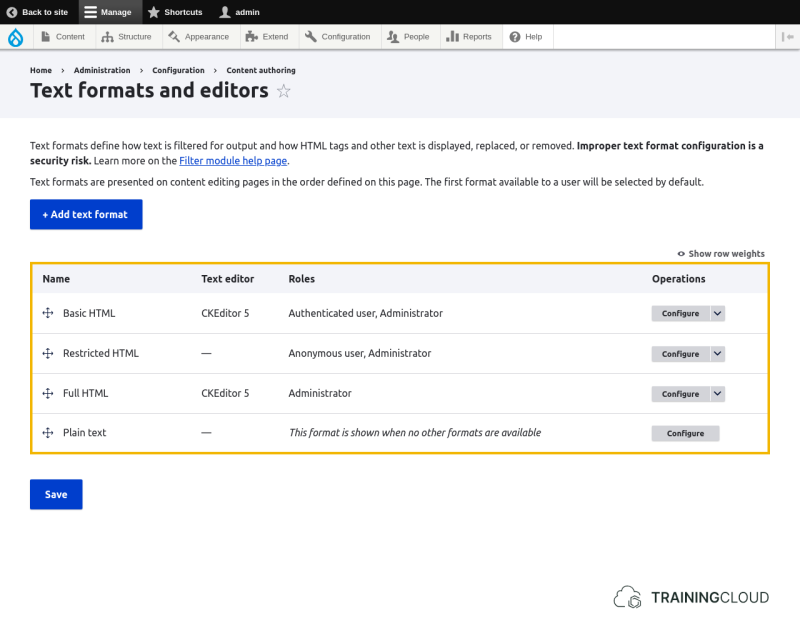
For any given Text Format, click on the corresponding 'configure' button to load its configuration form.
Note:
Configuring Text Formats is beyond the scope of this course, but for the brave and/or impatient, we will give a brief overview of the Text Format configuration options.
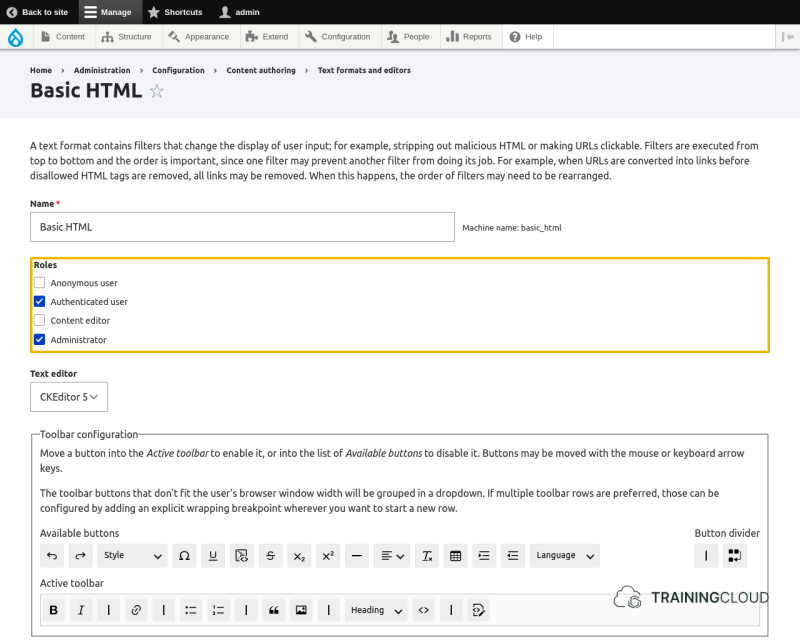
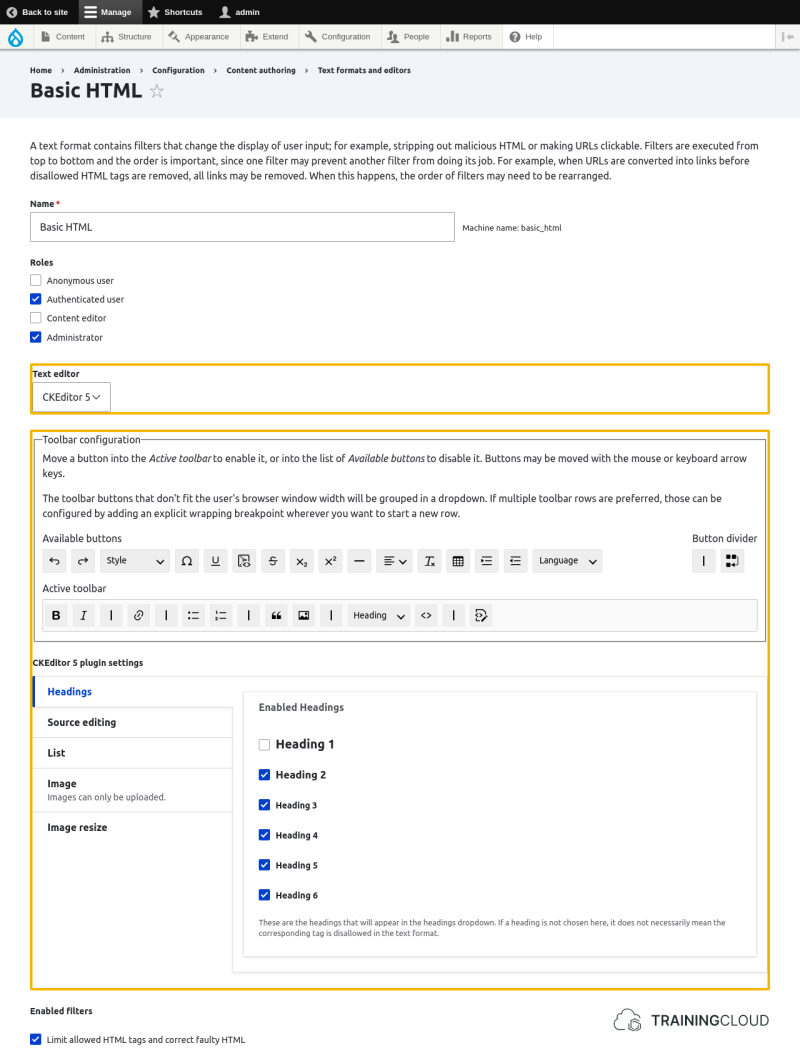
Text Formats consist of 6 groups of settings:
Roles
Text Editor (with editor-specific settings)
Enabled filters
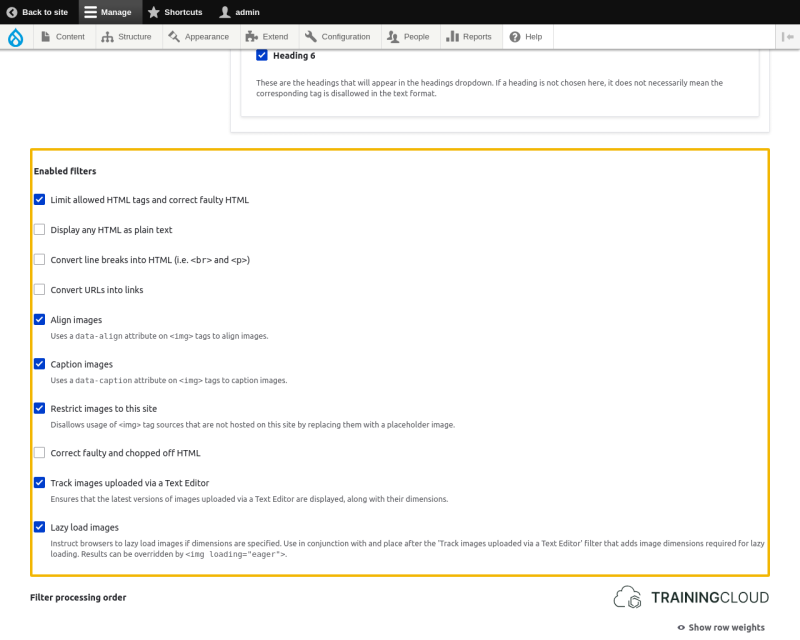
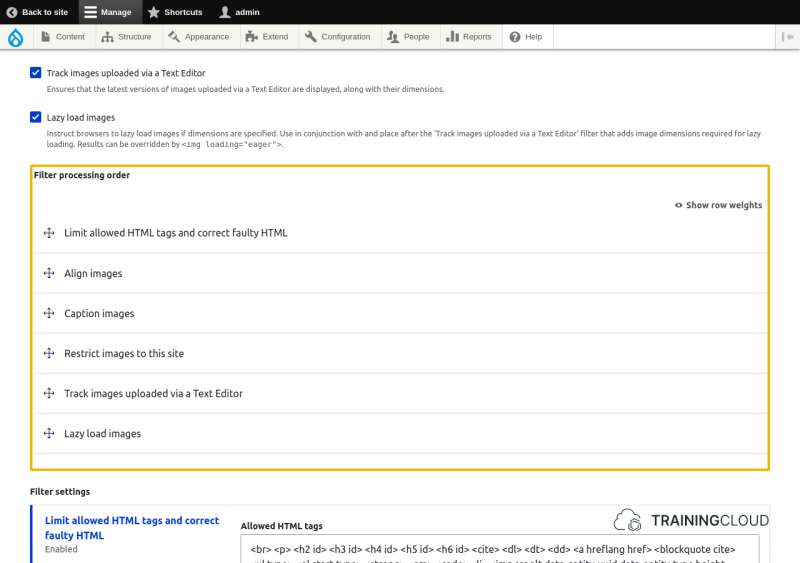
Filter processing order
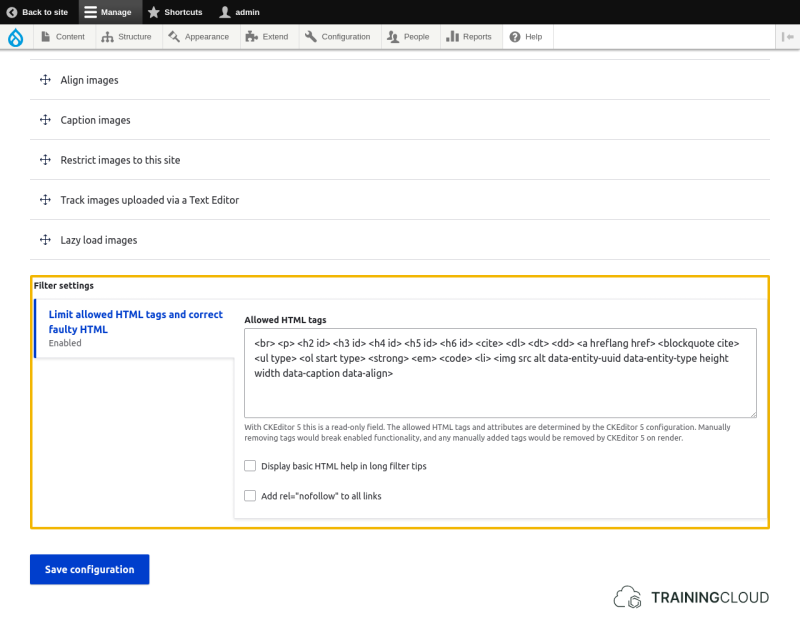
Filter settings
Activity 1
- Compare the settings of the 3 pre-defined text formats:
- Which processing filters are enabled, and what's the order in which filtering happens?
- Which HTML tags are allowed?
- Which format does not restrict the use of HTML?
- Which format does not present the user with a text editor?