In this unit you will:
- Learn how to recognise and use autocomplete fields
What are autocomplete fields?
Autocomplete fields are text fields that offer suggestions or allowed values while you're typing. They are most often used when there are so many suggestions or allowed values that it becomes impractical to use a select list (also called "dropdown list") or a list of checkboxes / radiobuttons to display all the possible options at the same time.
Example:
when you have a field to let users select a colleague from a global staff directory of 10.000 people, using an autocomplete field is the only usable option.
How can you recognise autocomplete fields?
In Drupal you can recognise autocomplete fields by the circle icon on the right hand side of the field:
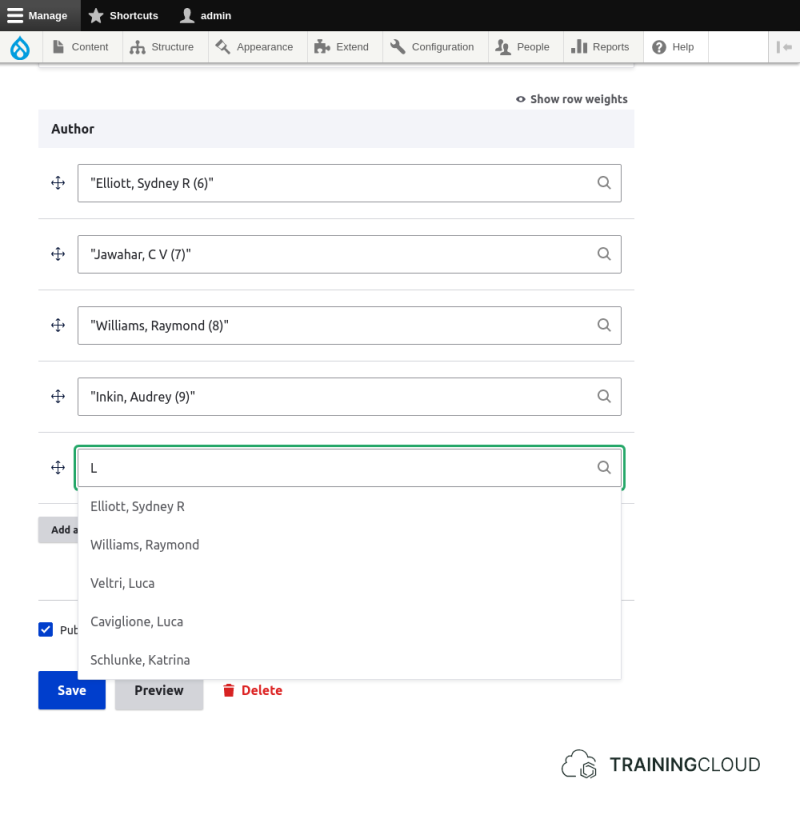
Each autocomplete field offers possible values from a predefined set of values, such as "all article titles", "all currently active users", "all product categories", and so on.
Depending on how the field is configured, the offered values are either restrictive or open:
- restrictive: you can only choose from the offered values
- open: you may choose from the offered values, but you may also enter a new value
Why is there a number shown next to the possible values?
In this example you see one autocomplete field named "Link", used in the configuration of menu items:
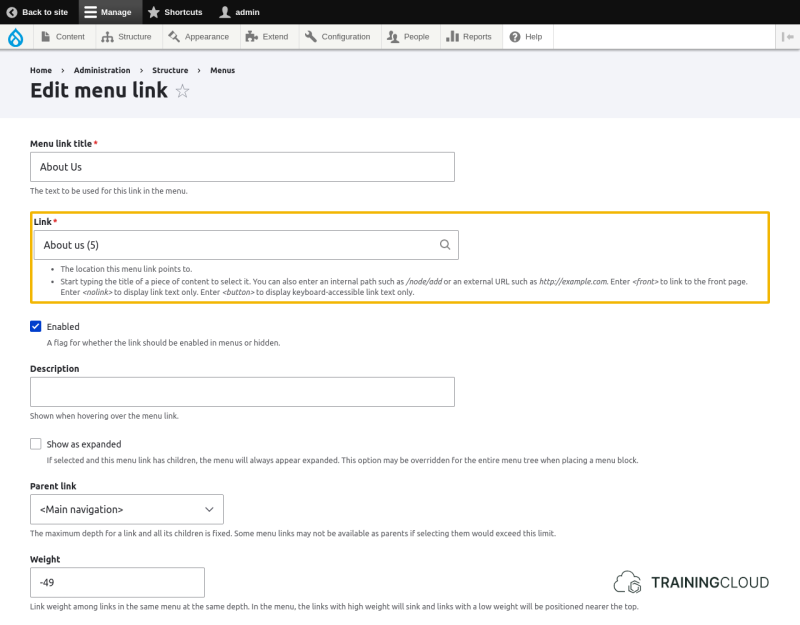
The selected value is "About us (8)". The "(8)" refers to that node's internal id, and is placed there to help you differentiate between two or more nodes with the same title.
Activity 1
- Create a new Article, and give it the tag "training".
- When you typed the letter "t" while filling in "training", did any autocompletion happen? Why?
Activity 2
- Create another new Article, and give it the tag "training" again.
- Did autocompletion happen this time? Why is it different from the first time?
- Would you say this "Tags" autocomplete field is open or restrictive? In other words: are you allowed to use any tag, or restricted to values provided by the autocomplete mechanism?
Activity 3
- Create a third Article and give it three tags: "demo", "learning", "technology training"
- Be sure to read the small help text under the autocomplete field to learn how to fill in multiple values and values that contain spaces
If you completed Task 3 correctly, your article should have three tags. Hover over the tags to verify that you indeed have three separate tags, instead of one big, or four individual tags