Objectives & prerequisites
- Describe the difference between File fields, Image fields, and Media fields.
- Add a Media field to a content type.
- List some of the Media field type's properties.
- Configure how a media field should be displayed.
- Select and configure how a Media field's form widget behaves.
- Given a scenario, describe how two or more entities are related through entity references.
- Basic content management operations (view, create, update, delete).
- Describe and know the difference between entities, entity types, and entity bundles.
- Understand how Reference fields work, and how that relates to Media fields
The core Media module adds a new field type called Media.
Media fields are entity reference fields; they let you reference Media entities, similarly to how Content Reference fields let you reference nodes, User Reference fields let you reference user entities (users), and Term Reference fields let you reference term entities (terms).
Once you've added a Media field to a content type, you'll be able to use it to reference one or more media entities.
You can still use the basic Image field if you want to, but it won't give you all of the benefits Media entities do, the most important ones being:
- media entities are reusable
- media entities are fieldable
- media entities can be published / unpublished
- media entities support revisions
Activity
Have you ever added reference fields to a content type, or created content where you had to use reference fields?
Do you remember how the process is always similar: add a reference field, indicate which type of entity is will be referenced (node, user, taxonomy term, ...), limited to certain bundle(s) such as specific taxonomy vocabularies so users can only suggest terms from that specific vocabulary?
If you've done this often and remember it well, feel free to skip this activity.
If not, perform the following tasks to better prepare you for working with Media entity references:
- Add a taxonomy term reference field to the Basic Page content type, limit it to a certain vocabulary that contains at least one term, and create a few Basic Page nodes.
- Add a content reference field to Articles, name it "related_articles, configure it to only allow references to other Articles, and then link a few articles together.
Both of these tasks are similar, but slightly different.
Working with Media entity references is also going to be both similar and different.
Adding a Media field
Let's walk through an example: adding a Media (image) reference field to the Basic Page content type and compare it to the Article content type, which uses a standard Image field.
→ Go to Manage > Structure > Content types > Basic page > Manage fields > Add field.
→ Select the Media field type and give it the name "media_images".
→ Leave all the default options in place, but allow multiple entities to be referenced.
→ Leave all the form display and field display settings in their default state.
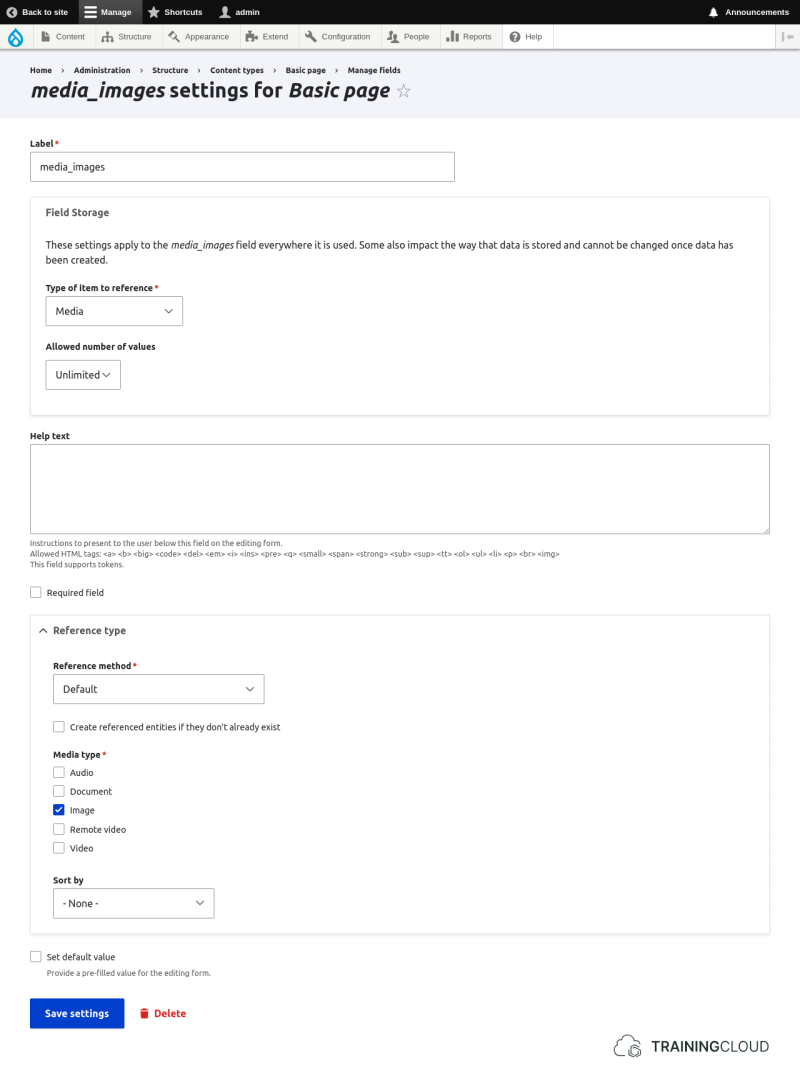
→ Ensure your site already contains more than one media (image) entity.
→ Create a Basic page that references multiple media entities items, and view your new page.
At this point you should have a fully functional Basic Page, and the correct Media image is being displayed. The image size may not be ideal; you'll fix that in the upcoming activities.
Activity
If you have not yet added the media field to the Basic page content type as described above, do so now.
Activity
The image size is probably too large.
Go through your new Media entity reference field's display options, and reconfigure them so the image is shown in a smaller size.
There are two methods to do this.
See the hints for more info if needed.
Method 1: use "Rendered entity" in combination with a custom View mode that uses a specific image style.
Method 2: use "Thumbnail" and select a specific image style.
Activity
The previous activity hinted at two methods to configure the image size for images shown through a Media entity reference field.
Which method would you choose, and why?
It makes sense to create a custom View mode for Media entities if you often / always want to display Media (image) entities the same way.
Any time you use a Media entity reference field anywhere, you can set its field display to "Rendered entity" + your custom view mode, and the Media will always be displayed the same way: a specific image size, show or hide some of the Media entity's fields, etc.
If you later on change that View mode, all referenced Media entities that use that View mode will automatically use the updated display settings.
On the other hand, if you want to keep things more basic, you can set the Media entity reference's field display options to "Thumbnail" + a specific image style. This option will ensure the image contained within the Media entity is always displayed the same way, but only the image will be shown, without any of the other fields that may be present on the Media entity.
In summary
- Use "Rendered entity" + a View mode for fine-grained control over image size and of/how the other Media entity's fields are displayed.
- Use "Thumbnail" + an image style to show the image in the desired size, but only the image, and none of the other Media entity's fields.
Activity
- Add a Media reference field for remote video to the Article content type.
- Create an article that shows a remote video.
- Create a few Media (remote video) entities.
Experiment with the remote video field's "Manage display" and "Manage form display" options.
Conclusion
Media fields are reference fields and behave the same way as other reference fields.
The main disadvantage: the interface to select (reuse) media items is very basic and will become unusable when there are many available media items to choose from.
The Media Library module solves this problem.
Summary
- Media reference fields follow the same logic as other reference fields:
- Add reference field
- Select which entity type they reference
- Select to which subtypes / bundles they are restricted
- Configure field display and form display options
- You can choose to display referenced media via a custom View mode to specify which Media fields to display, and how.
- Alternatively, you can choose to display referenced media via the "Thumbnail" option and choose an image style to set the dimensions. This is simpler but doesn't show any of the media entity's other fields.