Objectives & prerequisites
- Install the Media Library module.
- Configure the use of the Media Library for Media fields.
- Create and/or select Media while editing other content.
- Basic content management operations
- Working with entities and fields
- Working with reference fields
- Working with media entities
You may have noticed that the editorial experience of working with Media entities leaves a lot of room for improvement.
- The biggest issues:
- There is no good interface (form widget) to easily preview available media items, select them, and insert them.
- There is no good interface (form widget) for choosing from a large number of media items.
- You can't create a new Media item while you're editing content. You either have to create the Media item before you create or edit the node that will reference it, or you have to save the node, create the Media item, edit the node again, and select the Media item you just created.
This is why the Media Library module exists. It solves all of the shortcomings mentioned above, and more.
The Media Library modules adds a new field widget you can choose when you're configuring the form display options of Media fields:
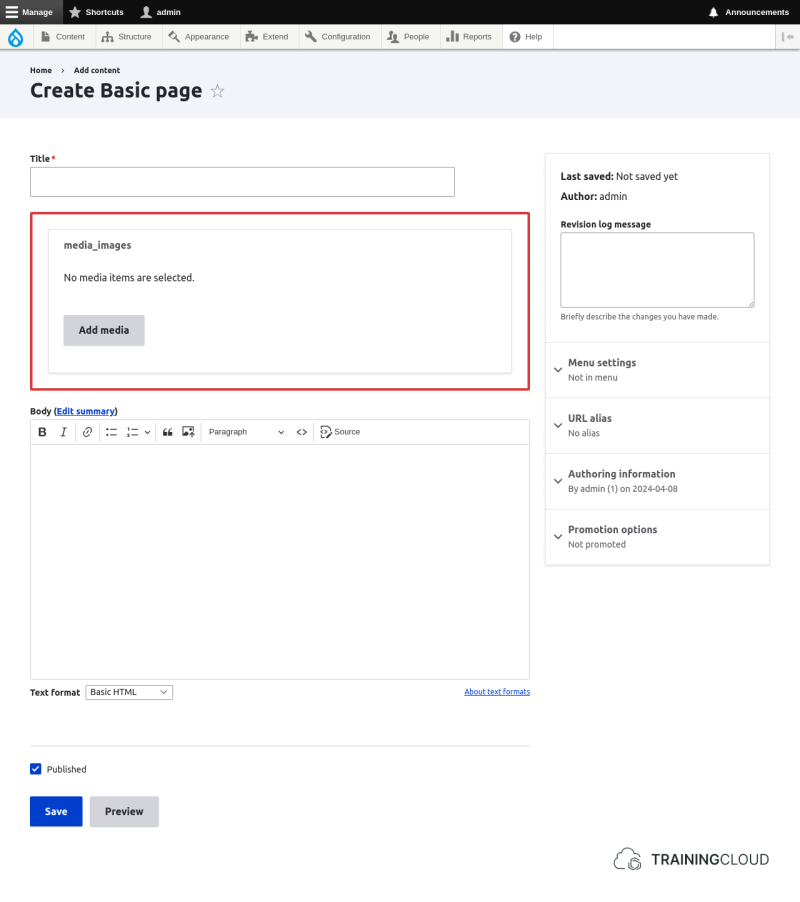
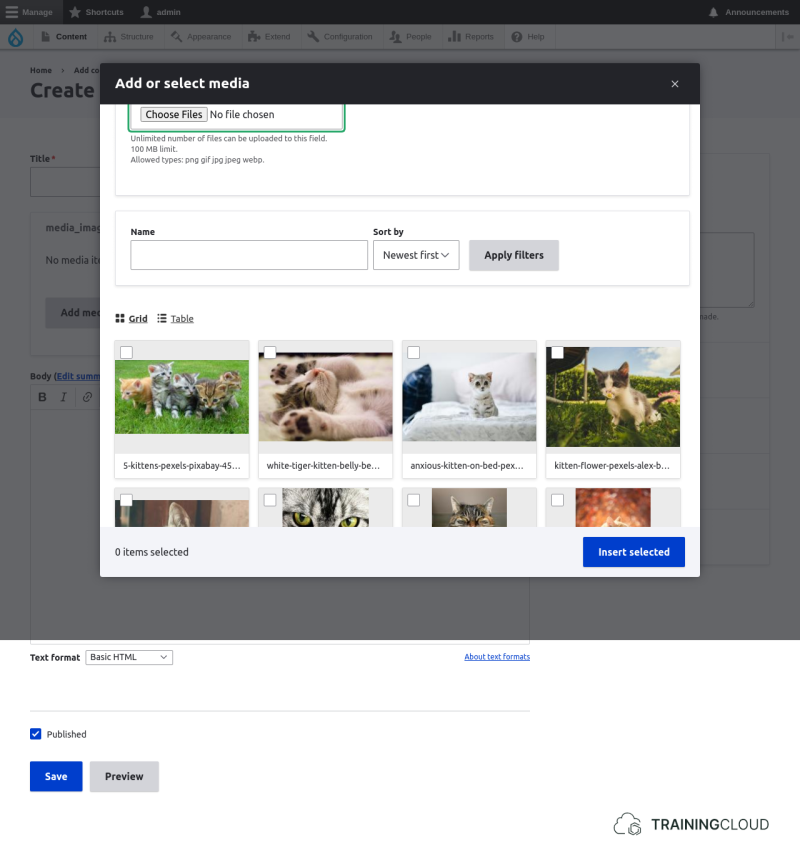
The new widget provides a button that opens up a modal (pop-up) window with a management screen that lets you create new Media entities and / or select Media entities to insert or embed in your content.
You can choose to display the list of media items as a grid or as a table by clicking on one of the icons between the filter form and the list of media items:
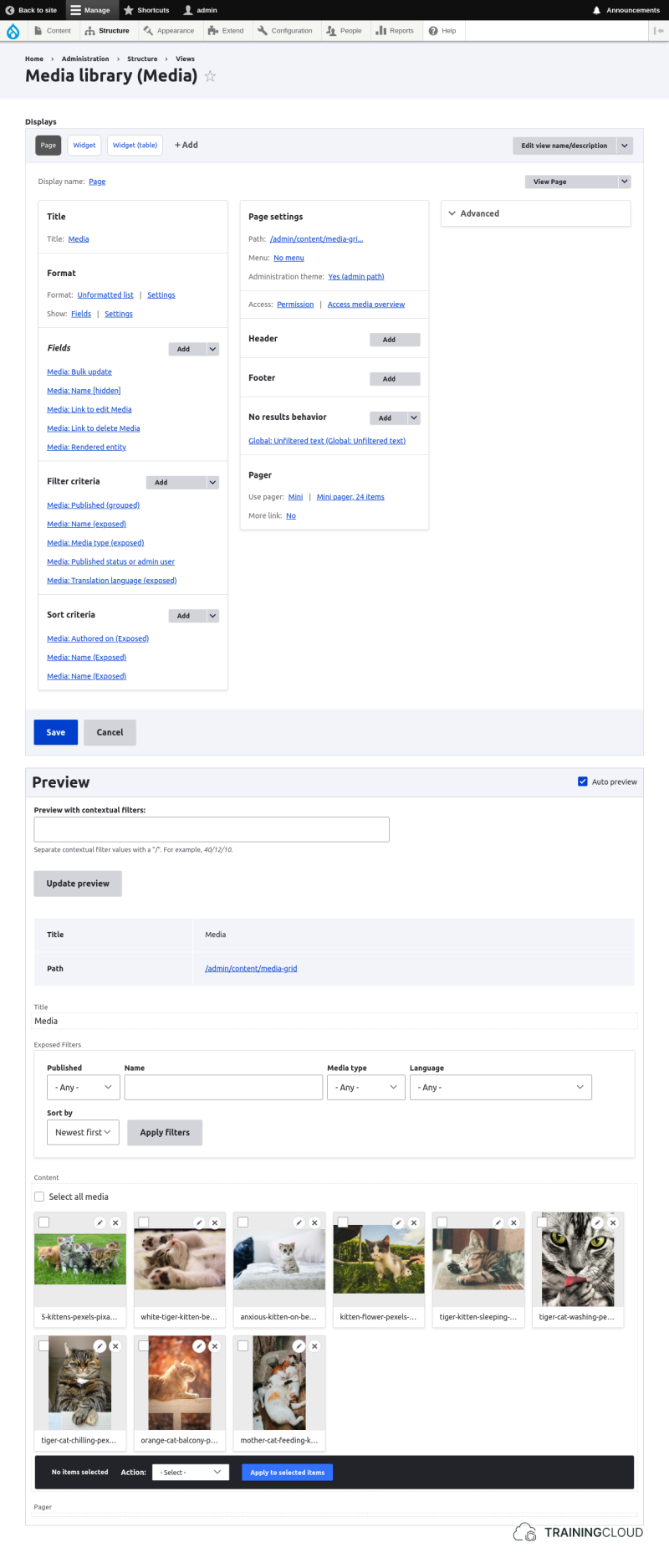
This management screen is a Drupal View named "Media Library". If you know how to work with Views, you already know how to customize this screen if you want to:
Installation
Install the core Media Library module the same way you install any Drupal module: via Manage > Extend, or with the Drush command-line tool.
Activity
Install the Media Library module.
Configuration
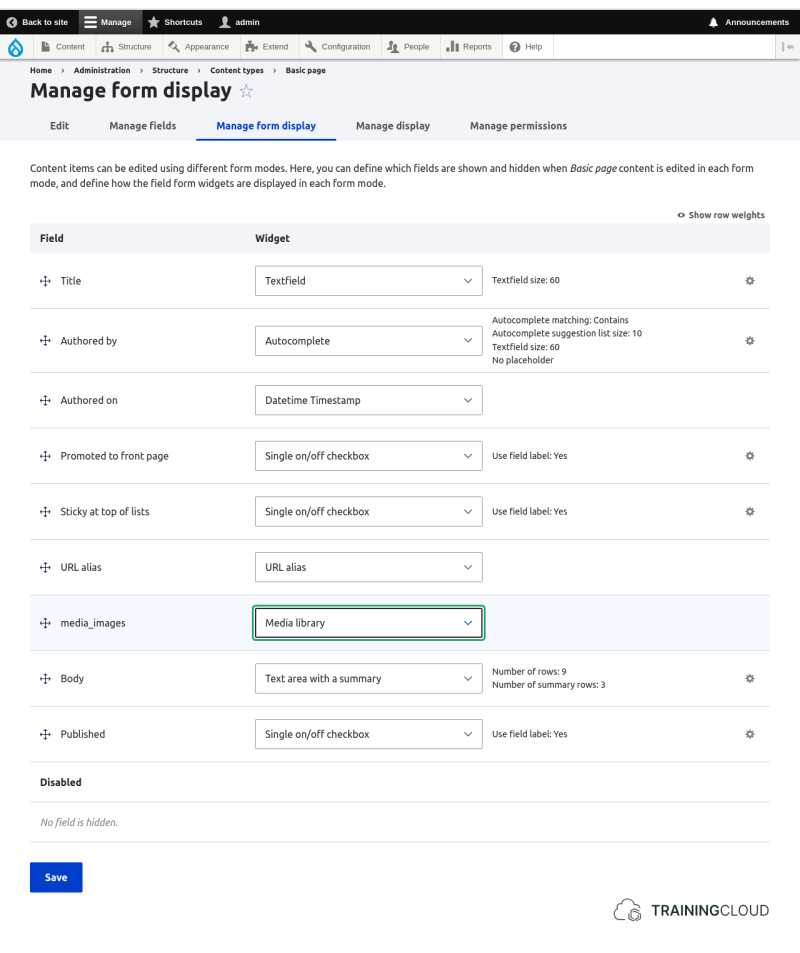
To activate the Media Library "experience", set each Media field's form widget to "Media Library". No other configuration is needed.
Activity
Assuming you already have a content type that contains a Media field, configure its form display settings to use the Media Library widget.
Save your configuration and start editing a node that contains a Media Field. You should immediately see the new widget in action.
Use it to create a Media item and add it to your content.
Compare the experience with the previous one where the Media Library was not yet installed.
Summary
- The Media Library module introduces a new form widget for Media fields.
- The Media Library widget shows a button that loads the Media Library Drupal View in a modal window.
- Through that window you can create and/or insert Media entities into the content you're editing.