Objectives & prerequisites
- Add fields to existing Media entity types
- Create custom Media entity types
- Basic content management operations
- Working with entities and fields
- Working with reference fields
- Working with Media
Introduction
Media entities are fieldable content entities, similar to nodes, users, taxonomy terms, and content blocks.
They support revisions, you can publish / unpublish them, and add fields to them through the Field UI - same interface you use to add fields to nodes and other entity types. The process is exactly the same.
In this unit you will extend one core Media entity type, and create a custom one.
Activity
- Ensure the Media and Media Library modules are installed.
- Find the definition of the Image Media type at Manage > Structure > Media types.
- Make the following changes to the Image Media type:
- Add a text field named "License".
- Ensure the field is shown underneath the Image field
The result should look like this:
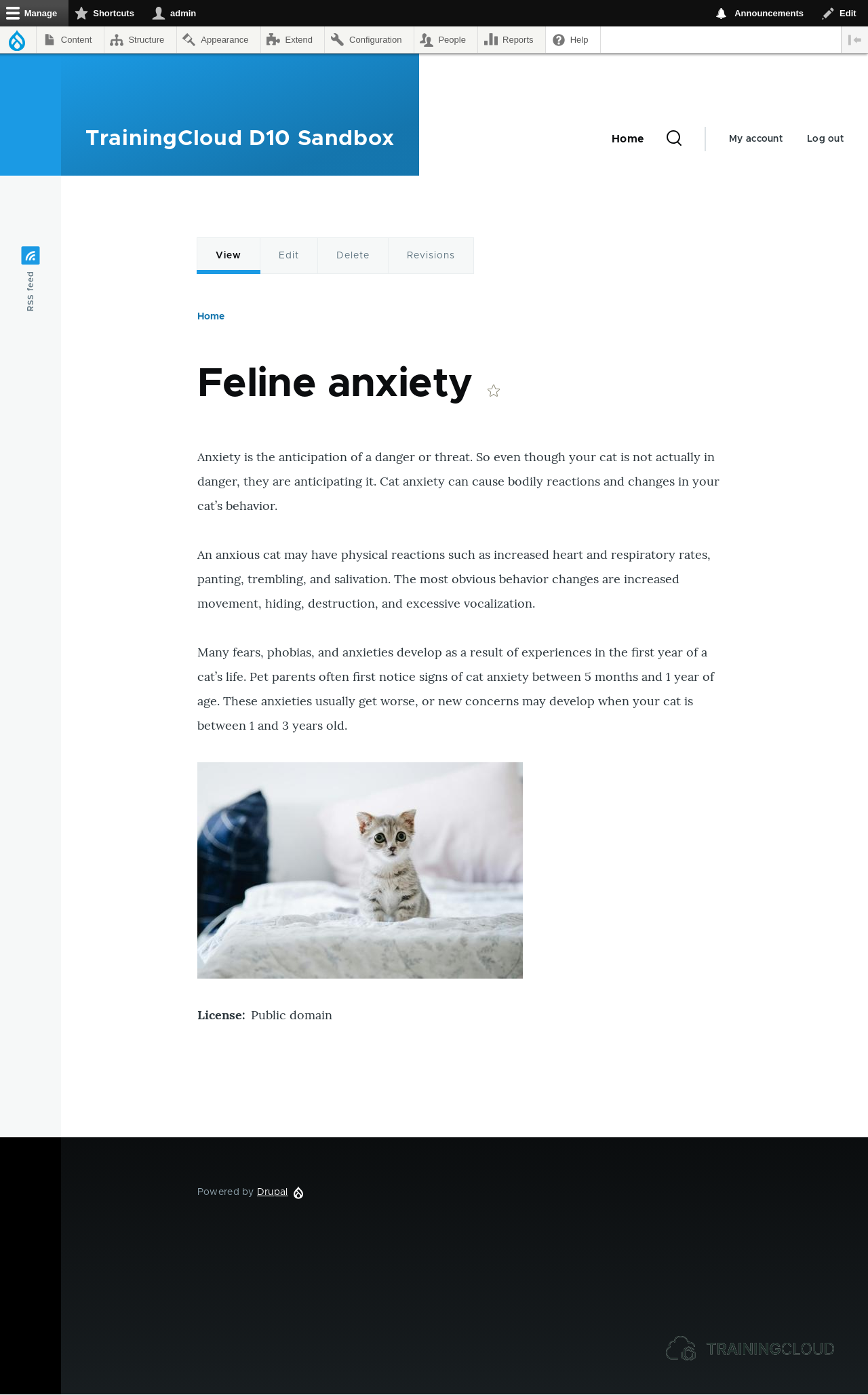
Creating a "Report" Media type
Let's create a new Media entity type named "Report", similar to "Document".
Specifications
- Entities of this type represent one single report.
- Editors should only be allowed to add
PDForDOCXfiles. - Files should be saved to a directory with the following structure:
/reports/YEAR/MONTH, whereYEARandMONTHare replaced with the year and month of creation. - Editors must categorize each report with at least one taxonomy term from a new vocabulary named "Report types".
- Editors should be able to add one image that represents the report's cover image (useful to create a nice looking list of reports).
- The cover image and report type(s) should NOT be shown by default when a referenced Report is displayed. This image will be shown elsewhere on the site, but that's not part of this activity.
Step 1: Add new media type
Create a new media type via Manage > Structure > Media types > Add media type.
Media source
Media entities must have at least one field to store essential media resource information. For this Media source field you can use an existing field or let Drupal create one.
Each Report Media entity is supposed to represent one report file as its main content.
→ Set Media source to "File".
Media source configuration
→ Set Field with source information to "media.field_media_document".
This will let you reuse the File upload field that's part of the Document Media type.
If you don't want to reuse that field, select "Create" instead to create a new File upload field.
When you reuse a field, certain settings are locked, such as field length and number of possible values (single value, limited number of values, or unlimited number of values).
For example: if the field you want to reuse is set to only allow a single value, but you want to allow multiple values, you can't reuse the field, and will have to create a new one.
Field mapping (optional)
→ Do not set any field mapping at this time.
Depending on the selected Media source, some metadata can be available for you to automatically provide values to other fields on your Media entity.
For example, the Image Media entity has fields for width, height, file size and mime type.
The "Image" Media Source extracts that information (and more) from uploaded images, and makes it available for you to optionally use those values as default values on your Media entity.
This is a slightly more advanced feature that we will not go into further at this time. But do play around with it if you find it interesting.
Publishing options
Content revisions are extremely useful, so enable revisions on this Media type.
→ Select Create new revision.
→ Save your new Media type.
Step 2: Edit the File field
Following the specifications listed earlier, editors should only be allowed to upload PDF and DOCX files.
In Manage > Structure > Media types > Report > Manage Fields, edit the File field:
- Set the Allowed file extensions to
docx, pdf - Set the File directory to
reports/[date:custom:Y]-[date:custom:m]
Step 3: Add the Cover Image field
→ Add a Media reference (Image) field and set it to allow one value.
Step 4: Add taxonomy and term field
→ Create a taxonomy named "Report types" and add a few types such as "finance", "quality", and "safety".
→ Add a taxonomy reference field to your Report Media type, limited to your new Report types taxonomy. Make it mandatory and only allow a single value.
Step 5: Adjust field display settings
For each field on your new Report Media type and Report type taxonomy, configure the display order and label options for both the field and form display settings.
Which fields you show, in which order you show them, which display options you use, and how you configure each field's label is up to you, as long as you follow the basic specifications as listed above.
Activity
Create the Report Media type following the steps above.
A single report should look similar to this:
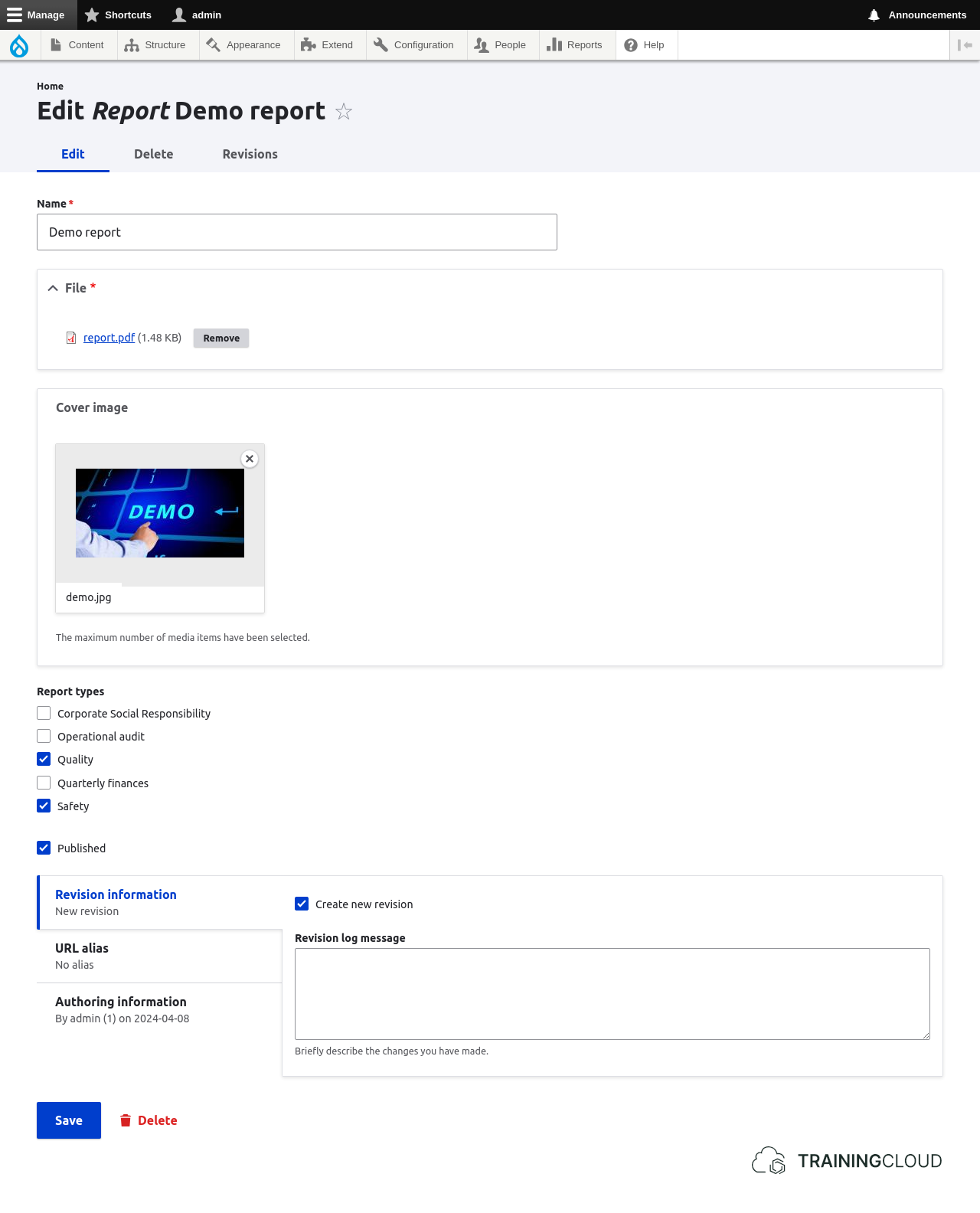
Activity
Add a Media (Report) reference field to the Basic page content type, and name it "Reports".
This field should be shown below the Media field you added in a previous activity
The final result should look something like this:
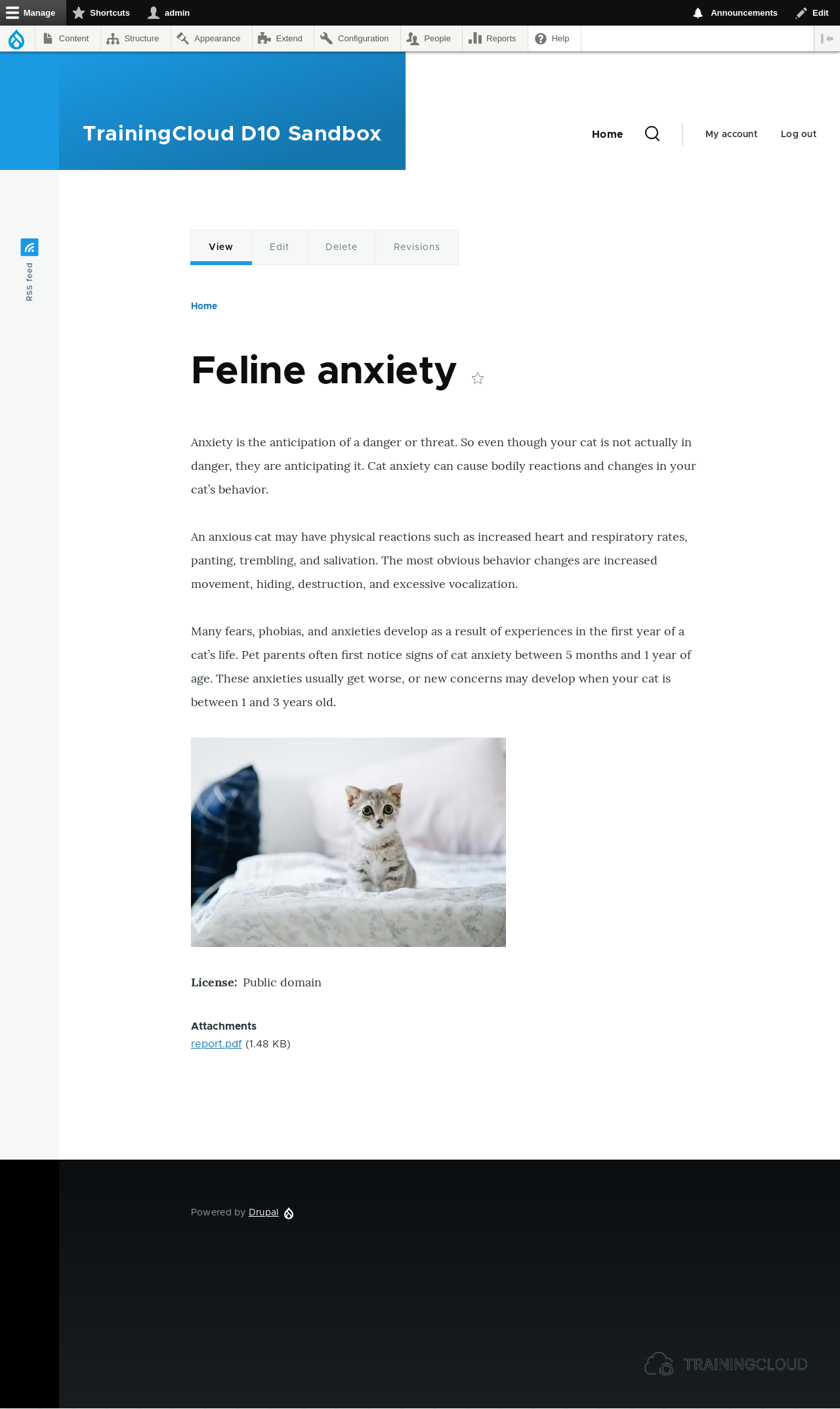
Summary
You add fields to any entity type through the Field UI. As such, the process of adding fields is exactly the same for all content entity types (nodes, users, taxonomy terms, blocks, media items, ...).