Objectives & prerequisites
- Install the Views Data Export module
- Learn what this module can do
- Learn which export formats it supports
- Add export functionality to any view
Introduction
While the Views system is extremely powerful, it doesn't let you export Views result records.
To export Views result records, you need to install a contributed module, or write your own.
Install Views Data Export
Activity 1
- Download and Install the Views Data Export module.
Once the module is installed you can start adding data export functionality to any view.
How does Views Data Export work?
To add export functionality to a view using the Views Data Export module, you need to perform the following steps (we'll go through them in more detail later on in this unit):
- Edit a view with a Page display (or create a new one)
- Add a new display of the type 'Data export' to that view.
- Configure that new display (path, export filename, and export format)
Once this is done, your view has two displays, each with its own path:
- the original Page display (example path: /articles)
- the new Data export display (example path: /articles/export
→ browsing to /articles/export will trigger the browser to download the export file
Note:
You can also trigger the export via a special button you can add to the original Page view. This is covered in the next unit.
Adding CSV export functionality to a view
In this example you'll create a basic view of articles (/recent-articles) and make it exportable to CSV (Comma-Separated Values) so you can import it into any spreadsheet application such as MS Excel, Mac Numbers, Google Sheets, or LibreOffice Calc.
To learn more about the CSV format, read through the following Wikipedia article: Comma-separated values.
Activity 2: create exportable view of articles
Step 1: create basic view
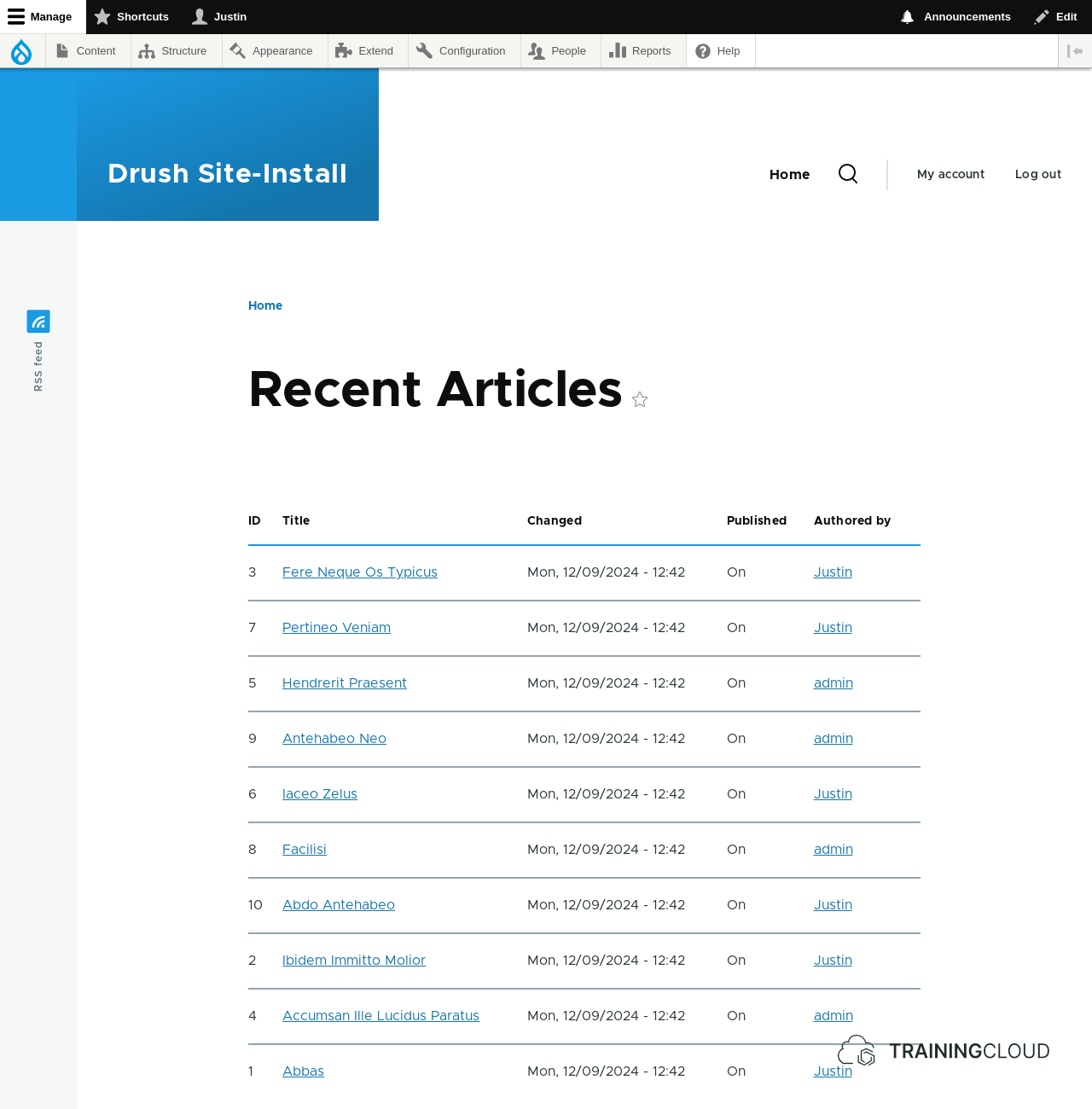
Create a view with a Page display and table format, showing the 10 most recent articles.
Fields:
- ID
- title
- date of last change
- publication status
- name of author
At this point your view doesn't have any export functionality yet, and should look like this:
Step 2: Add data export display
Add a 'Data export' display to your view:
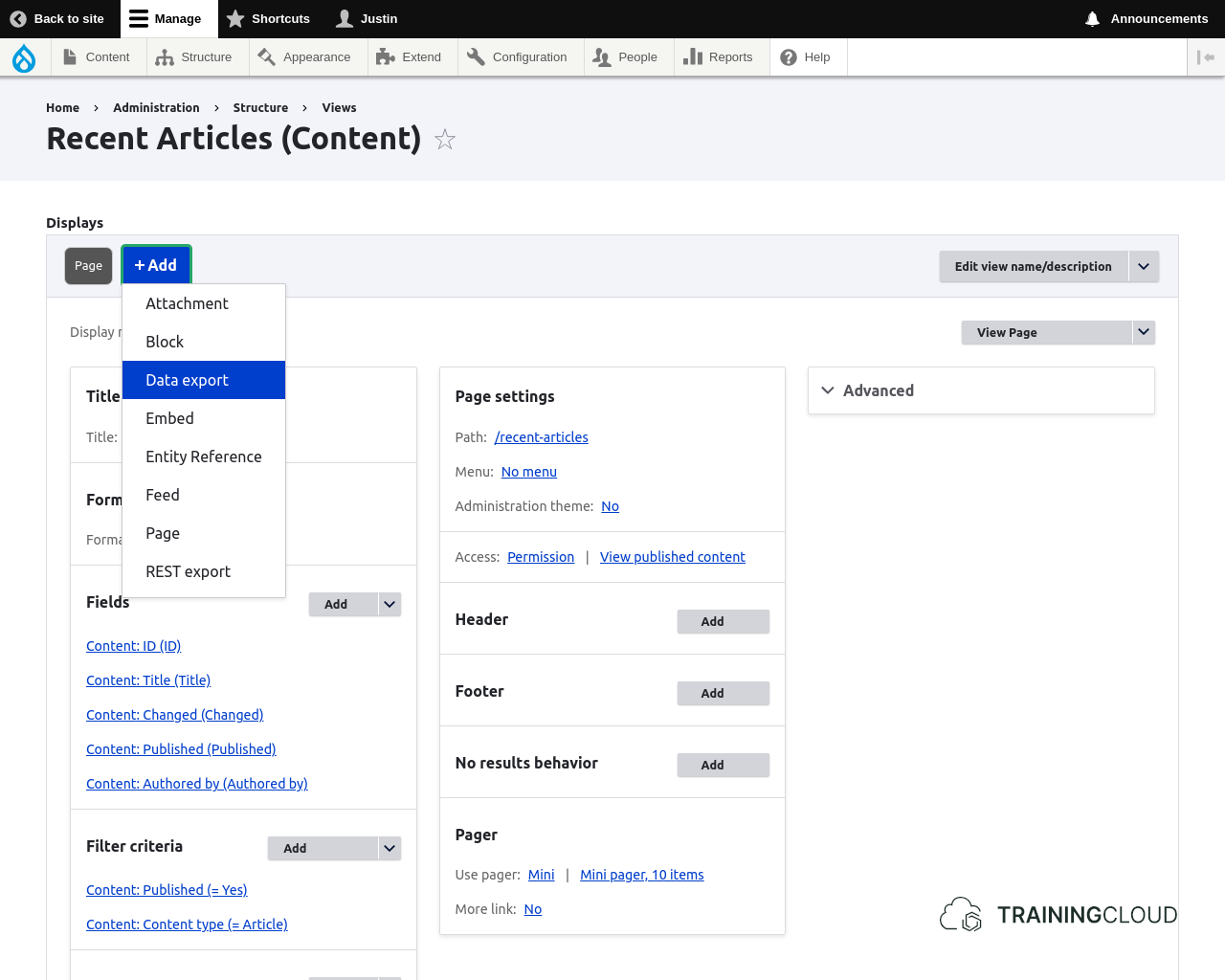
You can now start configuring the Data export display.
Step 3: Select export format
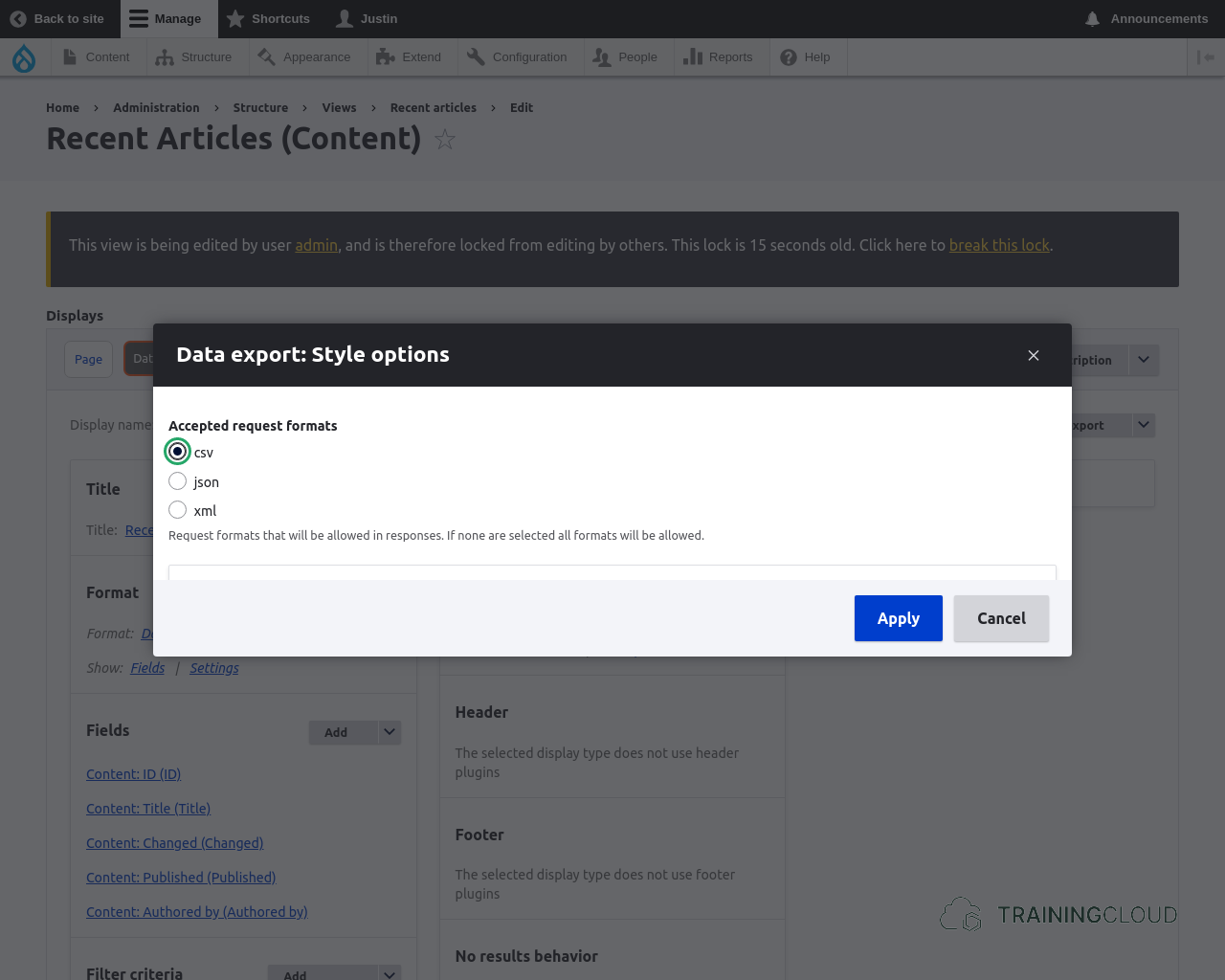
Ensure that the display's Format is set to Data export
In the Format settings, select the CSV format
Step 4: Select export path and export filename
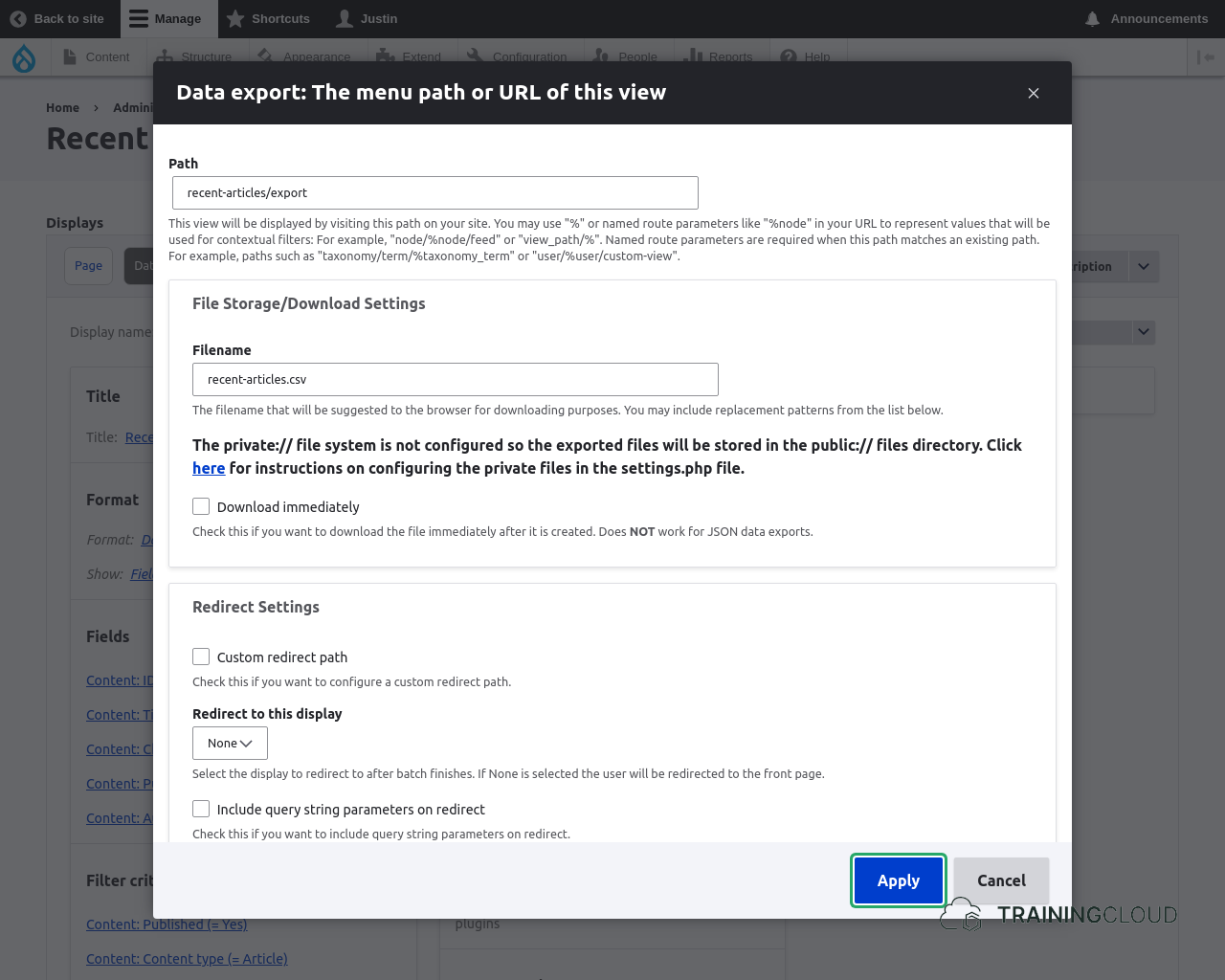
In 'Path setting's:
- provide the path at which the export should be reachable. A good option is to reuse the Page display's path and add '/export' (e.g.
/recent-articles/export) - provide the filename to be used when generating the export file
Step 5: Test your export
If everything went well, you should be able to access your export at the path you provided (/recent-articles/export).
- Ensure you have set the export format to CSV
- Ensure you have set the export path and export filename correctly
Activity 3: Export users as JSON
XML and JSON are data formats that are often used to communicate with external applications via webservices and APIs (Application Programming Interfaces).
Assume you want to expose user related information as JSON and allow an external application to access your Drupal site to retrieve it.
A basic (though simplistic) way to build this functionality is to create a view that retrieves the information and uses a Data export display to return the information in the JSON format.
Note:
This example shows a quick-and-dirty way to make Drupal data available as JSON.
If you want to build a real production-ready webservice that client applications can connect to, you should install and use Drupal core JSON:API module, which properly exposes Drupal resources as API endpoints and deals with issues such as formatting, caching, authentication & security, and setting the correct HTTP headers.
Instructions
- Build a view of users
- Add a Page display with path 'users'
- Show the following fields: user id, username, email, date of creation, date of last access, and timezone
- Add a Data export display
- Set its data export format
- Set its path and filename
If everything went well, your JSON export file should be structured like this:
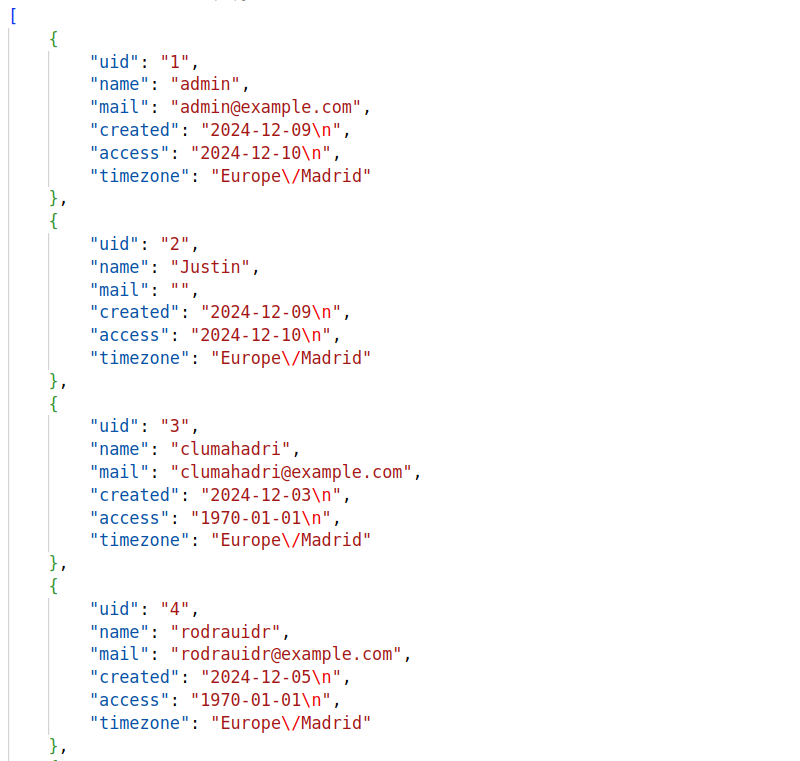
Note:
The actual layout may depend on the text editor you're using to view the JSON file.
- In your Data export display, verify each field and try to remove all html and display related settings. The purpose of a data export is to generate a file with data, not with rendered images, html links, etc. Remember: the data export file is meant to be opened in a spreadsheet application.
Activity 4
In this activity you will create a similar view, but for exporting any given user (instead of exporting all users).
Begin by duplicating the 'Users' view you just made. Name it 'Single user', and give its Page display the path /single-user, and Data export path /single-user/export.
- When a user browses to
/single-user/5, for instance, the Page view should be shown, displaying only the information for the user with ID 5. - When a user browses to
/single-user/export/5, for instance, the export file should contain only the information for the user with ID 5.
- You will need to add and configure the right kind of filter.
- Review the materials on the different types of Views filters and their purpose.
Troubleshooting
- Do NOT give the 'Single user' view the path
/user, as that path is already used by Drupal itself. Having two systems that use the same path will cause unexpected results. The Views system will, unfortunately, not stop you from specifying a path that is already in use, so be careful.
Conclusion
You can build dynamic views that pull data from the database and make it available in a variety of data formats - all without writing any custom code.
Making instant exports available at a custom URL like /users/export is a powerful but overlooked feature: developers can build an export view once and communicate the link to administrative staff who can now run the export whenever they want without having to ask a developer for help each time.
A module such as Views Data Export is a great help, though alternative export-related modules exist, such as VBO Export. It's up to you to explore them and decide for yourself which ones you want to use, based on your needs, the stability of the module, and so on.
Summary
- Views Data Export is a contributed module that lets you add CSV/XML/JSON export functionality to any view without writing code.
- To make a view exportable:
- Add a 'Data export' display.
- Set export format, path, and filename.
- Browse to the path to trigger the export file download.