Objectives & prerequisites
- Add an export button to a Page display.
- Customise the CSV export format settings.
- Enable the batch export method for large amounts of data
- Familiarity with creating views
- Having made views exportable using the Views Data Export module
Adding an export button to the Page display
You can add an XML/CSV/JSON export button to any Page display by attaching a 'Data export' display to the Page display. We'll go over the exact steps to take further down.
The button that gets added is a basic HTML link, styled with CSS to look like a button. You're free to override the style of this button in your own theme, but in this unit we'll stick to the default button style.
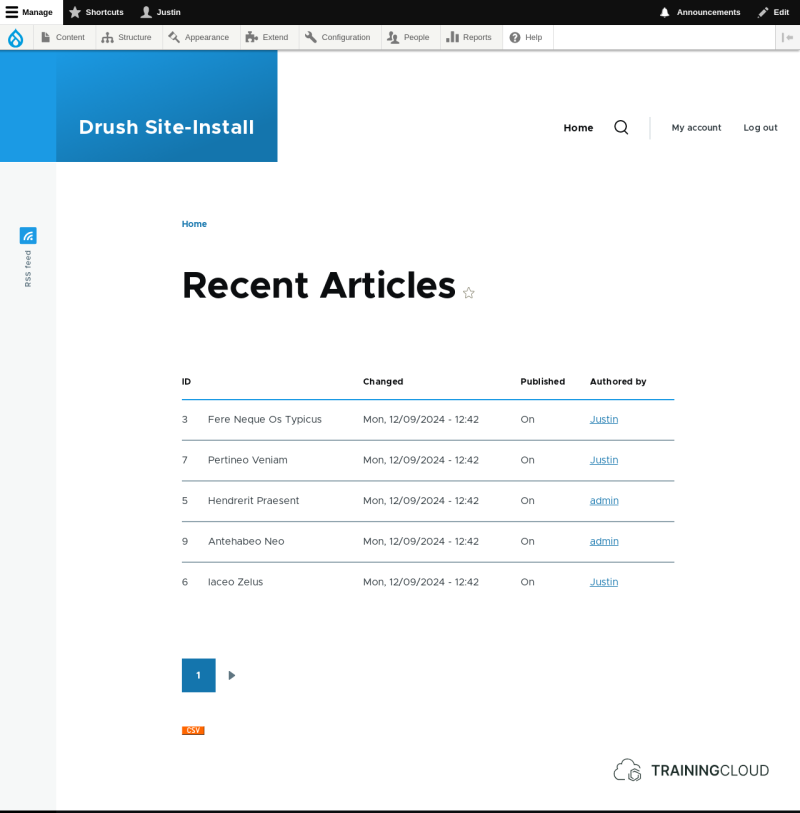
Steps to take
You already know how to add a 'Data export' display to your view.
To make it appear as an export button on the view-to-be-exported, you need to take one extra step:
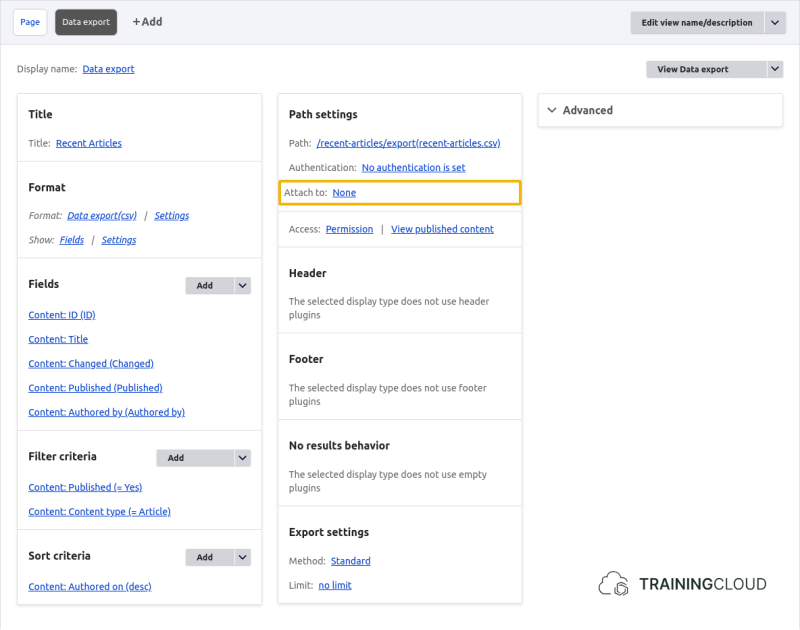
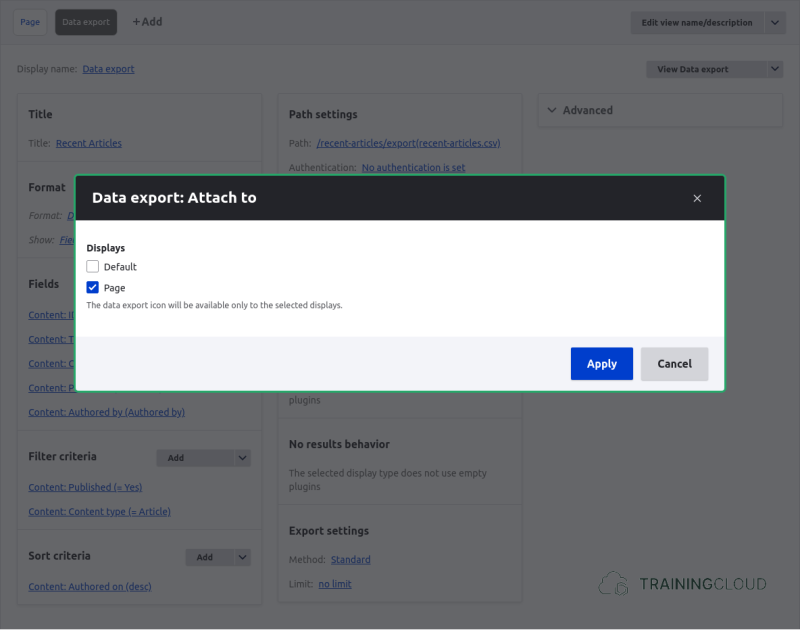
- In the Data export display's 'Path settings' → 'Attach to', select the Page display to which you want to attach the button.
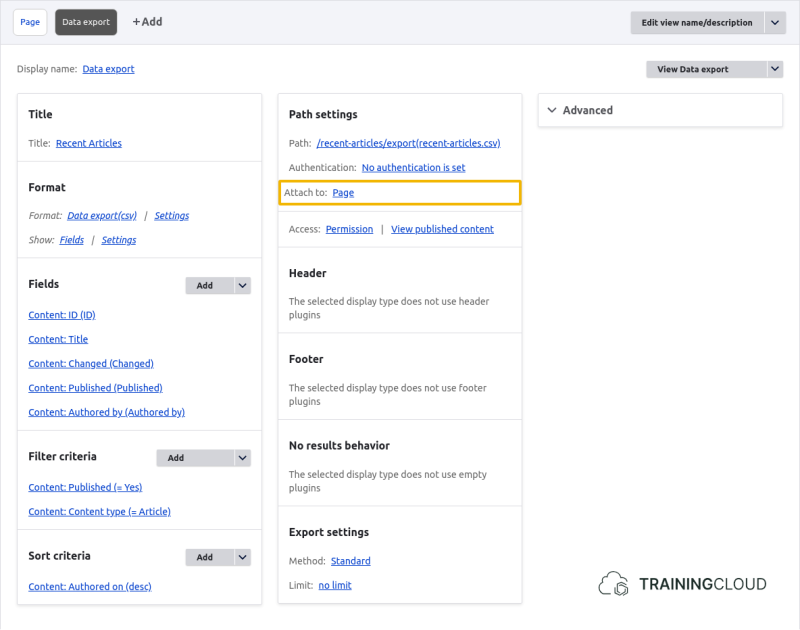
If everything went well, your export button should now be shown underneath the chosen Page display.
Activity 1: add an XML export button to a view
- Create a view with a Page display of all articles that are unpublished.
- Fields to show:
- article ID
- Title
- Author
- Creation date
- Add an XML export button to the Page display.
Activity 2: add a CSV export button to the same Page Display
- Make the view you just created also exportable to CSV.
- Add a second export button to the Page display to trigger the CSV export.
Configuring CSV export format options
When you use the Views Data Export module you can configure certain aspects of the CSV export format.
CSV has been a simple and reliable data exachange format for decades, and supports a number of options, such as:
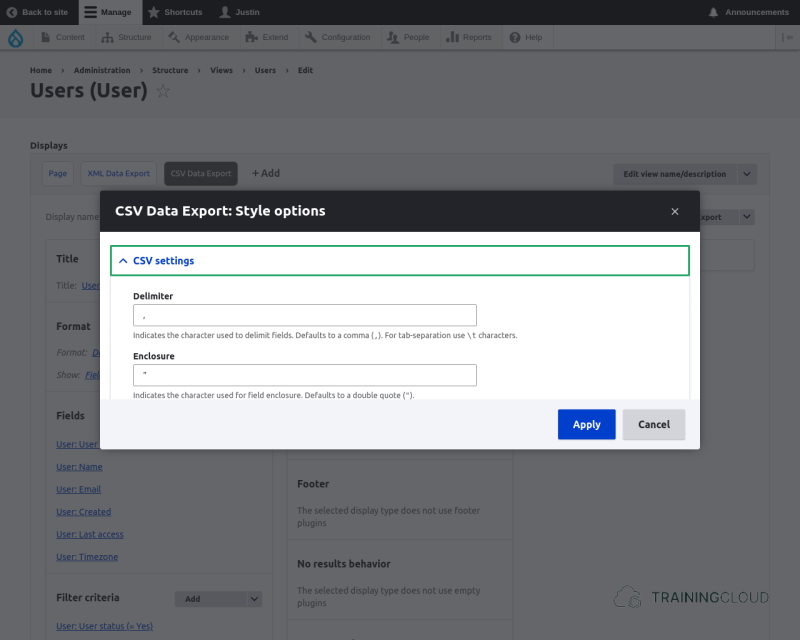
- Whether each value is wrapped in single or double quotes, or none at all.
- Which character (delimiter) separates one value from the next (usually a comma).
- Which character separates one line (record) from the next (usually a line break).
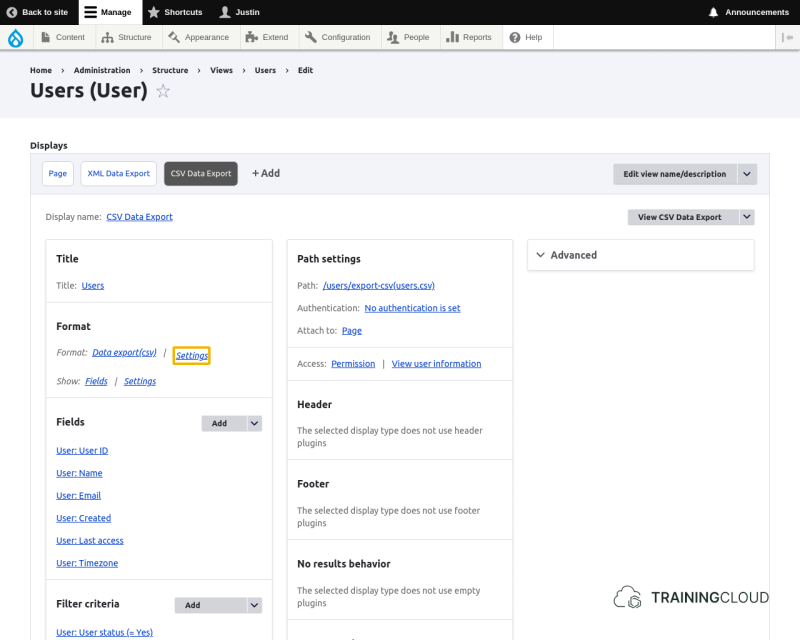
You can find the CSV format options under the data export's 'Format' → 'Settings' options:
Some of the available options:
Activity 3: modify CSV format options
- Modify the CSV export options of your view:
- Make it ise a semi-colon (
;), rather than the default comma, to separate each field
- Make it ise a semi-colon (
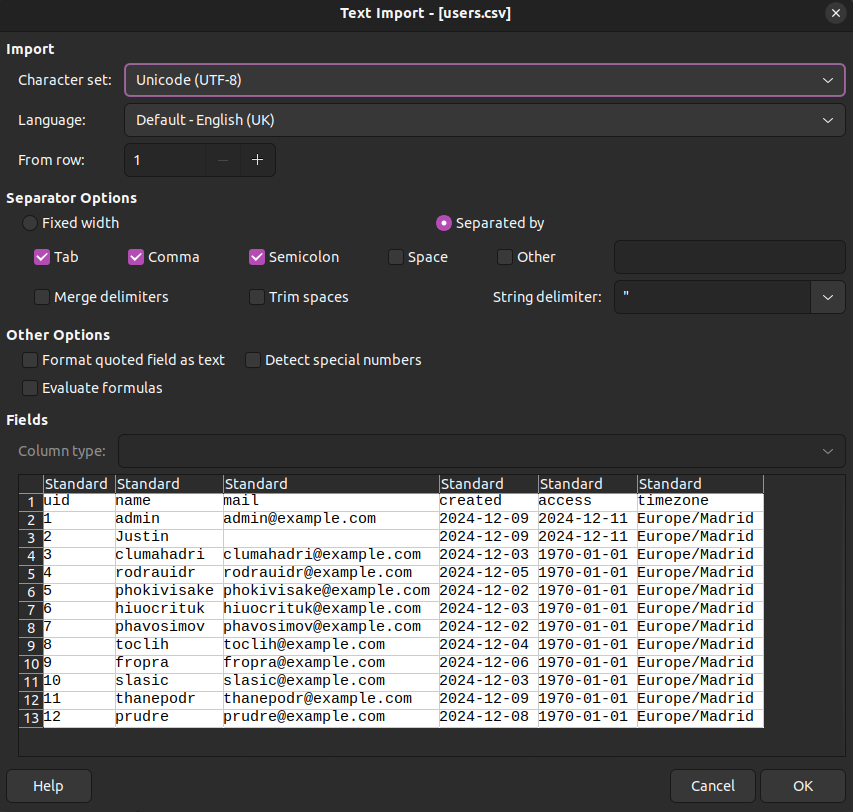
Test your new export file by opening it with any spreadsheet application (MS Excel, LibreOffice Calc, Apple Numbers, Office 365, Google Sheets, …). Depending on the application you use, the format settings will be auto-detected, or you will be asked to provide the field and line delimiters, character encoding, etc.
Here's how LibreOffice Calc asks which settings to use when you open a CSV file:
Activity 4
Compare Drupal's CSV export format options with the options presented by LibreOffice (as shown in the screenshot). Which options (possibly named differently) do they have in common?
Exporting large amounts of data
Depending on how PHP and your web server are configured, attempting to export a large amount of data (usually more than 2000 records) can fail.
The two most common reasons for such failure are:
- The process takes longer than the maximum script execution time.
- The process may need more memory than allowed
In both cases you may be able to solve the problem by increasing PHP's memory limit or maximum script execution time (both are managed in your system's php.ini file).
If modifying your php.ini file is not an option, try changing the export method from 'standard' to 'batch' in 'Data Export' → 'Export Settings'":
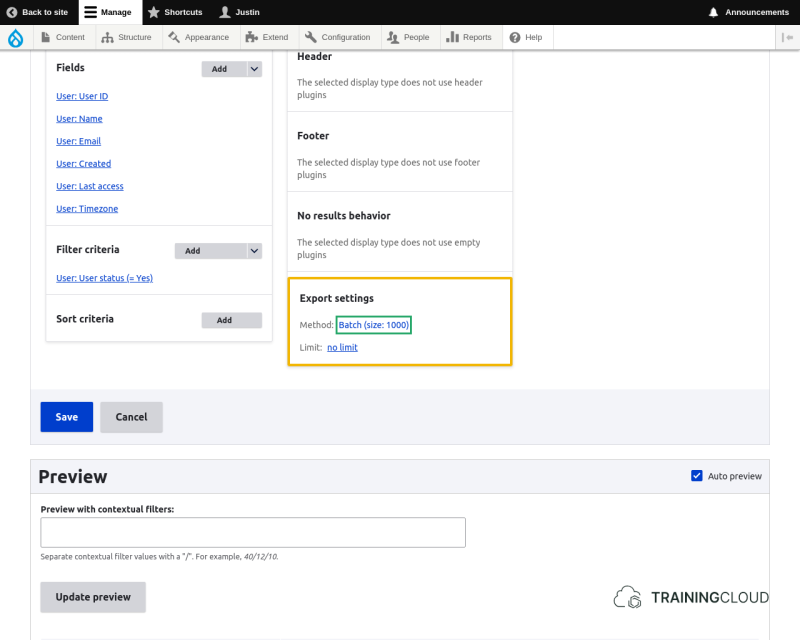
Drupal's batch mechanism ensures that long-running and/or memory-intensive operations have the opportunity to run on small sets ("batches") of data. Whenever a batch operation is running, a progress screen is shown.
Activity 5
Modify any of your views' Data export displays, change the export method to 'batch', and execute the export.
- Did you notice the progress screen?
- Were there any differences in how / where to retrieve the generated file?
- Some people report issues when trying to use the batch method to export complex views or views that use a number of specialized plugins (such as PDF rendering of individual views records).
- If you're having errors when using the batch method, try switching back to the standard method and limiting the number of results. This can help prove or disprove whether your errors are indeed related to the batch method.
Summary
- Export buttons
- Add an XML/CSV/JSON export button to any Page display by 'attaching' the Data export display to that Page display.
- CSV format options
- Found under Format → Settings
- Most importantly:
- Which character to use as field separator.
- Which character to use as record separator.
- Exporting large amounts of data
- Exports can fail when the process needs more time or memory than allowed.
- Solutions:
- Change allowed execution time or memory in
php.ini. - Switch to 'batch' mode in Export settings → Method
- Change allowed execution time or memory in