Introduction
Some administration pages let you select multiple records and perform the same action on all of them at once. Such operations are called batch operations or bulk operations.
You use this kind of functionality when deleting multiple nodes at the same time, or blocking multiple users at the same time.
The Views Bulk Operations module adds this functionality to Drupal Views.
Examples administrative views with bulk operations include:
/admin/content(actions: delete content, publish content, unpublish content, …)/admin/people(actions: block selected user(s), add the Administrator role to selected users, …)
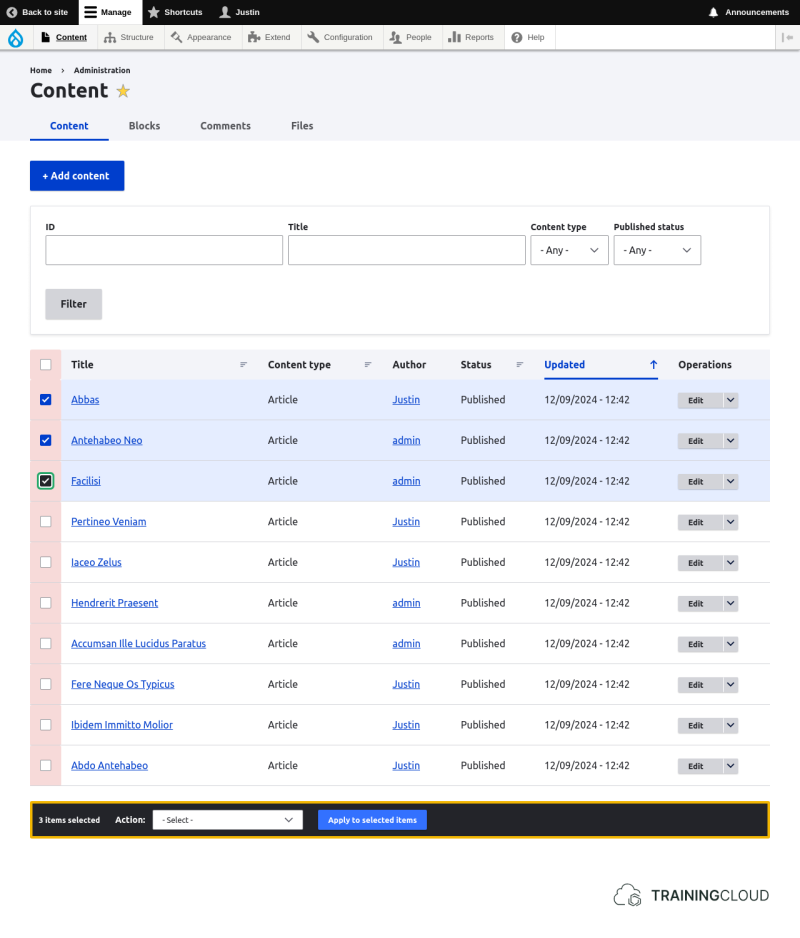
The available actions are provided by Drupal core and by contributed modules.
You can add your own actions by creating a custom module that provides one or more Action plugins, but that's beyond the scope of this unit.
Do I need to install something?
Although there are core views that already support bulk operations, you must install the Views Bulk Operations module to be able to add bulk operations to your own views.
Activity 1: install VBO
Download and Install the Views Bulk Operations module.
Once the module is installed, you don't need to configure anything: you can start adding bulk action functionality to your custom views immediately.
Creating a view with bulk operations
You can add bulk operations to any view regardless of the chosen format, but the Table format is the most useful view format to use in combination with bulk operations.
You can add bulk operations to any view by following these steps:
Step 1: add field
Add the "Node operations bulk form" field to your view's list of fields.
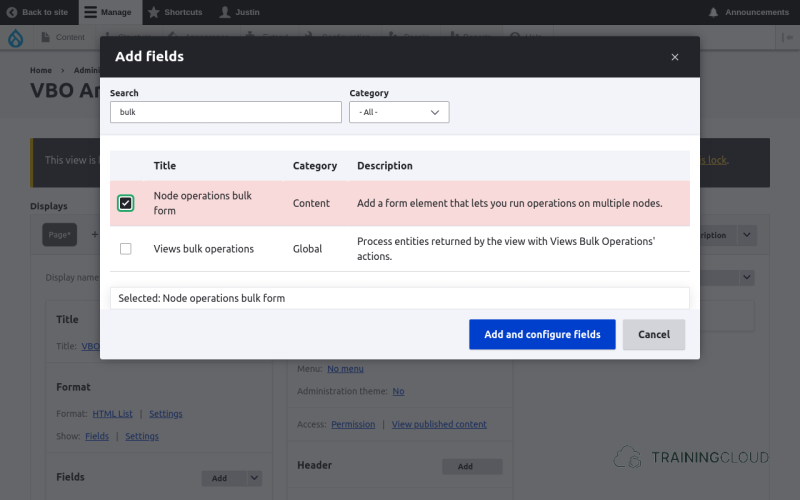
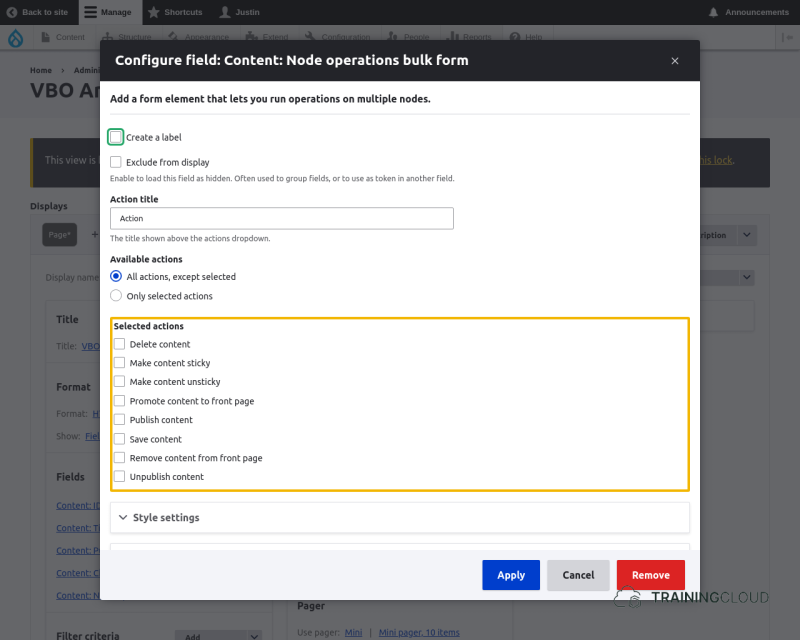
Step 2: select actions
Select which of the available actions your users can perform.
Step 3: reorder fields
Reorder the view so the new checkbox is shown in the first column of the table where everyone expects it.
Activity 2: create an articles management view with bulk operations
Assume you want to create your own Article management page, as an alternative to the generic Content management page at /admin/content.
- Create a page view of articles, and display the results as a table.
- Show the following fields:
- Node operations bulk form
- Actions: 'delete content', 'unpublish content'
- Node ID
- Title
- Published
- If TRUE, display 'published', if FALSE, display 'draft'.
- Date of last change
- Select a date format that produces the format year-month-date (e.g. 2021-01-25).
- Edit (link)
- Node operations bulk form
- Ensure that the view can be sorted by Node ID, Title, Published, Date of last change.
- Ensure that the view is only accessible by users who have the 'Administrator' role
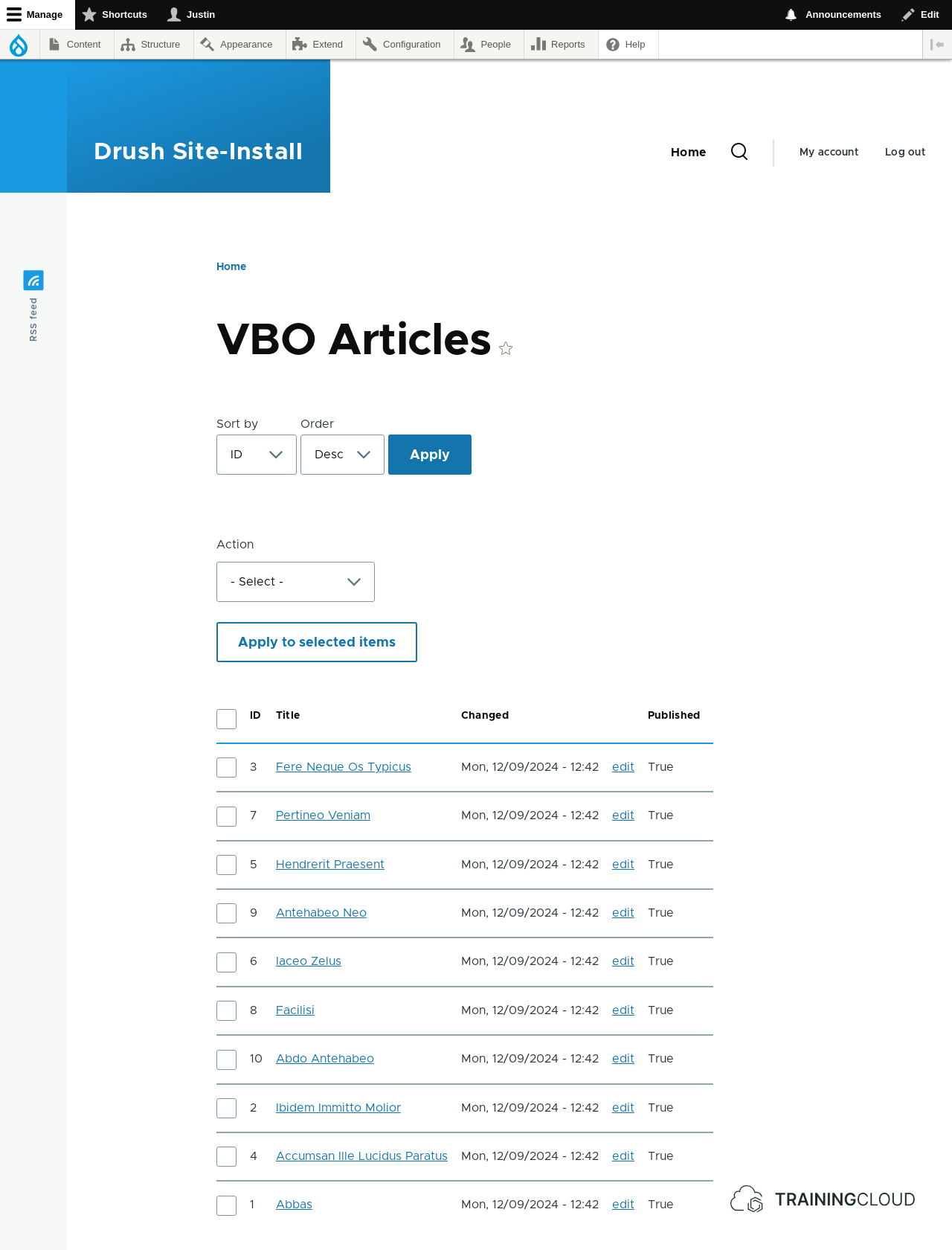
If everything went well, your view should look like this:
- You can specify a view's access permissions via its 'Access' settings (part of its 'Page settings' admin section).
- You can grant access to a view based on two things:
- a single permission (such as 'Access content')]
- a role (such as 'Authenticated user' or 'Administrator')
Activity 3 (challenge)
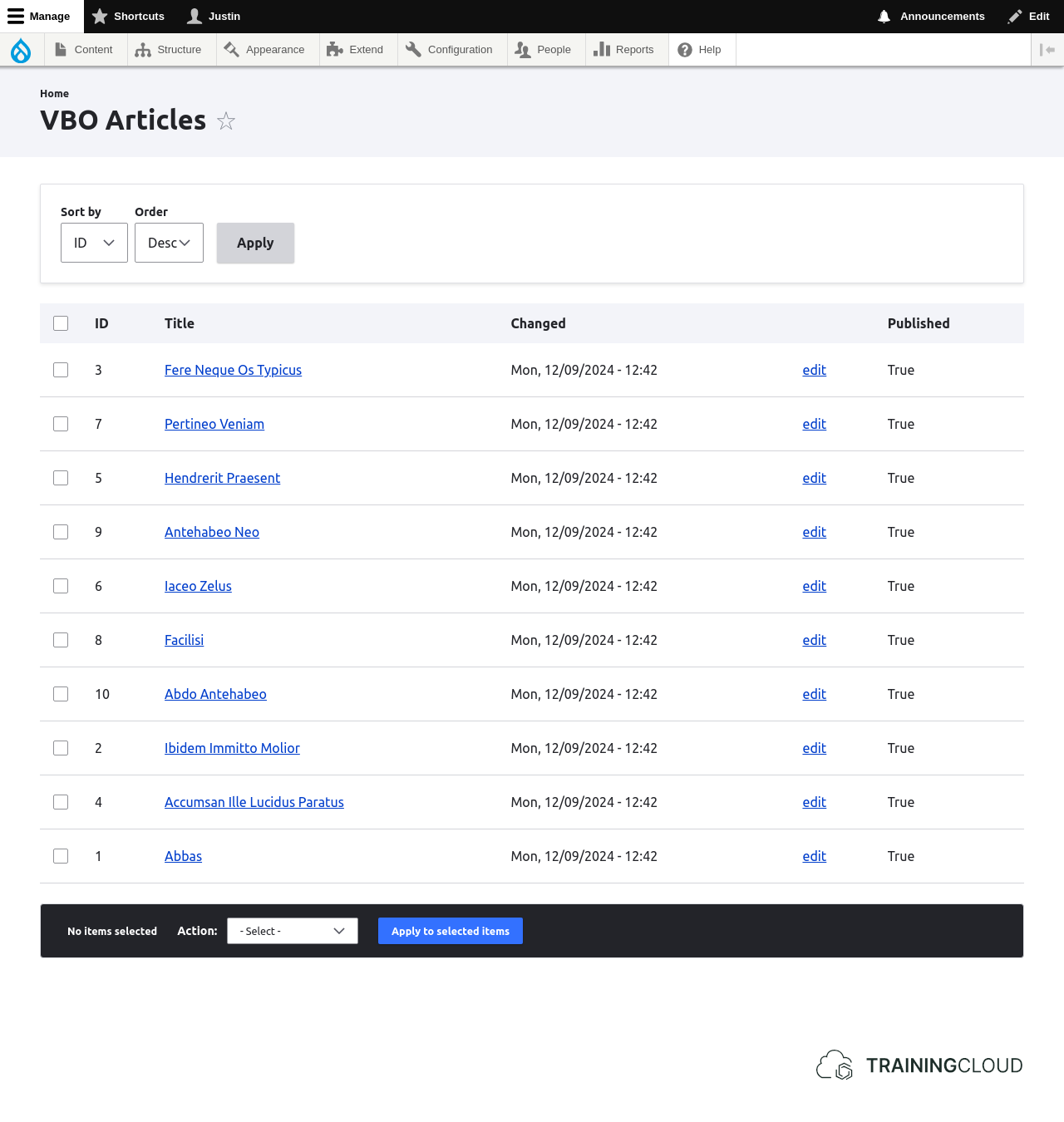
This view with bulk operations is meant to be used as an administrative view. However, we can see that the currently active user-facing theme is being used, instead of the administration theme used for all other administrative pages.
→ Change the view's configuration so it uses the administration theme.
There is a simple 'trick' to making a view use the administration theme, but it can be hard to discover. You may need to experiment or search the web.
Once you've found how to make the view use the administration theme, it should look like this:
Summary
To add a bulk operations to a view:
- install the Views Bulk Operations module
- add the 'Node operations bulk form' field to your view
- select which bulk actions to allow