Objectives & prerequisites
- List the major platforms for which VSCode is available.
- Describe two general ways you can install VSCode.
- Explain how directories and VSCode workspaces relate to each other.
None.
Installing VSCode
VSCode is a cross-platform application based on the ElectronJS framework.
You can download the appropriate version from https://code.visualstudio.com, or use one of the command-line installation options mentioned further down.
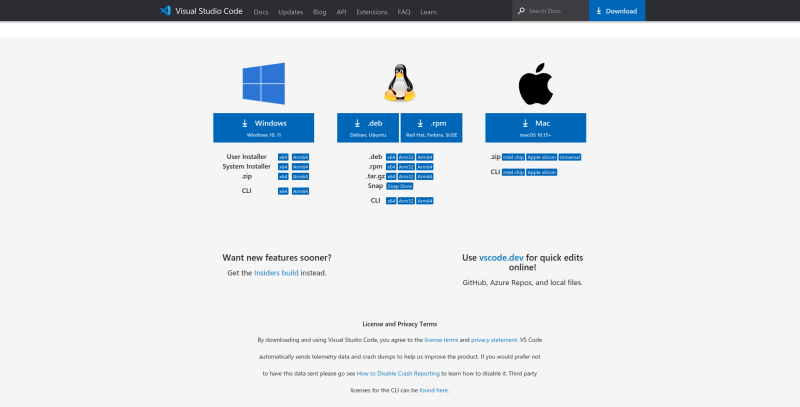
Windows notes
- The User installer does not require admin privileges, and installs app under the user's profile.
- The System installer does require admin privileges, and installs app for all users.
- Command-line installation via Chocolatey:
choco install vscode.
Linux notes
.debfiles are typically for Debian / Ubuntu-based systems..rpmfiles are typically for Redhat-based systems.- Snap packages can be used on any Linux system where the Snapcraft system is installed. Ubuntu users can also find all snap packages via the Ubuntu Software Center and via the command-line.
- Command-line installation via Snap:
snap install --classic vscode
MacOS notes
Command-line installation via Homebrew: brew install --cask visual-studio-code
Activity
Install VSCode on your machine.
Starting VSCode
You can start VSCode through your system's application launcher, or from the command line.
By default VSCode will open the last folder (or the last workspace) you opened.
You can also start VSCode from the command-line via the code command. If you pass along the path to a specific folder or workspace, VSCode will open that location instead.
The following command opens VSCode and passes along the current directory ( . ) as the first argument:
code .Workspaces
A VSCode workspace is the collection of one or more folders that are opened in a VSCode window.
Thanks to workspaces, VSCode can:
- Configure settings that only apply to a specific folder but not to others.
- Save task and debugger configurations that are only valid in the context of that workspace.
- Restore the user interface (open files and panes) to the state it was in when that workspace was last used.
- Selectively enable or disable extensions that should only be used in that workspace.
You don't need to do anything for a directory to become a VSCode workspace other than open the directory with VSCode. Once you open a directory, VSCode keeps track of your opened files and how your editor is organized.
When you later reopen that directory in VSCode, the editor will detect it as a workspace, and restore the editor's layout and opened files as you left them previously.
Activity
- Open a directory that contains multiple documents.
- Open one file by double-clicking it in the file explorer pane at the top of the left sidebar.
- Make a small change to the file, and do not save the file.
- Close VSCode without having saved the modified file.
Open the same directory again with VSCode. The file you were editing should have opened automatically. Your changes should have been retained.
Summary
- You can install VSCode on Windows, Linux, and MacOS.
- You can start VSCode through your system's app launcher, or via the command-line.
- When starting VSCode from the command-line, you can pass along the path to a directory or workspace to restore the editor's layout and open files.
- Unsaved work is not lost when you close VSCode. Work in progress is restored the next time you open the workspace.