Objectives & prerequisites
- Demonstrate how to group multiple open tabs together.
- Basic file and folder management on any operating system.
- Basic text editing operations.
Editor groups
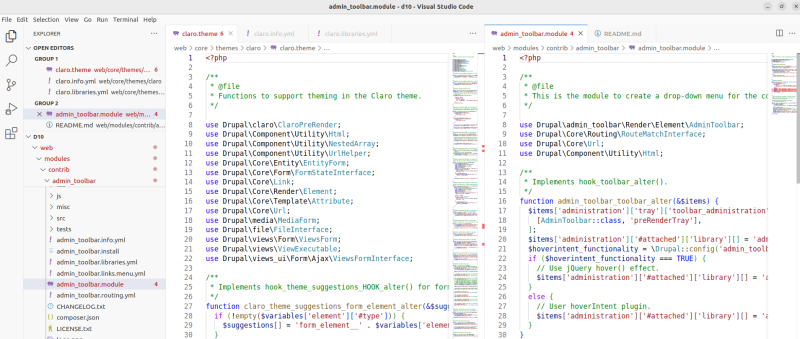
Image: VSCode with 2 open editor groups. One with one theme files belonging to the Claro theme; the other with module files belonging to the Admin Toolbar module. The two editor groups are visible in the primary sidebar's Open editors section of the Explorer panel.
When you open multiple files in VSCode at the same time, you can navigate between them via the tab bar. You can also create two or more editor groups to group your editor tabs together, as shown in the example above.
Creating a group
To create a group, click the Split Editor Right button near the top right hand side of the tab bar:

Alternatively, select View > Editor Layout and then choose between Split Up, Split Down, Split Left or Split right.
Once you have created two or more groups, you can drag and drop tabs between them to organize your workspace.
When you close VSCode, your project's editor layout and groups settings will be saved and automatically used next time you open VSCode.
Further layout customizations
Editor groups in columns, as shown above, is only the beginning of how you can customize your workspace per project or for all projects.
Going further goes beyond the scope of this introduction.
If you're interested in learning more, see:
- VSCode Grid editor layout (Microsoft)
- VSCode Window management (Microsoft)
Summary
- Editor groups let you group together open tabs (called open editors).
- Split your layout via:
- The Editor split button
- View > Editor Layout > Up/down/Left/Right
- Editor groups and related layout settings are stored per workspace and automatically active next time the workspace is reopened.