Objectives & prerequisites
- List the 5 most important VSCode screen areas and describe their use.
- Explain the purpose of each of the default activities in the Activity Bar.
- Explain the purpose of the default features in the Status Bar.
- Give an example of a feature that depends on the current file's detected programming language.
None.
Overview
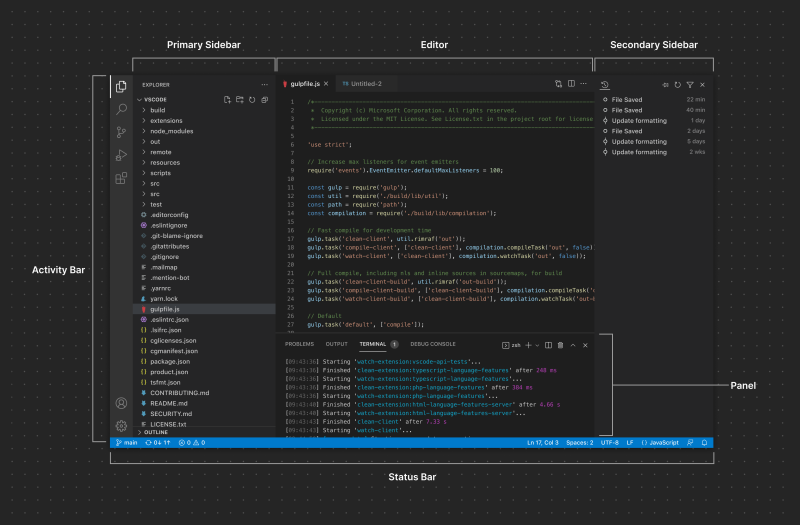
Image: Microsoft.com
The way VSCode organizes its interface is similar to other code editors.
From left to right:
- The Activity Bar with icons that lead to often-used screens (called Views).
- The Primary sidebar, most used for searching or exploring your files and folders.
- Editor Groups: one or more code editor screen tabs, potentially grouped together.
Underneath the Editor Groups you may find the Panel, if it's open.
It shows:
- A Problems tab
- An Output tab
- A Debug Console tab
- A Terminal tab
- On the far right side of the screen: the Minimap panel, which shows a bird's eye view of the currently opened file together with your cursor's approximate position.
- At the bottom you'll find the Status Bar, with several icons indicating version control state, number of errors or warnings encountered, file character set and line ending setting currently being used, and which type of file VSCode has detected, which influences the syntax highlighting color scheme.
Activity bar
Depending on the extensions you install, more or fewer activity icons will be displayed in the Activity Bar. By default you'll see:
Explorer
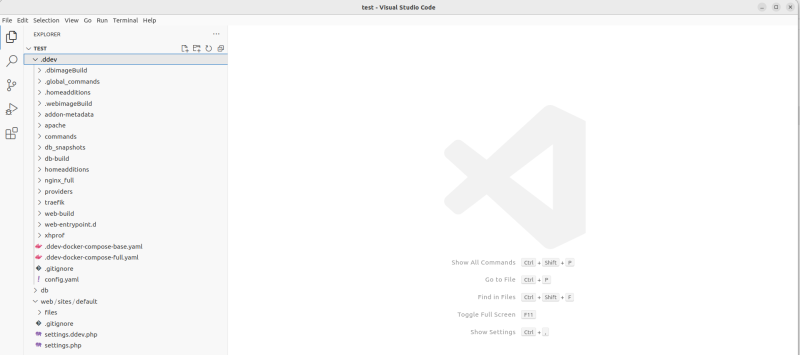
The Explorer view is used to browse and manage all of your project's files and folder:
- Create, delete, or rename files and folders.
- Move files and folders
→ Right-click anywhere in the Explorer area to bring up the context menu and discover more options.
Note
When you install extensions, more options may become available.
Search
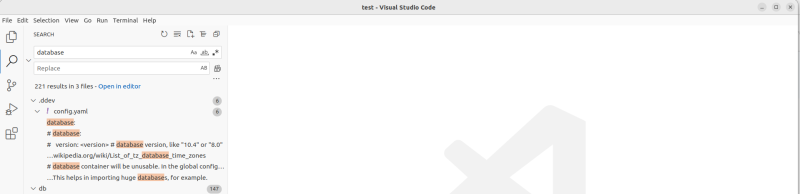
The Search view lets you search (and replace) within a single directory, multiple directories, or throughout your entire code base.
You can specify:
- partial or complete matching
- case sensitivity
- file name patterns to include or exclude
More advanced users can also use regular expressions for advanced search patterns.
Source control
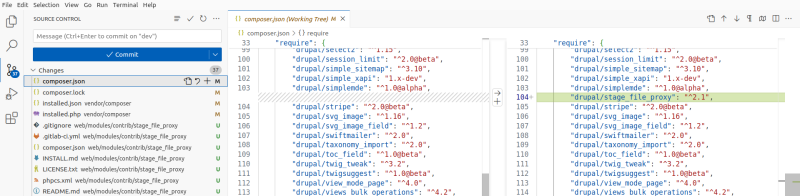
VSCode has built-in support for Git-based Source Control Management, and supports other source control options as well through extensions.
Note
Source control tools allow software developers to collaborate on software and distribute their code changes to each other. The tools keep a full version history of all files, and offer ways to deal with multiple code versions (branches) and conflicting changes.
VSCode will automatically detect when you're working in a version controlled project, and activate a number of features such as:
- A message bubble showing the number of changed files.
- An overview of all the modified (
M), untracked / new (U), and deleted (D) files. - A comparison (diff) view showing each file's changes.
Installing additional Git extensions offers deeper Git integration with more features or easier to use interfaces.
Run and Debug
One of the great features of VSCode is its excellent debugging support.
The VSCode debugger supports Node.js (JavaScript, TypeScript) by default. For debugging other languages you'll need to install an appropriate debugging extension, such as the VSCode Xdebug extension to debug PHP code.
→ Setting up VSCode for PHP and/or Drupal projects is discussed in a later unit.
→ Debugging PHP projects with VSCode and Xdebug is discussed in a later unit.
Extensions
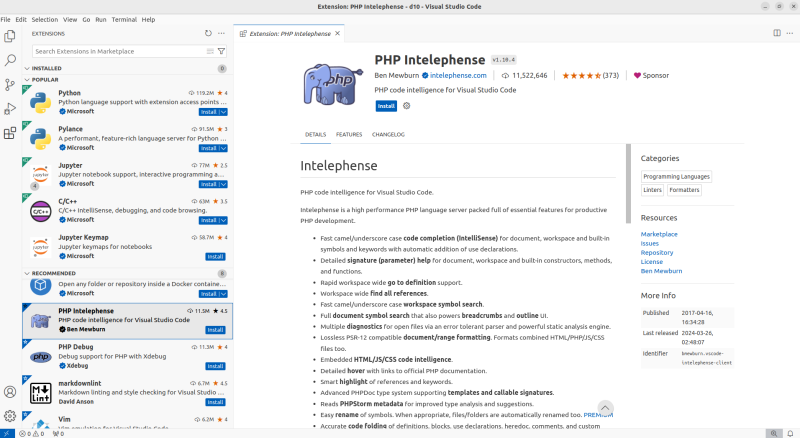
Clicking the Extensions icon brings up the integrated extension browser, which is configured by default to connect to the Microsoft VSCode Marketplace.
Note
Alternative extension repositories such as Open VSX exist as well. See Introduction to VSCode for more info.
Installing and uninstalling extensions
Installing an extension is usually as easy as clicking the extension's install button. Sometimes additional configuration is required, so it's a good idea to always read the extension's details.
Once installed, extensions are automatically updated by default when you start VSCode.
Once an extension is installed, the install button is replaced by a cog icon where you can further configure or uninstall the extension:

Status bar tools
At the bottom of your screen you'll find the Status Bar. While easy to overlook, this area shows a lot of information, and hides many features.
Note
Right-click on the Status Bar to select elements to show/hide.
Let's take a closer look at each tool. For this example we're using a code base that is connected to a Source Control repository.
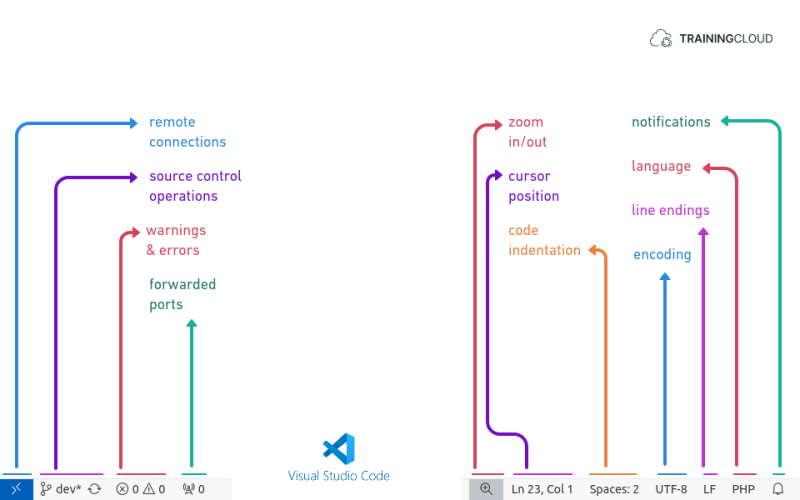
Remote connections
VSCode has built-in support for connecting to remote servers.
The tunnel option lets you temporarily expose your local project to the internet, using your GitHub credentials. Your project will then be available via a special link such as https://123456789.devtunnels.ms (not a real tunnel link).
The SSH option lets you connect to a remote server using the SSH protocol, and manipulate remote files directly from VSCode as if they were local files.
The Dev Container option lets you connect to a Development Container. A dev container allows you to use a container as a full-featured development environment. You can use it to run an application, to separate tools, libraries, or runtimes needed for working with a codebase. You can run them locally or remotely in a variety of supporting tools and editors such as VSCode.
The GitHub Codespace option lets you use your local VSCode application to connect to GitHub Codespaces. Codespaces are remote development environments offered by GitHub and Microsoft, and are usually accessed via a web-based version of VSCode.
The Remote repository option lets you connect to a remote Git repository and manage the codebase as if it were local.
Source control
If you are using Git, this icon shows the currently active branch and indicates if changes have been made. Clicking the icon shows a context menu with source control operations for creating new branches, switching to other branches, and more.
Errors & warnings
Warnings or Errors can be created by rich language services or by linting tools that automatically analyze your code in the background.
Forwarded ports
Shows which local ports you have forwarded to make your application temporarily reachable via the internet. See also: Remote connections - tunnel.
Zoom in/out
Zoom in and out to make all parts of the interface bigger or smaller.
Cursor position
Shows the current position (line number character number) of your cursor. Clicking this lets you jump to any line.
Code indentation
Shows your current code indentation settings:
- use tabs or spaces for indentation
- the number of spaces used for a single indentation
The indentation settings are linked to the detected programming language. The language detection is based on the current file's file extension.
For example: if you edit a .php file, the indentation settings for the PHP language will be used.
Encoding
Shows the character encoding scheme (character set) being used for the current file.
Clicking the encoding icon lets you reopen or save the file using a different character set.
UTF-8 is the default character set, and you should not change this unless you have experience dealing with different encoding schemes, and you know what you're doing.
See also:
Line endings
When you press RETURN on your keyboard, you insert an invisible character called a line ending.
Different systems handle line endings differently:
- MacOS and Linux use the LF (LineFeed) character
- Windows uses CRLF (Carriage Return character + Line Feed character)
Clicking this icon lets you specify the line ending character(s) to use for the current file. This can be helpful if you're opening a file that uses different endings and is causing trouble.
However, if you're collaborating with others, line endings and character encoding should be discussed as part of the project specifications, and tools such as Git should be configured appropriately.
For more information, see https://docs.github.com/en/get-started/getting-started-with-git/configuring-git-to-handle-line-endings
Language
Shows the detected programming language. See Code indentation.
Notifications
Shows new notifications added by VSCode itself and by extensions.
Summary
- The VSCode interface is similar to other IDE's, and shows a file explorer in the primary sidebar, one or more tabbed code editors, and has additional configurable panes used for debugging, and terminal sessions, amongst others.
- The Status Bar is often overlooked but exposes a lot of information and functionality.
- Several features such as indentation settings are linked to the detected language, which in turn is linked to the file's file extension.