Objectives & prerequisites
- Describe the usefulness of integrated terminal shells.
- Explain why different users may have access to different types of terminal shells.
- Open a default terminal shell.
- Open a different (non-default) terminal shell.
- Previous experience using any command-line terminal.
- Basic command-line operations.
Overview
All major systems including Linux, MacOS, and Windows provide command-line access through terminal applications. Terminals offering the Bash shell are the default on Linux and MacOs, while Windows offers the Command shell and PowerShell, amongst others.
Software developers often use the command-line as part of their day-to-day activities to compile code, generate style sheets, manipulate local development environments, view log files, print debugging information, and more.
To avoid having to switch between VSCode and one or more terminal windows all the time, VSCode provides a built-in terminal application that can start a JavaScript debugging shell as well as any other type of shell your system supports.
Example
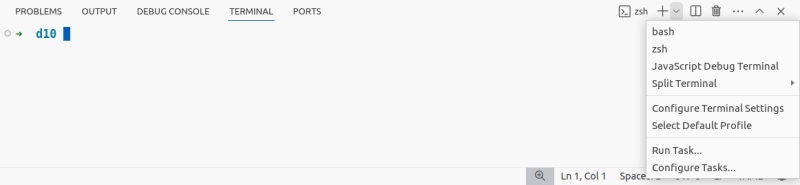
On a newly installed Linux system where the Bash and Zsh shells are installed, you'll be able to start a Bash shell, Zsh shell, or a JavaScript debugging shell:
On Windows with WSL2 (Windows Subsystem for Linux) and Git installed, you'll also have access to a Command shell and PowerShell:
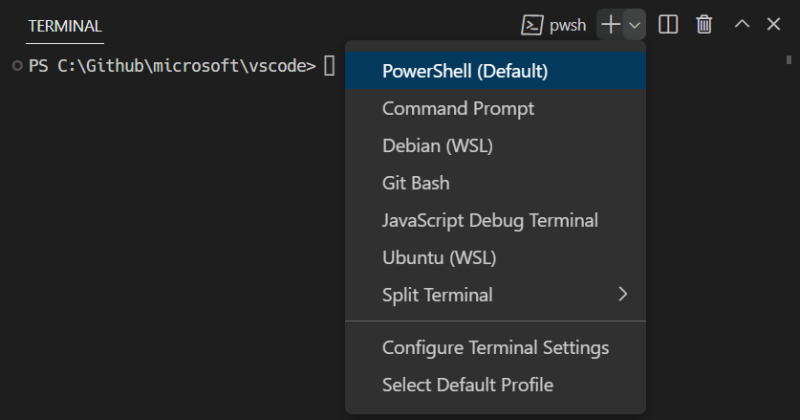
Image: Microsoft. VSCode's integrated terminal and available shell types on Windows.
VSCode's integrated terminal does not add more shell features or options; it merely makes the existing shell types available inside VSCode.
Using the integrated shell is optional but having everything in one place will save you time and effort.
Opening / closing new shells
Opening a new shell
You can show the terminal pane via the menu: View > Terminal or use the shortcut CTRL + ` (CTRL + backtick).
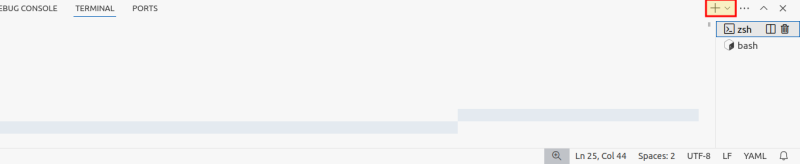
Once the terminal pane is visible, you'll see at least one (newly) open shell ready for use. You can open a new default shell via the + button on the right hand side, or choose the type of new shell to open via the downward arrow next to the plus button:
Closing a shell
You can close any shell with the exit command or by clicking the trash can icon next to the shell in the terminal pane.
DDEV shells
DDEV is a command-line tool that lets you set up containerized local development environments per project.
Working with DDEV environments involves executing commands directly in the web container (where the web application actually runs) by first entering into the web container's Bash shell via the ddev ssh command.
You can do the same thing directly inside a VSCode Workspace:
Step 1: Show the terminal pane
Step 2: run ddev ssh
You will notice that the name of that terminal session has changed from your default shell type (Bash, Zsh, PowerShell, ...) to ddev.
You can now run any command you usually run inside your web container (perform PHP Composer operations, Git operations, Drush operations, ...).
It's useful to keep one default terminal session and one DDEV terminal session open in your VSCode terminal pane at the same time so you can easily switch between them without having to leave the VSCode application.
Summary
- Inside VSCode you can start any type of terminal shell your system supports.
- Different systems support different types of shells though Bash and Zsh are available on all major platforms.
- Using built-in terminals in VSCode helps you keep focus by avoiding having to switch between your VSCode and terminal apps all the time.