What are Views Filters?
Every time you build a view, you're asking Drupal's database to send you a small part of all the information it stores:
- The newest 10 'Premium' members
- All published articles, ordered by date
- The most expensive products in the 'garden' category
- ...
Each of these views needs some kind of filter definition to narrow down, or filter, what is sent back from the database:
The Newest 10 'Premium' members filter:
→ 'only show members with member type equal to Premium'
The All articles ordered by date filters:
→ 'only show content with publication status equal to published' → 'only show content with content type equal to Article'
The Most expensive products in the 'garden' category filters:
→ 'only show content with category equal to garden'
In other words, filters let you narrow down exactly what data you want your view to show.
Activity 1
Create 5 articles and make sure they all have one or more values in their 'Tags' field.
Also make sure at least one of the articles has 'green' as one of its tag values, and at least two have 'red' as one of their tag values.
Note: the Tags field on articles is a so-called 'open' taxonomy field. That means you're not restricted to using a predefined set of taxonomy terms. If you add a value that doesn't exist as a term yet, Drupal will create one for you on the fly while you're creating or updating the articles.
- Create one page view that shows articles where one of the tags equals 'green'. Make it accessible at path
/articles/colour/green - Create another page view that shows articles where one of the tags equals 'red' Make it accessible at path
/articles/colour/red
- See Working with Page Views and Working with Block Views for a reminder on how to add filters.
- It can be hard to find the correct field to filter on when you're scrolling through all potential fields to filter on. The Tags field is named Tags, and has the interal name field_tags. To find this field when adding filter criteria, use the Search field on the Add filter criteria modal window:
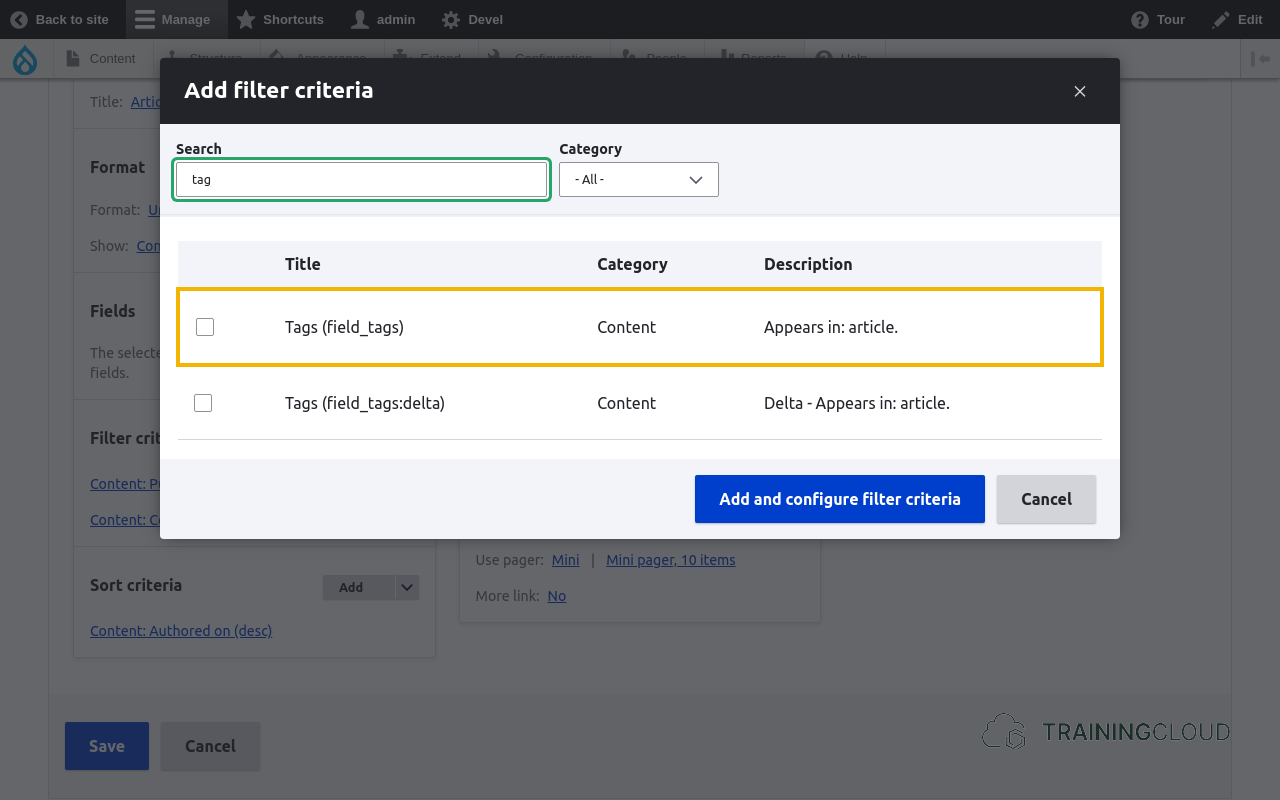
- Once have you created your first view, you can clone it, give it a new name, and change the filter criteria - you don't have to recreate this second view from the ground up.
Dynamic filtering
Once you understand how filters work, it's straightforward to create two similar views where only the filter is different.
Filters are a powerful feature, but what if you have a need for 10 of these similar views? Or 100?
Imagine you have a site like Amazon and have 250 different categories. Making 250 filtered views - one for each category - doesn't feel like a sensible approach. It would a lot of repetitive work to create and maintain all these views.
There's a better way: the Views system has two built-in mechanisms that can help: exposed filters and contextual filters.
Exposed filters
Exposed filters are filters where you, as the website developer, add the filter(s) and potentially provide a default filter value, but let your visitors change the filter values themselves.
The Content dashboard is a great example of a view with exposed filters:
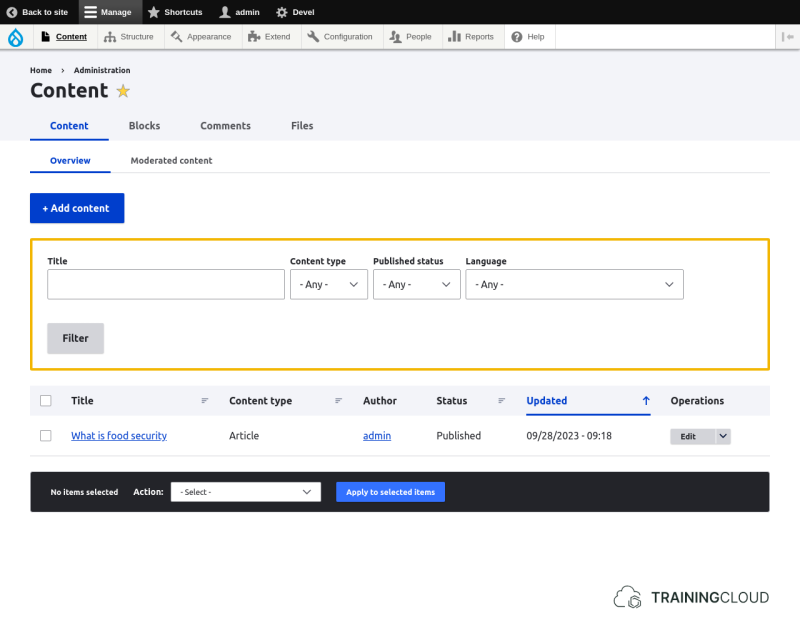
We will discuss exposed filters in more detail later.
Contextual filters
Contextual filters are like normal filters, but the actual filter value is not determined by you, the developer, nor by a visitor who selects a value in an exposed filter.
The value of a contextual filter is taken from the available contextual information, such as:
- The user who is viewing the view
- The id of the node that is being viewed
- The id(s) of the taxonomy term(s) associated with the node being viewed
- ...
This means you can configure scenarios such as:
- Show all articles where the article language is the same as the user's preferred language.
- Show all products where the category equals CATEGORY-FROM-URL
This last example is a typical scenario for using contextual views:
- You build ONE single page view with path /products
- Assuming your products have a field 'category', you add 'field_category' as a contextual filter.
- Your visitors can now visit '/products/home', '/products/garden', 'products/construction'.
- The view will automatically be filtered on the first additional URL segment:
- 'home'
- 'garden'
- 'construction'
We will discuss contextual filters in detail later in this course. They are extremely powerful but can also be very tricky to configure correctly.
Activity 2
The Content Dashboard example shows that you can also use exposed filters to let people search for (partial) values in your content's fields.
- Create a new view that shows all published articles.
- Add an exposed filter on the title field
- Configure the filter in such a way that the search logic becomes "show all content where the title field contains
".
- You can influence the search logic by specifying the search operator.
- You can also expose the search operator, though that's only done rarely as it makes the filters harder to use and understand for casual visitors.
Summary
- Views filters are powerful and necessary.
- You can expose filters to let visitors provide filter values
- You can use contextual filters to automatically filter using contextual information: parts of the page URL, properties of the visiting user's account, etc.