In this unit:
- How to let visitors adjust views filter criteria
- How to let visitors adjust views sort criteria
You've learned that you can add filter criteria to your view to specify which data gets retrieved, and sort criteria to specify the order in which to display your data.
So far you, as the view creator, have decided exactly what these criteria should be. What if you would like present a list of content to visitors, but let them decide how to filter and sort?
That's where exposing the filter and sort criteria comes in.
Exposing Filter Criteria
Every filter you add to your view has the option "Expose this filter to visitors, to allow them to change it". Selecting a filter adds a range of configuration options to let you specify exactly how you want to expose it.
Here's what you see when you open the configuration options of the 'Content: Content Type' filter in your 'Articles' Page View:
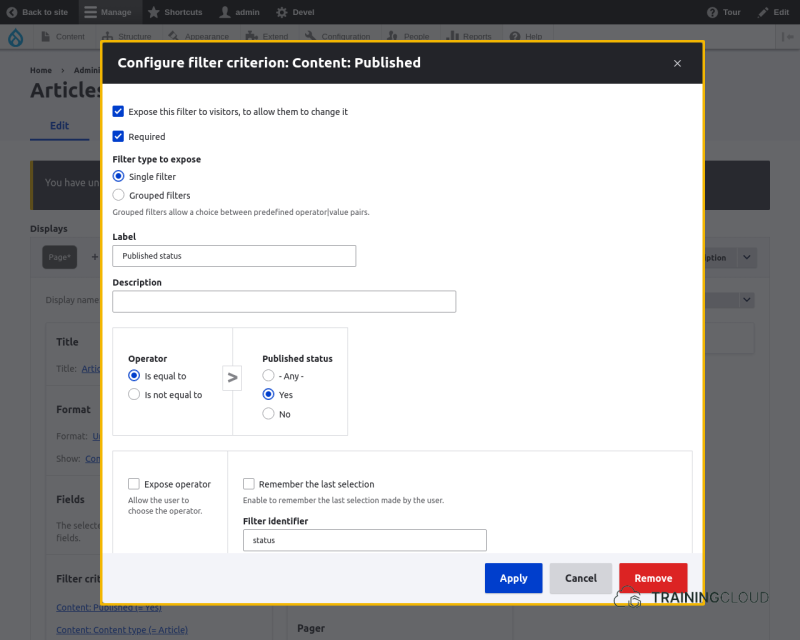
Operators
For each filter you can specify its comparison operator, to indicator how you would like the filtering comparison to be done:
- Is equal to
- Is not equal to
- Starts with
- Ends with
- …
Example:
Adding an exposed filter on Title and setting the operator to 'ends with' lets user search for all articles that end with their provided value.
Exposing Operators
In addition to exposing a filter, you can also expose that filter's operator to let users choose the operator themselves. This feature lets you easily build powerful 'advanced search' forms, but it can result in a cluttered interface if you expose many filters and operators.
In general we recommend against exposing many filters and their operators because it can easily lead to an overly complex interface. Only expose operators if you truly feel doing so adds real value for your users.
Activity 1
- In your 'Articles' Page View:
- Ensure the 'Published' filter is present.
- Expose the 'Published' filter.
- Leave all the 'expose filter' options in their default state.
- Save your view. Try out the filter in your preview area, or by navigating to the Article's path (/articles).
Activity 2
- In your 'Articles' Page View:
- Configure the exposed 'Publish' filter so that the view shows both published and unpublished content by default.
- Expose the operator as well.
Activity 3
- In your 'Articles' Page View:
- Add an exposed filter that lets users filter by Author.
Activity 4
- In your Articles Page View:
- Add an exposed filter that lets users search for articles based on (part of) the title.
For this particular filter to work on partial matches, you will need to deviate from the default exposed filter options and select an appropriate Operator.
Exposing Sort Criteria
- Exposing sort criteria works almost exactly the same way as exposing filter criteria, except there are no operators to select or expose.
Activity 5
- In your Articles Page View:
- Expose the 'Published on' filter to your end users
Summary
- You can expose filter and sort criteria to your end users.
- You can also expose your filter's operator, but this may lead to a confusing interface.