Objectives & prerequisites
- Describe the difference between a terminal, a shell, and the command-line.
- Explain what a filesystem is, and how it relates to directories and files.
- Start a terminal application.Identify the different parts of the standard Bash prompt.
- Describe the difference between a user's home directory and working directory.
- Describe the difference between absolute and relative paths.
- Use the correct directory separator character.
- Explain the meaning and use of the tilde character.
- None.

Overview
The vast majority of servers and local development environments are based on some type of Linux, a modern variant of UNIX.
The most-often used command-line interpreter, or shell, is called Bash: the Bourne Again Shell.
Other shells such as Zsh, Csh, and Ksh exist, but we will use Bash since it's the default shell on most Linux systems.
In this unit you'll learn about Linux, filesystems, directories, and how to start terminal and execute commands.
What is Linux
Linux is an open source operating system initially developed by Linus Torvalds in 1991.
Available for affordable, consumer-level computers, it was initially intended as a lightweight alternative to Unix, which was only available on expensive mainframes.
Linux became widely used on desktops, mobile phones (Android), and servers, and still powers more than 90% of the servers in use today.
Linux is available in many different forms, often called "distributions" or "flavours". Some distributions focus on user-friendly graphical interfaces for desktop machines, while others are often more light-weight, built for speed and performance.
Well-known Linux distributions for servers include Debian, Ubuntu, Red Hat Enterprise Linux (RHEL), and AlmaLinux.
Terminals, shells, and command-lines
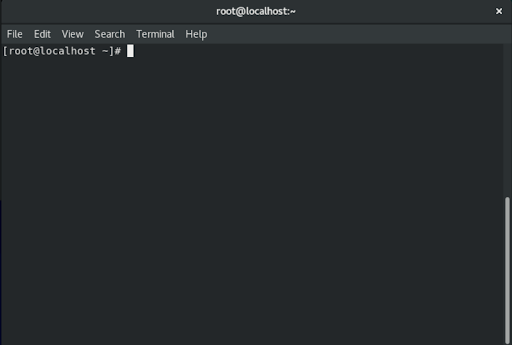
The words terminal, shell, and command-line are often used interchangeably, and generally refer to "that place where you can type in commands", but technically they're not the same thing.
A terminal is an application that, amongst other things, contains a shell that interprets commands typed into the command-line.
On Mac and Linux, the default app for this is called terminal, though for both operating systems more advanced, more configurable terminal apps exist, such as:
- Mac: iTerm2
- Linux: Terminator, Cool Retro Term
You're free to use your standard terminal app or any other terminal app, as long as it supports the Bash shell.
Starting a terminal
Find the terminal app, or any other third-party terminal app of your choice.
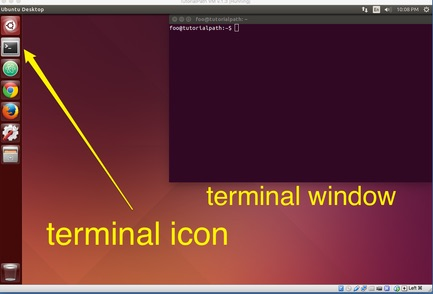
→ Ubuntu Linux
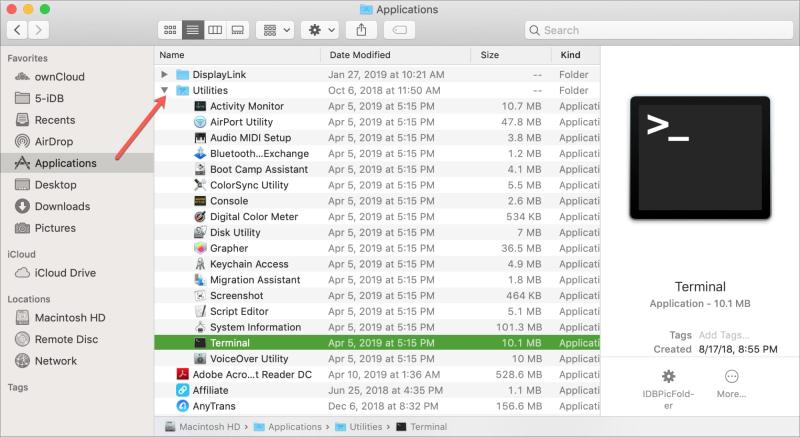
→ macOS
Note: there are many ways to open the terminal on macOS, including typing term in the Spotlight search box, using launchpad, or finding the app under Applications > Utilities.
Activity 1
On your system, find the terminal app and open it.
Filesystems, files and directories
Filesystems define how a computer names, stores, and retrieves files from a storage device such as a hard drive or memory stick.
When you create or edit a file on your device, the operating system uses its file system internally to manipulate the file.
Modern operating systems organise their file system in directories (folders), subdirectories (subfolders), and files, and keep track of their metadata, such as ownership, permissions, creation date, and modification date.
The path to a directory or file represents the route from the system's top level directory to the directory or file; directories are separated from each other with a forward slash (/). This character is referred to as the directory separator.
Example path: /home/sarah/projects/myblog
This path points to the directory myblog, which is a subdirectory of projects, which is a subdirectory of sarah, which is a subdirectory of home, which is a subdirectory of /.
/ refers to the system's top-level directory, also called your system's root directory.
The home directory
Every user has their own home directory, where they can organise their own projects and files, and where applications store configuration data that is specific to a user.
Typically a user's home directory is named after the user. For the username sarah, the default home directory will be /home/sarah.
The tilde character ~ is often used as a short alias to represent the path to the home directory.
For username sarah, ~ represents /home/sarah, while for user lee, ~ will represent /home/lee.
We'll discuss how and when to use the tilde later in this unit.
The working directory
Every open shell has an associated working directory where the shell is active.
If you've just opened your shell, your current location is your home directory. When you navigate to another directory, that directory becomes the working directory.
In other words, your working directory is always the directory you're currently located in, the place where you're about to run one or more commands.
Activity 2
What is the difference between your current directory and your working directory?
There is no difference. Both terms are synonyms.
Absolute and relative paths
Absolute paths
An absolute path is the complete route to a file or directory, relative to the root directory (/).
Examples
/home/sarah/documents/reports/2023/revenue.pdf/etc/vhosts/usr/local/bin
Notice how all of these paths start with a /. That's because they start at the root directory.
Paths with a tilde are also absolute, because the tilde (~) represents the absolute path to the user's home directory.
As such, for the user sarah, the following two paths are identical:
~/pictures/dogs/home/sarah/pictures/dogs
Relative paths
A relative path is the route to a file or directory, relative to the current directory.
Examples
documents/reports/2023/revenue.pdfappspiano3.jpg
Notice how none of these paths start with a /. That's because relative paths don't start at the root directory /.
Activity 3
Your username is alice.
Your current directory is ~/Downloads.
You have a subdirectory named books.
Inside the subdirectory you have a file named LearningLinux.pdf.
- What are two ways to write the absolute path to the pdf file?
- What is the relative path to the pdf file?
~/Downloads/books/LearningLinux.pdfand/home/alice/Downloads/books/LearningLinux.pdfbooks/LearningLinux.pdf
Activity 4
Your username is alice.
Your current directory is ~.
You have a subdirectory Downloads/books.
Inside the subdirectory you have a file named LearningLinux.pdf.
- What is the absolute path to the pdf file?
- What is the relative path to the pdf file?
/home/alice/Downloads/books/LearningLinux.pdfDownloads/books/LearningLinux.pdf
The prompt
Once you've opened a shell, a prompt is waiting for you to enter a command.
Here's an example of a default prompt on two different systems:
Debian / ubuntu:sarah@laptop: ~$
Red Hat[sarah@laptop ~]$
Let's dissect the prompt:
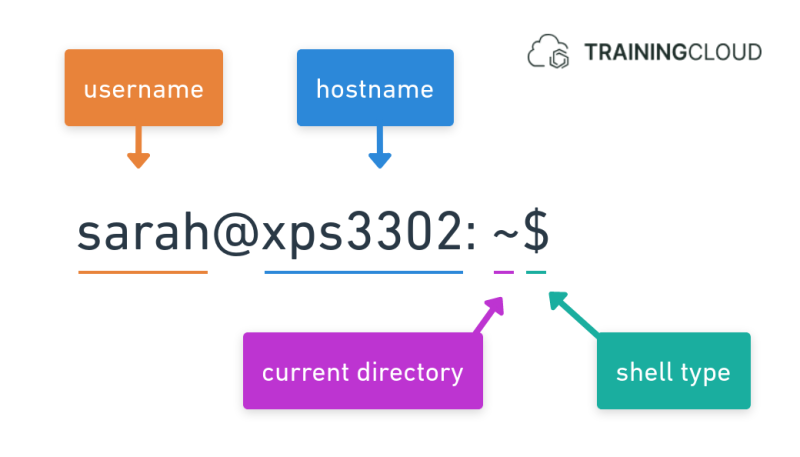
Though slightly differently structured, both of the following prompts provide the same information:
The name of the current user.
The name of the machine (laptop, server, virtual machine, ...) you're working on.
The name (and, depending on the configuration, the full path) of the directory you're currently located. Also called the working directory.
Note
In the examples above we see the tilde (~), which represents the user's home directory /home/sarah.
$ indicates you are logged in to the shell as a regular user.
# indicates you are logged in to the shell as the root ruser. More on this later.
Activity 5
Given the path /home/abdou/downloads/movies:
What is the username of the user who owns this directory?
abdou
Activity 6
For user veronica, give the full path represented by ~/documents.
/home/veronica/documents
Activity 7
For each of the following prompts, which user is logged in, and are they a regular user or the superuser?
anna@xps3302: ~$
george@rootbox: ~$
root@dbserver: ~#
laptop@root: ~$
anna@xps3302: ~$
- User: anna
- User Type: Regular user (not the superuser)
george@rootbox: ~$
- User: george
- User Type: Regular user (not the superuser)
root@dbserver: ~#
- User: rootUser
- Type: Superuser (root is the superuser)
laptop@root: ~$
- User: laptop
- User Type: Regular user (not the superuser)
Summary
- Bash is the default shell on most Linux systems.
- A terminal is an app that contains a shell.
- A shell interprets commands issued on the terminal's command-line.
- Filesystems define how a computer names, stores, and retrieves files from a storage device.
- Linux filesystems are made up of directories, subdirectories, and files.
- Absolute paths are the complete route to a file or directory, starting from the root directory.
- Relative paths are the route to a file or directory, starting from the current directory.