Objectives & prerequisites
- Demonstrate how to execute commands using superuser privileges.
- None.
Overview
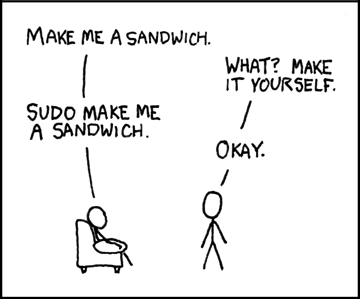
The sudo command lets you execute a command as another user, typically a more privileged user (root) who has more permissions.
The command stands for SuperUser DO.
File permissions are a central part of the Linux security model. They determine who can access, create, modify, and delete certain files and directories.
If you have been granted sudo permissions by your system administrator, you are allowed to use the sudo command.
Depending on how your account is configured, sudo will either execute the requested command, or first ask you to enter your password.
Example without sudo
sarah@laptop ~$ rm /var/log/database.log→ The above command will show the error ACCESS DENIED if you don't have sufficient permissions.
Example with sudo
sarah@laptop ~$ sudo rm /var/log/database.log→ The above command will execute the command as root, possibly first asking you for your password.
→ Careful, there is no undo for removing files. Removing files and directories is permanent!
Activity
- Use the
touchandsudocommands to create an empty file named testfile.txt in the/var/logdirectory. - List the contents of
/var/logto verify that the file was indeed created. - Remove the file you just created.
- List the contents of
/var/logto verify that the file was indeed removed.
From any directory:
sudo touch /var/log/testfile.txt
ls -l /var/log
sudo rm /var/log/testfile.txt
ls -l /var/logSummary
- Use
sudoin front of any command you wish to run as a more privileged user. - Whether or not you are allowed to use
sudodepends on your system configuration. - Whether or not you are asked for your password depends on your system configuration.