Objectives & prerequisites
- Create files with
touchandnano. - Create, edit, and save files with
nano.
None.
Creating files: touch
You can use touch to create an empty file.
Though the touch command is also used to change a file's timestamps (when it was created and when it was last accessed), we are going to focus on creating files.
Example
sarah@laptop ~/documents/drafts$ touch newstory.txt
sarah@laptop ~/documents/drafts$
→ The above command creates the empty file ~/documents/drafts/newstory.txt.
You can now edit it with any text editor, such as nano .
Creating and editing files with nano.
You can use nano to create a new file or edit an existing one.
The nano command is a little more complex than other command-line applications. It provides a Text-based User Interface (TUI) that you control with function keys and keyboard shortcuts.
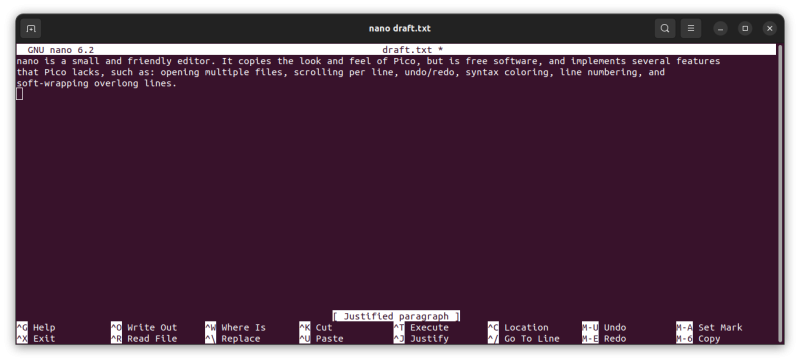
Creating or editing a file with nano
sarah@laptop ~/Documents$ nano draft.txtThe above command opens the file ~/Documents/draft.txt for editing. If it doesn't exist yet, it will be created once you save your work.
Note
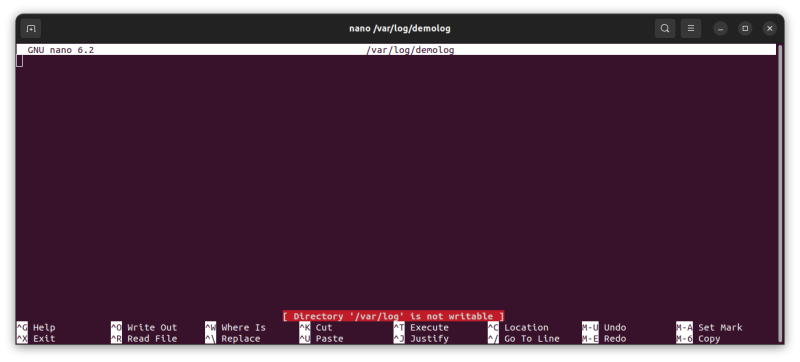
If you do not have sufficient permissions, you will not be able to save any changes you make. This will be indicated with [ directory not writable ]:
Saving a file with nano
If the directory is writeable, there are two commands you can use to save your new or modified file
CTRL + X(exit) will ask you if you want to "Save the modified buffer" if you made changes.
You can Reply with:Y(yes) → then asks to confirm the file name. Press ENTER to confirm.N(no) → returns to the command lineC(cancel) → brings back the opened file
CTRL + O(write out) will ask you to confirm the file name before saving the file and bringing back the opened file for more editing.
Activity
In your home directory, use touch to create an empty file named hello.txt.
touch hello.txt
Activity
In your home directory, use nano to create a file named goodbye.txt with the contents "Goodbye from me."
nano goodbye.txt
* CTRL + O to write out
*Y to confirm
Activity
In your home directory, use nano to edit the file goodbye.txt.
Make any changes you'd like, and save the file.
nano goodbye.txt
Activity
From any directory, use nano to try to make changes to the file /var/log/syslog and save those changes. Did it work?
Return to the terminal.
The
/var/logdirectory is not writeable by default.You can't save any file changes you made unless you run this command as a privileged user.
See the unit on
sudofor more information.
Summary
- Use
touchto create empty files or change a file's timestamps. - Use
nanoto create and edit files.