Introduction
Unless you are building a Drupal site based on the minimal install profile, the core Path module will be enabled.
The Path module lets editors create path aliases (also called URL aliases) for entities that support paths, such as:
- Nodes
- Users
- Taxonomy terms
Path aliases are alternative paths for a given resource.
A node, for example, always has one canonical path (/node/123), and can have one or more path aliases.
Creating a path alias
You can create path aliases for nodes, users, terms, etc directly on their creation or edit pages:
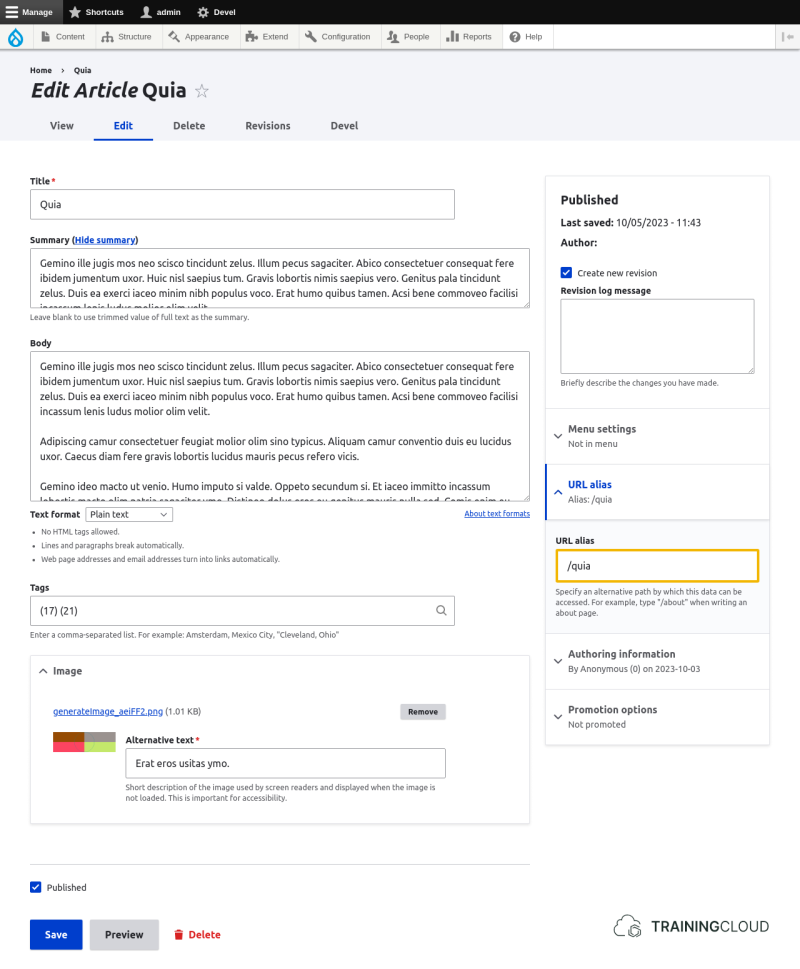
Creating multiple path aliases for the same resource
When you're editing entities like nodes and users, the interface only lets you edit one path alias.
You can create more than one alias for the same resource (and manage all aliases across the site) at Manage > Configuration > Search and metadata > URL aliases:
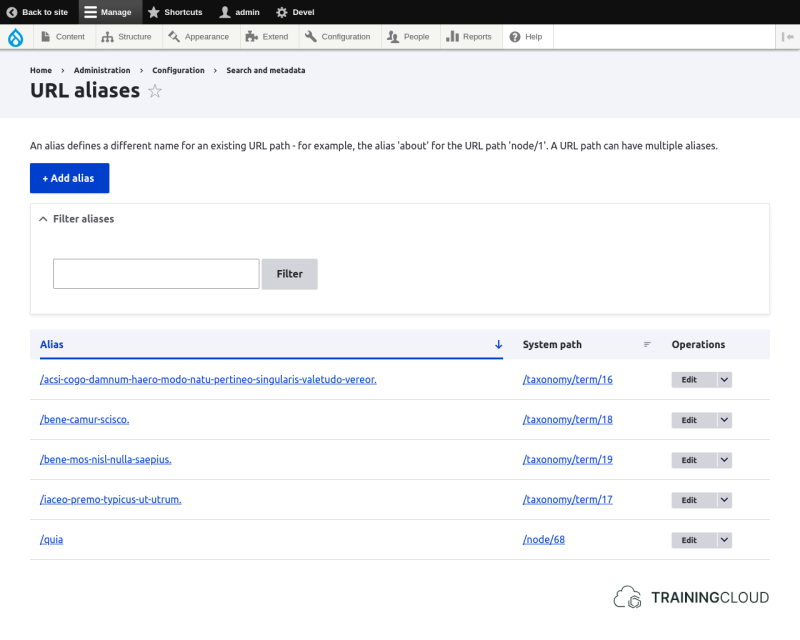
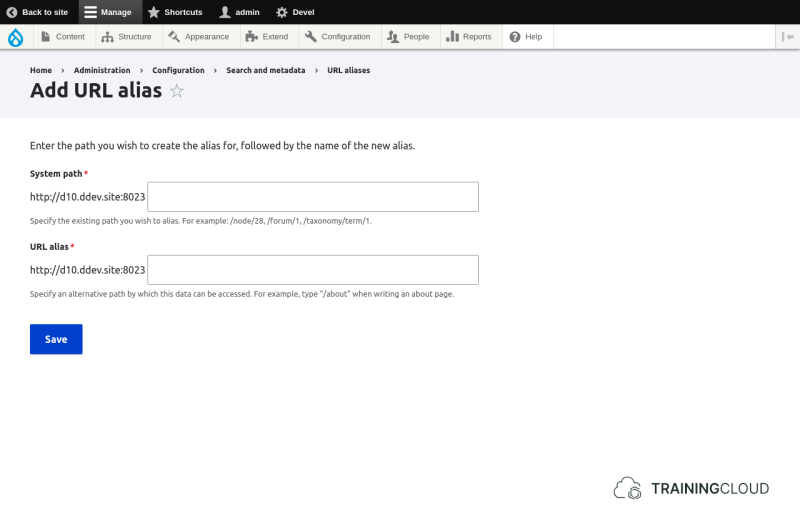
Via Add alias you can create as many aliases for the same resource as you want:
Activity 1
- Open the URL aliases management page and create a new alias for an existing article.
- Edit the article for which you just created the alias, and check if its path field correctly displays the new alias.
Activity 1B
You can manage an entity's alias by editing the entity directly, or via the URL alias overview page. Which method do you prefer, and why?
Activity 2
- Edit an article and give it an alias.
- Open the URL aliases management page, find the new alias, and make a change to it.
- Edit the article again and check if the alias was correctly updated.
Activity 3
- Open the URL aliases management page and create an alias for an article.
- Edit the article to check if the alias is correctly shown.
- Go back to the URL aliases management page and create a second alias for the same article.
- Edit the article again to check which of the two aliases is shown.
→ What happens when you try to browse to the first alias you created?
→ What happens when you try to browse to the second alias?
Activity 3B
- Make a change to the first alias.
- Edit the article again to check which of the two aliases is shown.
→ What happens when you try to browse to the first alias you created?
→ What happens when you try to browse to the second alias?
Primary aliases and alternative aliases
As the previous three activities indicate, when you create multiple aliases for the same entity, the last alias you created or updated is considered to be the "primary" alias, and will be shown when you edit the entity. The other aliases will all redirect you to the primary alias.
We find it useful to call these aliases the primary alias and alternative alias(es), though in Drupal jargon there is official term for these.
Aliases and multiple languages
Path aliases are language-sensitive.
If you are building a multilanguage site, and you're creating a path alias, you have to be sure to specify for which of the specified languages the alias should be used.
When you create an alias on the node edit page, the language you select for the node will be used to specify the language of the alias.
When you create an alias on the URL Aliases page, you need to manually indicate the right language setting.
Summary
- Path aliases are available when the core Path module is enabled.
- Resources can have 1 or more aliases.
- You can manage all aliases at
/admin/config/search/path. - Aliases are language-sensitive.