Introduction
The Redirect module lets you create redirects from one internal path to another, or from an internal path to an external URL.
This module is not a core module, so you need to download and install it before you can use it. If you use a TrainingCloud Drupal Sandbox, the module is already present, but not yet enabled.
Redirection examples:
- Internal redirect:
/login→/user/login - External redirect:
/chat→ https://slack.com/example/discussions
When someone visits a redirect, the browser is physically redirected (forwarded) to another page.
→ The path the user was redirected to is shown in the browser's address bar.
By contrast, when someone visits a path alias, Drupal figures out which page to show, and shows it; the user does not get redirected to a different page.
→ The original path the user entered in the address bar is still shown, not a different alias and not the canonical path.
Managing redirects
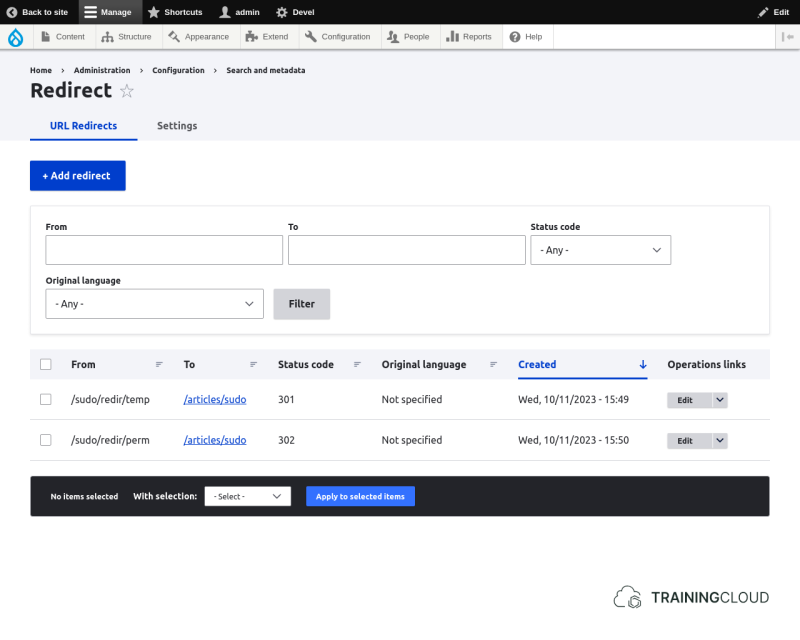
You can manage all of your site's redirects at Manage > Configuration > Search and metadata > URL Redirects.
The following screenshot shows two redirects to the same resource. One is a permanent redirect (HTTP status code: 301); the other is a temporary redirect (HTTP status code 302).
We'll come back to HTTP status codes later on.
Creating a redirect
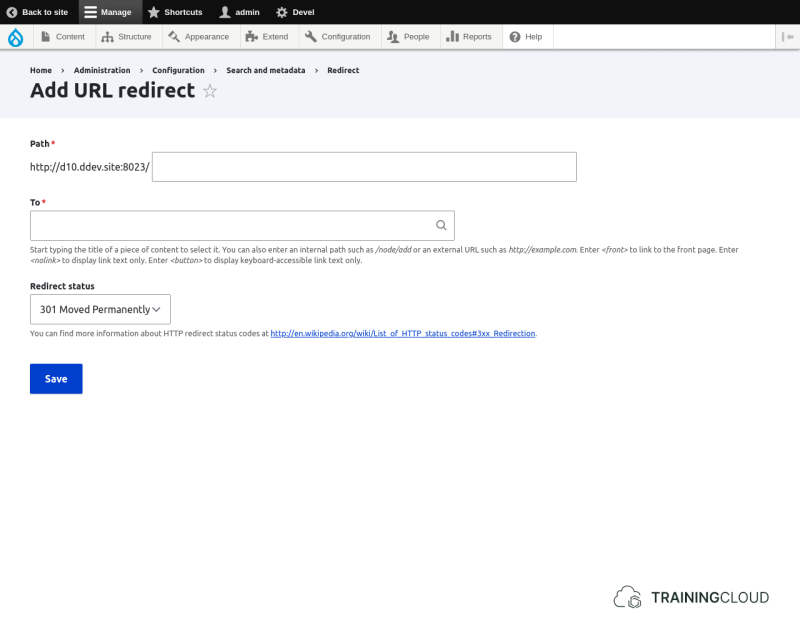
On the Redirect overview page, click Add redirect and provide values for:
- The redirect path
- The destination of the redirect
- The redirect status code (discussed below)
Choosing a redirect status
When you create a redirect, you have to indicate which redirect status to use.
Redirect status codes are technically called 'HTTP status codes'.
HTTP status codes give the browser that requested the page more information about what is happening.
Often-used HTTP status codes include:
- 200: OK (request successful, here's the page you requested)
- 301: Moved permanently
- 302: Found (but moved temporarily)
- 403: Access denied
- 404: Page not found
- 500: Internal server error
- 502: Bad gateway
- 503: Service unavailable
The Redirect module gives you the following status code options:
- 300: Multiple choices
- 301: Moved permanently
- 302: Found
- 303: See other
- 304: Not modified
- 305: Use proxy
- 307: temporary redirect
→ The good news is: for 99% of your redirection needs, you'll only need 301 and 302.
HTTP 301
Use 301 when a page has moved permanently
(meaning: when it you have changed its alias)
- Your browser will remember (or cache) this information the next time you try to browse to the original path.
- Google will use this status code to update its link collection.
HTTP 302
The status description for this code is 'found', but it really means 'the server found the page you requested, but it is temporarily available at a different path'.
Use 302 when a page has moved temporarily.
- Your browser will not remember the updated path the next time you try to visit the original path.
- Google will not update its link collection.
Other 3xx status codes
Status codes 303 and 307 are similar to 301 and 302, but are used less often, and behave slightly differently based on which HTTP method (GET, POST, …) is used.
Going into the details of the other 3xx status codes is beyond the scope of this unit.
Most people can safely ignore all the other 3xx status codes, and only ever use 301 (permanent redirect) and 302 (temporary redirect).
If you are a developer and/or want to know more about the different status codes and what they mean, have a look at:
When to use redirects
There are many reasons you would want to create redirects, such as:
Short URLs
Creating an easy short url for a longer, 'deeper' url.
Example:
/xmas-2021 → /staff/events/faculty-chairs/2021-christmas-dinner-registration
Cleanup
At some point you may want to unpublish content that is no longer relevant.
Or you may have migrated to Drupal from a different system, and some of the old pages or paths no longer exist.
Or you want to temporarily redirect people to a different page while you rebuild the original page.
To prevent people who bookmarked this content from seeing 'Error 404 - this page cannot be displayed' errors, you could create a redirect to another page for each of the pages you've unpublished.
You could create a generic placeholder page that informs people the content is no longer available, and offers alternatives.
Or you could redirect to a page that's higher in the site's navigation structure:
Example
Assume you have the following site structure:
- Home
- Services
- Cooking
- Cleaning
- Washing clothes
- Pet care
- Pet grooming
- Pet walking
- Contact
You decide you don't want to offer any Pet care anymore.
You could create redirects for the Pet-related pages, and redirect them all to the generic 'Services' overview page. It's not an ideal solution because people could still be a bit frustrated, but it's better than showing an error page.
Site restructuring
You could decide to simplify the navigation structure of your site, and you want your path aliases to reflect that.
You change each page's path alias, but then people (and search engines) who bookmarked the old paths will no longer be able to find them, and your Page Rank will go down.
Creating redirects from the no longer existing path aliases to the new path aliases solves this.
Example
- Page 'Cleaning service'
- Change alias from
/sections/services/cleaningto/cleaning - Add redirect from
/sections/services/cleaningto/cleaning
- Change alias from
- Page 'Cooking service'
- Change alias from
/sections/services/cookingto/cooking - Add redirect from
/sections/services/cookingto/cooking
- Change alias from
- ...
Summary
- Create a redirect to redirect visitors:
- From one internal page to another internal page.
- From one internal page to an external page.
- You can create multiple redirects to the same resource without risking negative SEO effects.
- Most of the time, set the redirect's HTTP status code to:
- 301 for permanent redirects
- 302 for temporary redirects