Objectives & prerequisites
- In this unit you'll create and use a new Rich Text Paragraph Type
Available Paragraph types
Once the Paragraphs module is installed, you can manage your Paragraph types at Administration > Structure > Paragraph types.
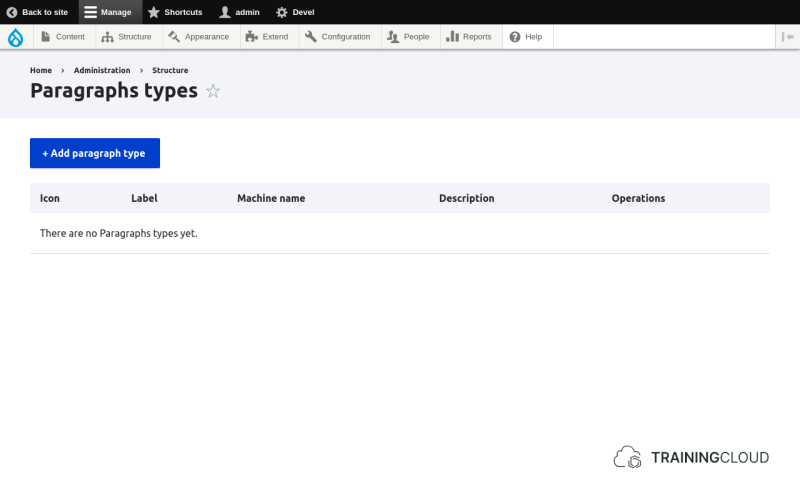
Creating a Text Block Paragraph Type
Let's create a Paragraph type that lets editors add a block of rich text, and replace the Body field on Articles with a Paragraphs field.
Remember: Paragraph types look, feel, and function like very small Content Types (CTs): you first define them, then add fields to them and decide how/when those fields are displayed, you potentially configure permissions to restruct their use per role, and finally you might create a template file for them, as part of your own theme, to customise the markup and css used to display each Paragraph of that type.
Steps
The steps you'll take:
- Add new Paragraph Type
- Give the new Paragraph Type a name
- Add one or more fields
- Configure each field's display settings and/or form display settings
- Remove the Article CT's body and Image fields
- Add a Paragraphs field to the Article CT
- Create an article and use the new field
Activity 1: Add new Paragraph Type
- Click the
Add a new paragraph typeat Administration > Structure > Paragraph types. - Give the it a name, such as Rich Text and leave the other fields empty.
- Save.
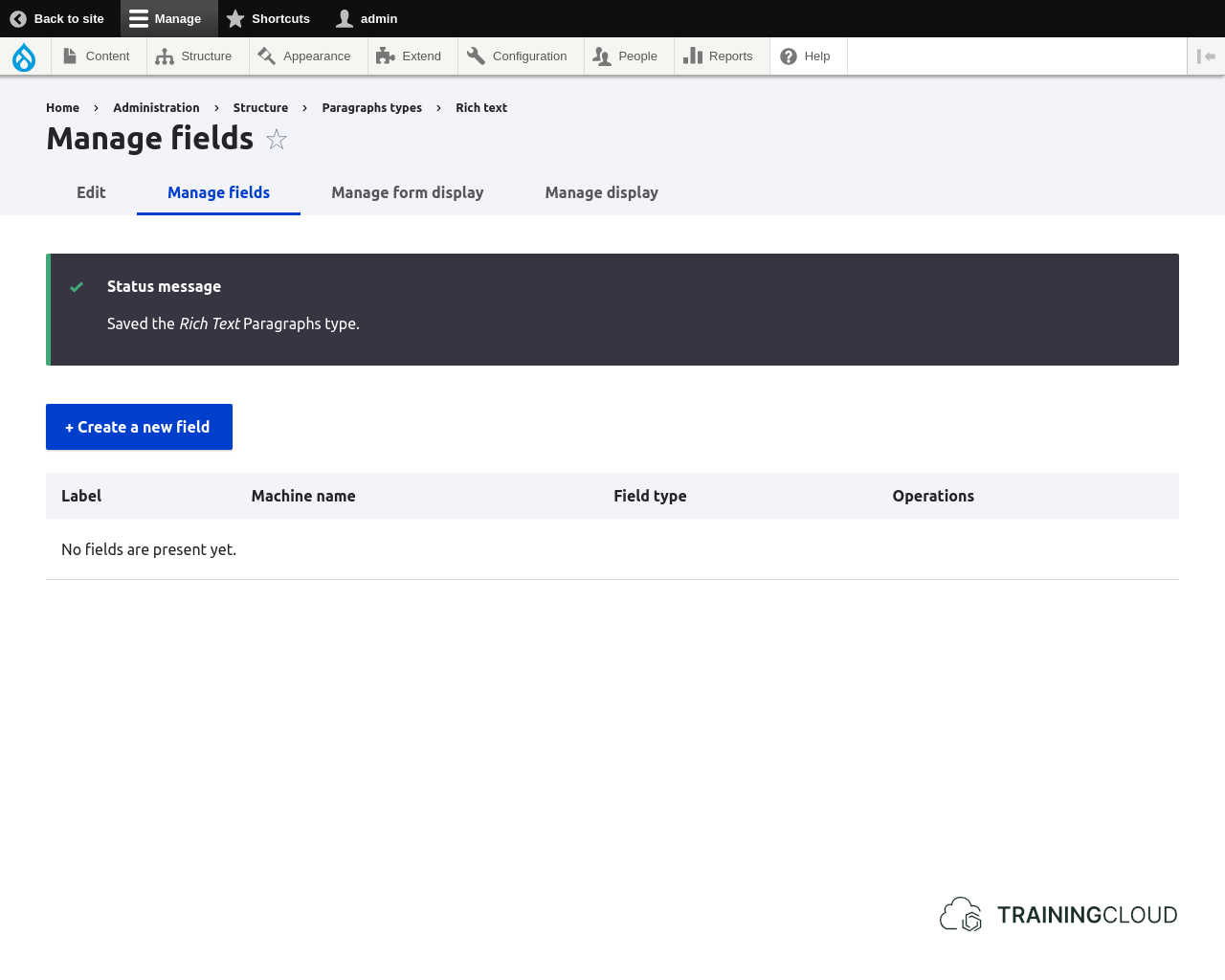
You should now have a new Paragraph Type without any fields:
Activity 2: Add a text field
Once the Paragraph type is created, it's time to add one or more fields.
The administration interface and procedure to do this are identical to the ones used to add fields to Content Types:
- Add Field
- Select Field Type
- Give field a name
- Set other properties (description, number of allowed values, etc)
- Save
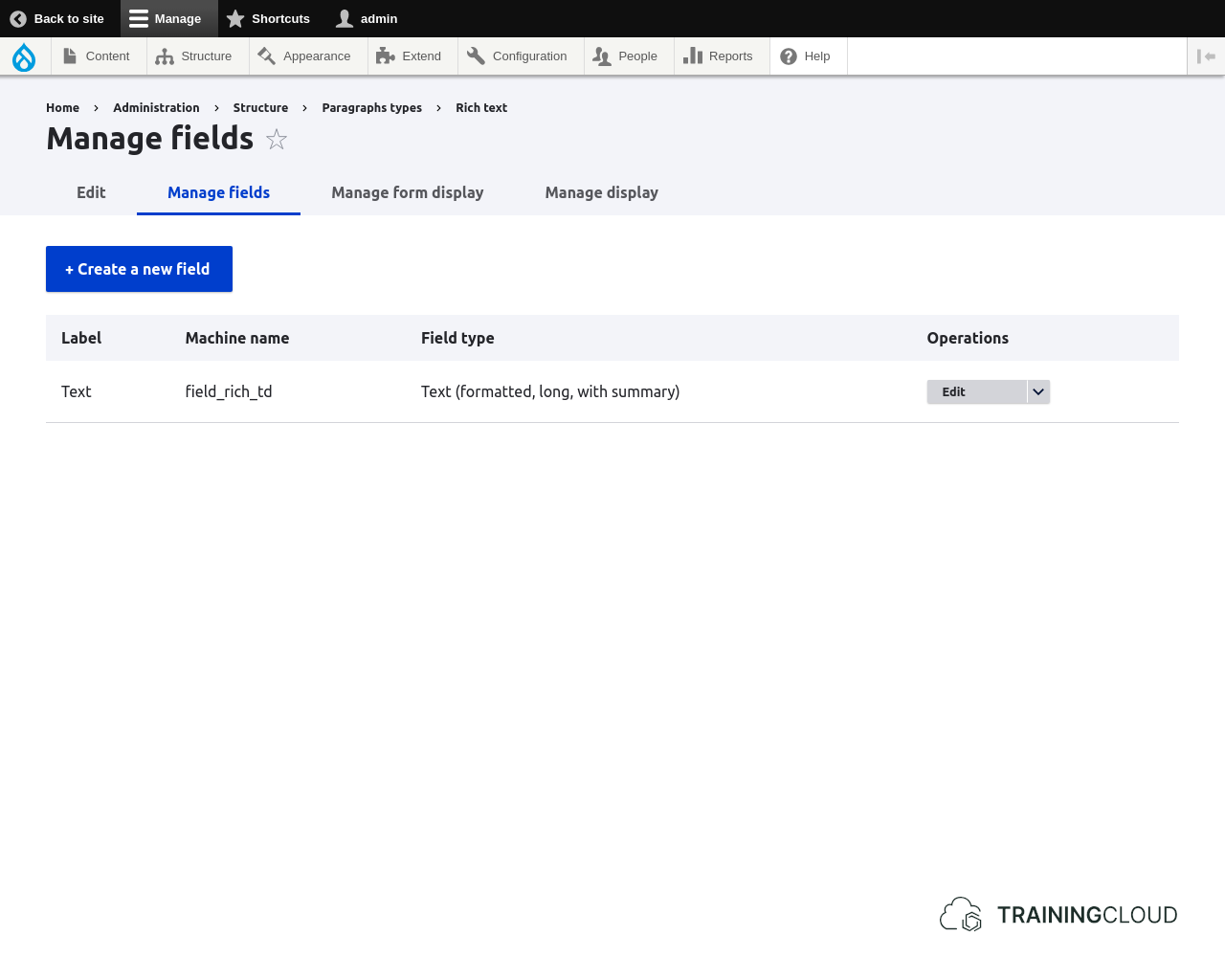
→ Add a field of the type Text (formatted, long). Name it Text, limit it to 1 value, and leave all the other fields in their default state.
Your Paragraph Type should now look like this:
Great! Your first Paragraph Type is now ready to be used.
Later on you will want to fine tune certain display aspects, but for now we'll leave everything as it is.
Activity 3: Enable Paragraph use in Articles
To let editors use some or all of the available Paragraph Types when creating Articles, add a field of the type Paragraph, and name it Components:
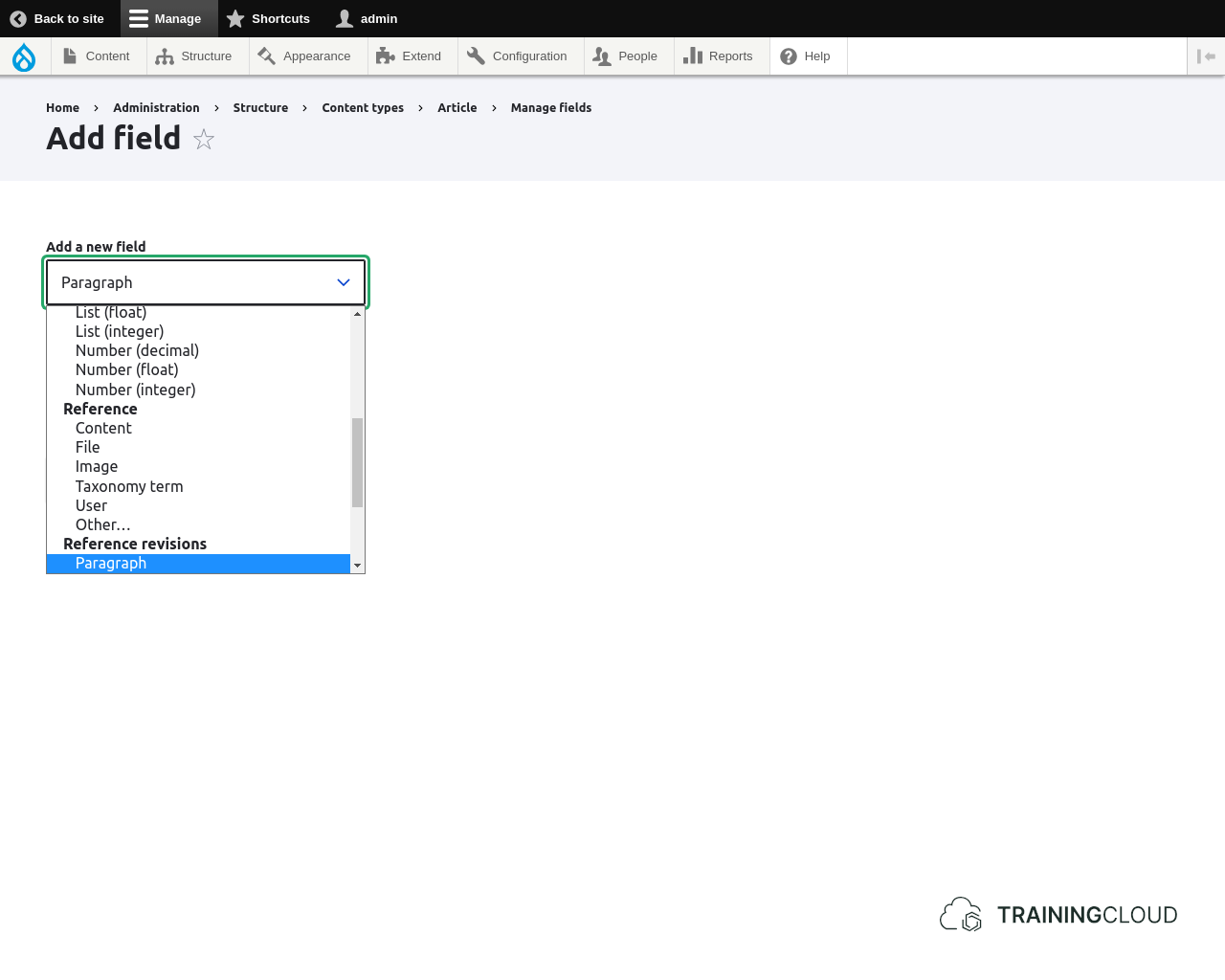
- Leave 'Type of item to reference' set to 'Paragraph'
- Leave 'Allowed number of values' set to 'Unlimited'
- Save
At this point you can configure extra settings, including which Paragraph Types you want to allow editors to use. Or, phrased differently, which Paragraph Types your new Components field is allowed to contain.
Allowed Paragraph Types
You can select any number of Paragraph Types.
If you don't select any, Drupal assumes you're allowing all possible Paragraph types. This may not feel intuitive, but implicitly allowing all types means you don't have to update this field every time you add new Paragraph Types.
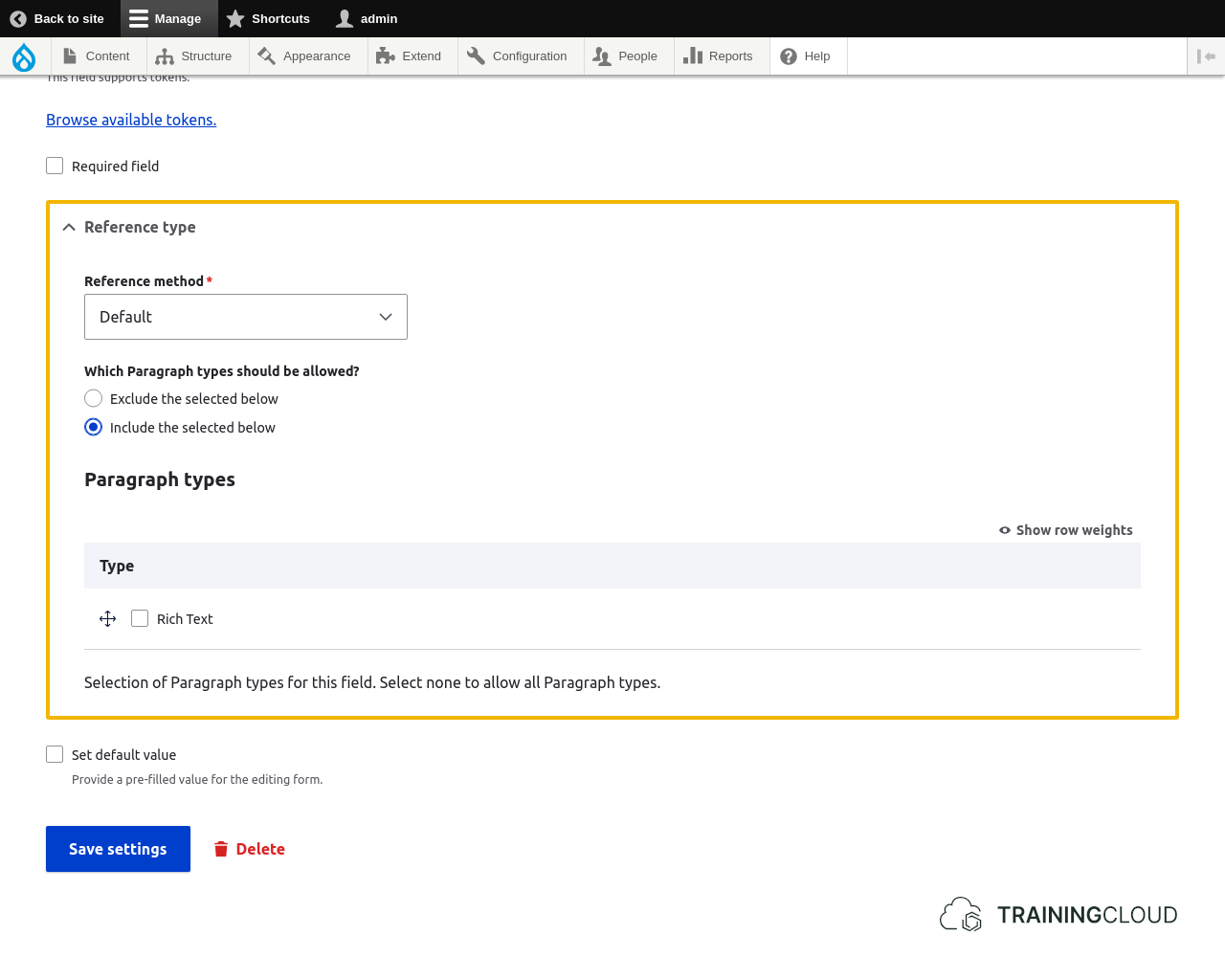
- Save the field settings.
Technically, the Article CT is now ready to be used, and editors can use the new Components field instead of the Body and Image fields:
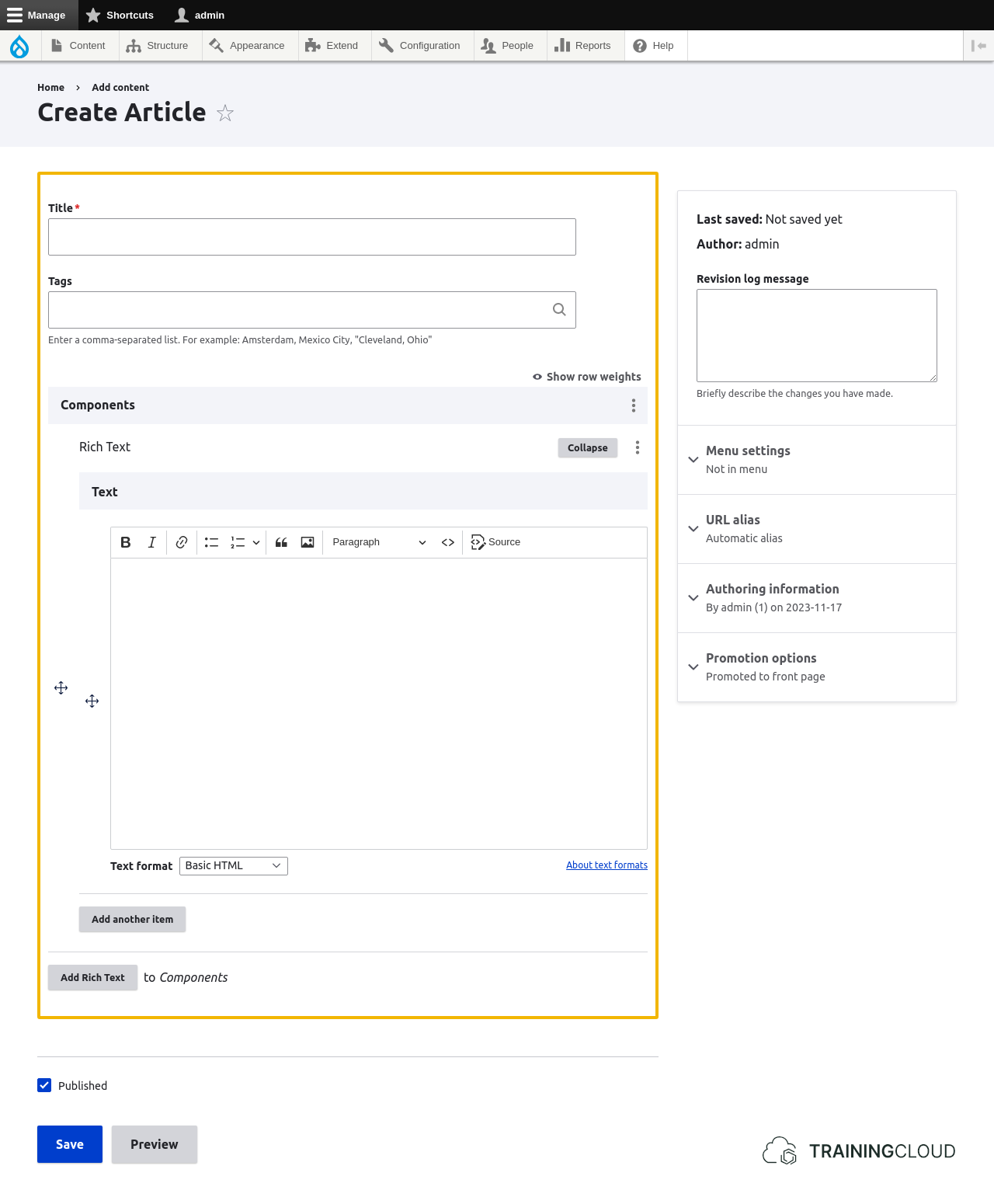
As only one Paragraph Type has been defined, Rich Text, Drupal automatically adds one instance, ready for you to use. If you have defined more than one Paragraph Type, no Paragraph is added automatically; nstead you get to select which Paragraph Type you want to add.
By clicking Add Rich Text, you add a second Rich Text Paragraph. Afterwards you can change their order by dragging and dropping each Paragraph.
However, the field order isn't quite right yet.
Let's change that.
Activity 4: Rearrange Article CT's fields
- Change the field display order and the form field order to ensure that the Components field is shown between the Title field and the Tags field.
Activity 5: Don't show certain field labels
You added the Components field to the Article CT. By default its label "Components" is now shown when you view an Article. The label for the text field that's part of the Rich text Paragraph Type is shown as well.
The following screenshot demonstrates the labels. In this example we added 2 Rich Text paragraphs:
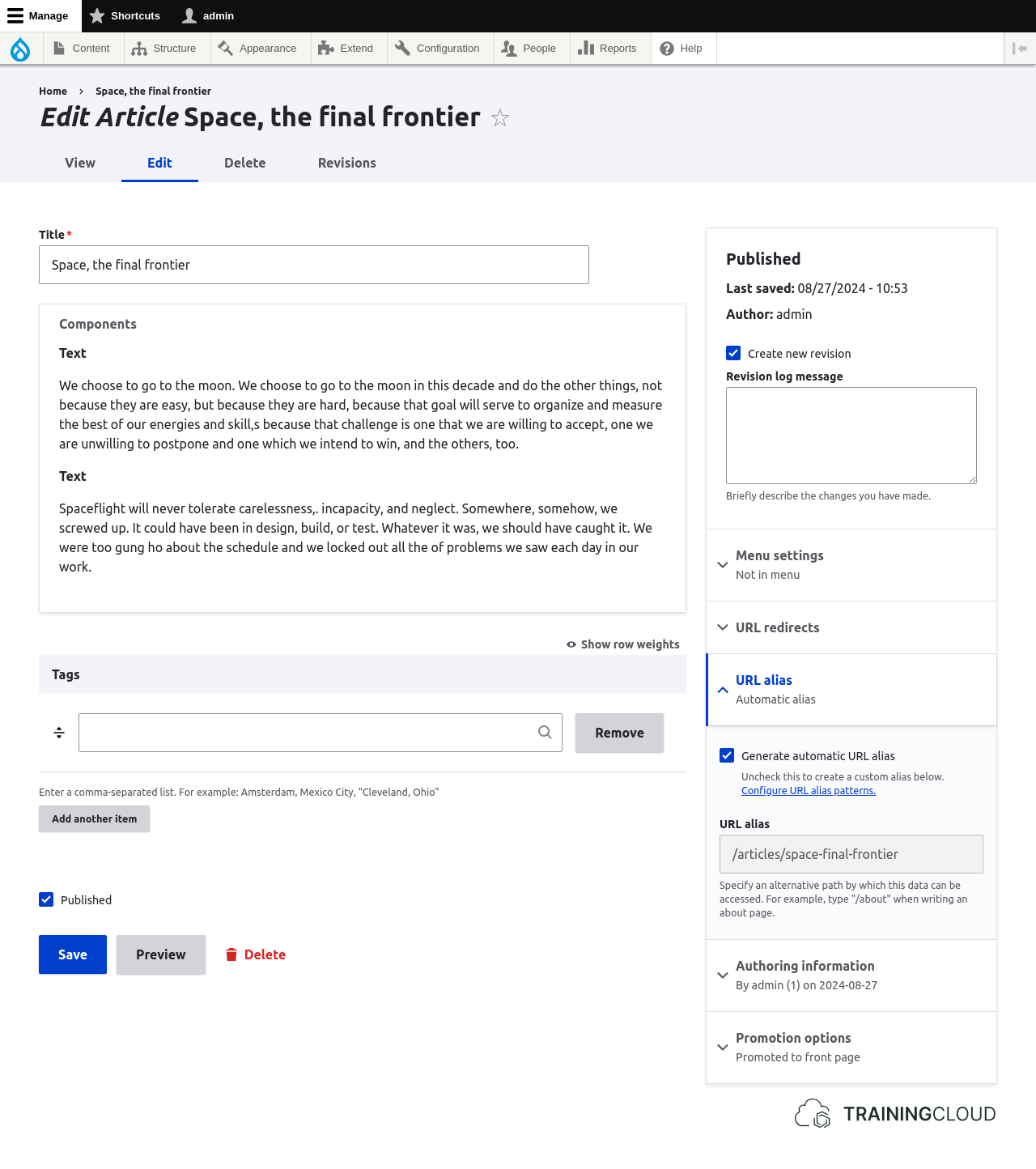
This results in the following output:
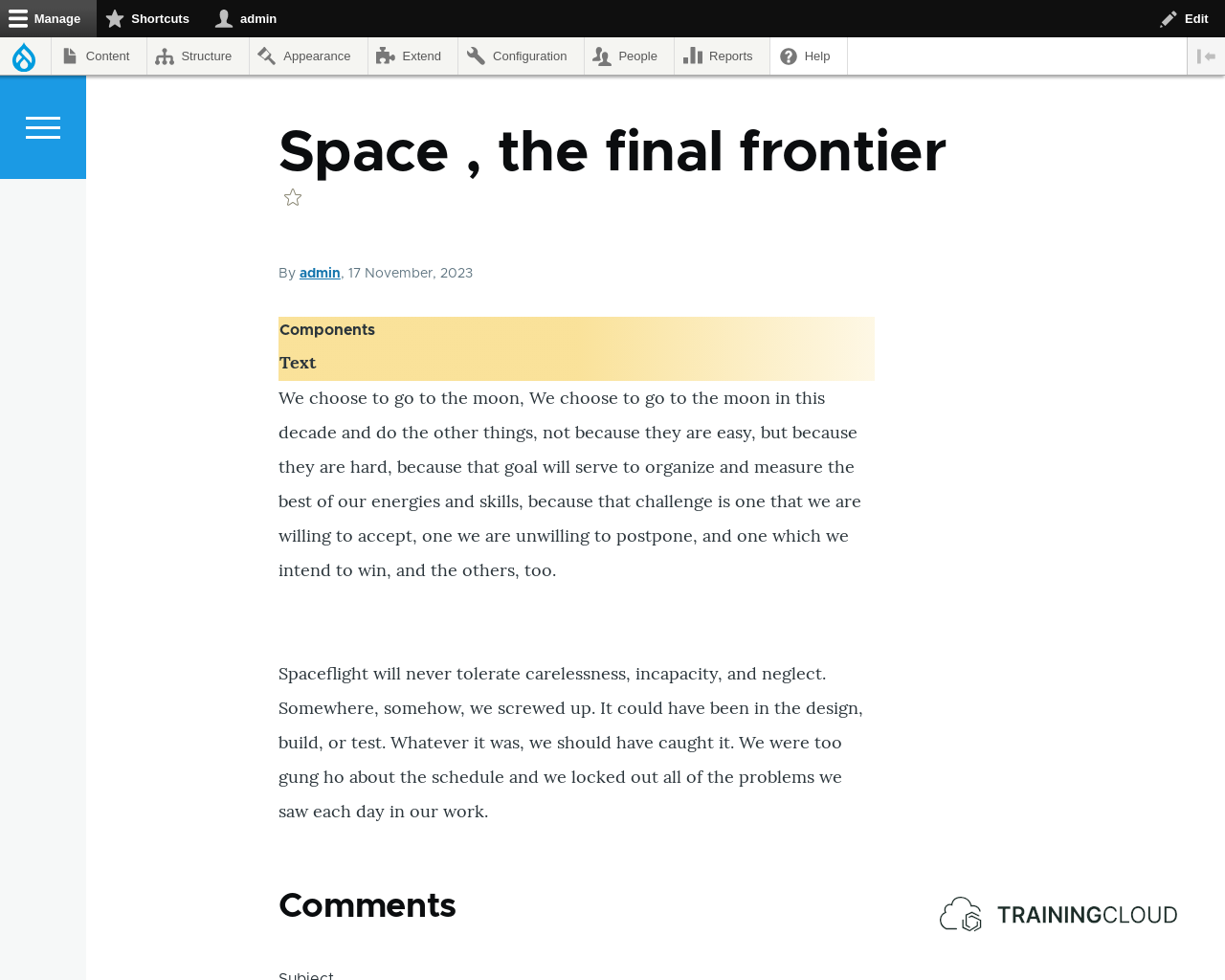
In our case we don't want to see any of the highlighted labels.
- Remove the "Text" and "Components" labels.
- The "Components" label belongs to the Components field, which is part of the Article Content Type.
- The "Text" label belongs to the Text field, which is part of the Rich Text Paragraph Type
The final result should look like this:
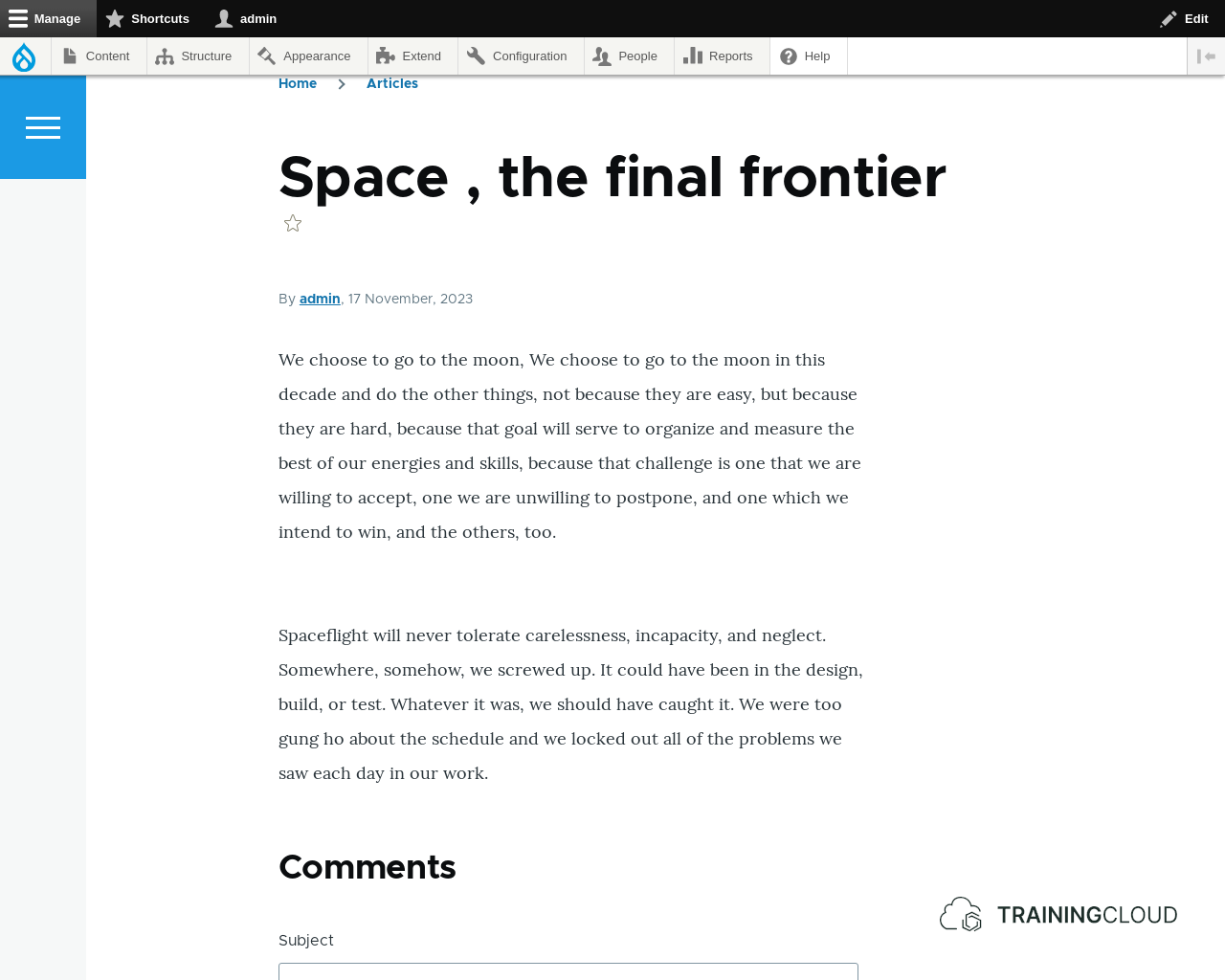
The page now looks similar to how it would have looked using only the Body field, but you assembled the content using paragraphs.
A finish touch would be to add more space between the paragraphs. That design defect is something you would fix in your theme's stylesheet (CSS), but theming is not part of this unit.
Summary
- Each Paragraph Type is a set of fields, grouped together as a single unit.
- The process to build Paragraph Types is almost identical to the process to build Content Types.
- To "Enable" the use of paragraphs on a Content Type:
- Add a "Paragraphs" field to the CT.
- Select which Paragraph Types can be used in that field.
- Fine-tune form field order, field display order, and label display on your Content Types and Paragraph Types.