Goal
In this unit you'll create and use a new Image Paragraph Type so editors can add one or more images to their content.
The end result should be similar to this:
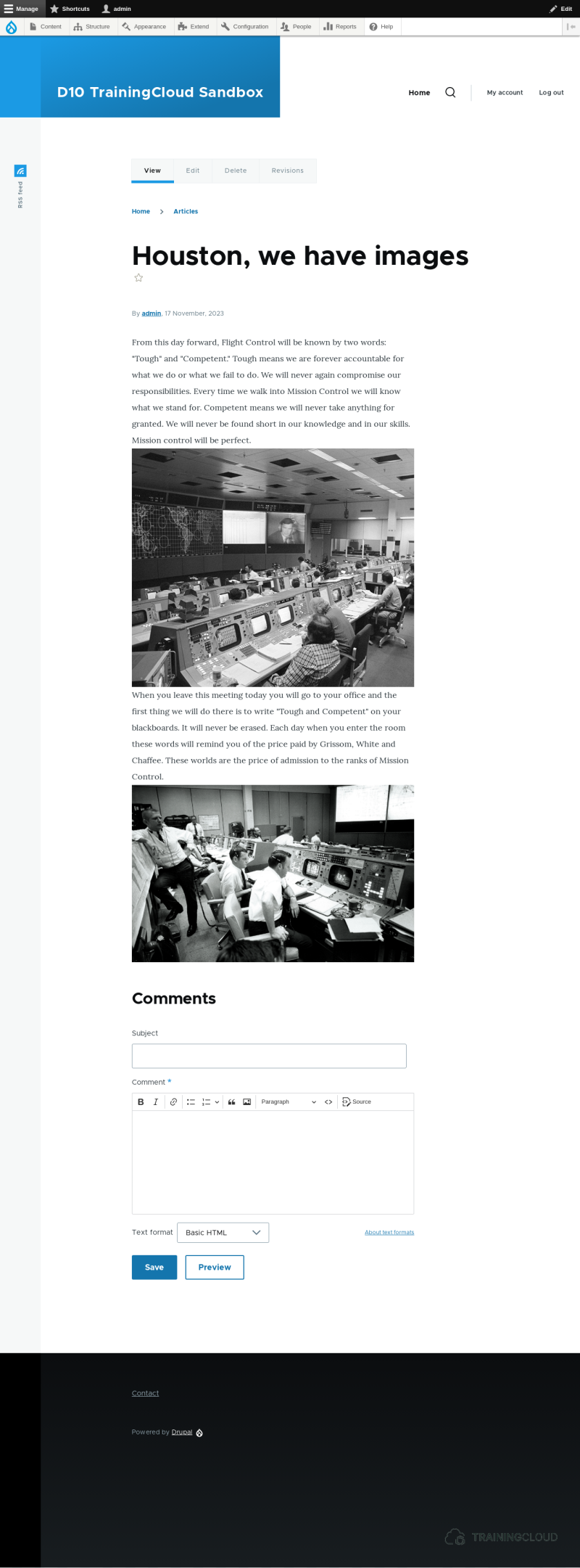
Activity 1: Add Image Paragraph Type
- Create a new Paragraph Type named "Image".
- Add a image field to it.
- Adjust field label display as needed.
Hide hints
show hints
Activity 2: Create Article with images
- Create a new Article
- Add the following components, in the given order:
- one block of text
- one image
- one block of text
- one image
Troubleshooting
- If you created the new Paragraph Type, but it's not available on the Article creation form:
- Verify your configuration of the Components field and make sure using the Image Paragraph Type is allowed.
Hide hints
show hints
Activity 3: Removing and duplicating paragraphs
When you edit a node that has a paragraphs field, you can also duplicate or remove existing paragraphs on that node.
- Find out how / where to remove a single paragraph from a node.
- Find out how / where to duplicate a paragraph on a node.
Hide hints
show hints
Summary
- Once you know how to create new Paragraph Types and use them on a Content Type, you can create an unlimited number of different Paragraph Types, each consisting of one or more fields.
- Editors can drag and drop components to change their order, and they can can duplicate or remove existing paragraphs.