Introduction
The Paragraphs module lets you build components that your content editors can use to assemble page content.
In itself, Paragraphs doesn't offer any specific layout options: there's no built-in way to select a layout for your paragraph(s).
You could solve this in the following way (but it's not a good approach):
- You could create a custom Paragraph Type that itself has 2 Paragraph fields; this is referred to as "nested paragraphs".
- In your article you could first add such a 2-column component, and then via its 2 Paragraph fields you could add the actual paragraphs.
- You would also have to add the required template files and CSS to make the paragraphs contained in the 2-column component side-by-side.
Needless to say this is a lot of work, and you would have to duplicate this mechanism for every layout you want to offer:
- 2 columns (50% + 50% width)
- 2 columns (25% +75% width)
- 3 columns
- 4 columns
- ...
While all this is possible, it's not ideal, it's a lot of manual work, and since there are so many steps there is a lot of room for small errors.
This is exactly why the popular Layout Paragraphs module was created.
In fact, the combination of Paragraphs + Layout Paragraphs is the basis of many Drupal sites today.
Understanding Layout Paragraphs
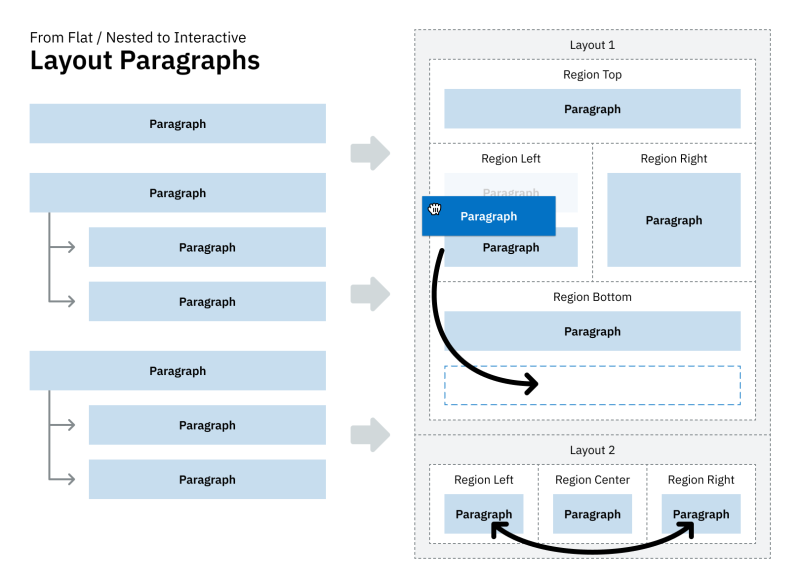
In addition to an improved editorial experience via new widgets, Layout Paragraphs adds the concept of "Layout sections" to the Paragraphs world.
A number of layouts (2-columns, 3-columns, ...) are available for your content editors: the default ones and/or layouts provided by other modules and/or provided by your own custom module.
When editors create content using a Paragraphs field, they can first select a layout section, and then add content components to the newly added layout section.
The following schematic illustrates this using two layouts / layout sections:
Let's install the module and walk through a practical example.
Installation
Install and enable the Layout Paragraphs module. You only need to enable the main Layout Paragraphs module; its dependencies will be installed automatically.
If you're using a TrainingCloud Drupal Sandbox, the module is already present and ready to be enabled.
Setup
Setting up the most basic functionality of Layout Paragraphs only involves a handful of steps:
Step 1
Create new Paragraph Type (named Section or Layout Container or something similar) that will be used as the paragraph container.
It doesn't need any fields (it's just a container), but you do need to enable the "Layout behavior" and select which of the layouts to make available to content editors.
Step 2
Update the Components field on the Article CT:
- Change its form widget to "Layout Paragraphs".
- Select its form widget option "Require paragraphs to be added inside a layout" (Not absolutely required but usually a good idea).
- Change its display format from 'rendered entity' to "Layout Paragraphs".
Activity 1
Before we go through these steps together in detail, try to set up the layout mechanism for the Components field on the Article CT yourself, and test it by creating an Article with 2 columns of text.
Troubleshooting
If you're stuck, the Layout Paragraph module's Readme file may help.
Detailed setup instructions
Let's go through the configuration for Activity 1 together.
Step 1: Create Layout Container Paragraph type
- Create a new Paragraph Type named Layout Container.
- Select the "Layout Paragraphs" behavior.
- Select one or more layouts to be made available to editors.
- Click
Save and manage fields. - Don't add any fields.
This Paragraph Type us now ready to be used.
Step 2: Add a paragraph field to the Article CT
If you had not already done so:
- Add a field of the type "Paragraphs" (Reference revisions grouping) to the Article CT, and name it Components.
Step 3: Configure form display options for the Components field
- In "Manage form display", set the widget to "Layout Paragraphs".
- In the widget options, select "Require paragraphs to be added inside a layout".
- Save the changes.
Step 4: Configure field display options for the Components field
- In "Manage display", set the format to "Layout Paragraphs".
- Save the changes.
If everything went well, the workflow for editors is now:
- Create article
- In the Components field, click "Add section":
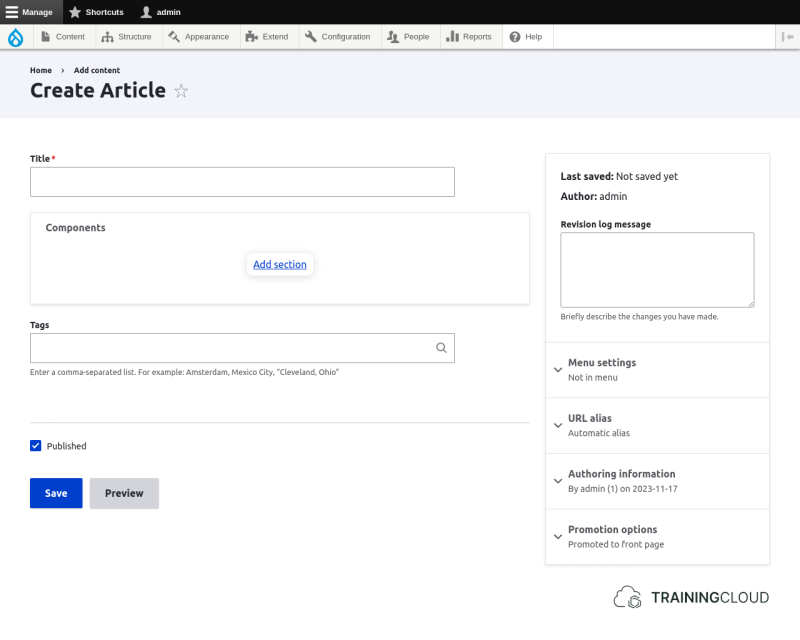
- Select one of the available regions.
- Don't add any other components inside the layout container yet.
- Hover over the Components field to see the layout and content management interface.
Note: until the first paragraphs are added to the layout container, the Components field looks empty and useless. (Hopefully this will improve in the future):
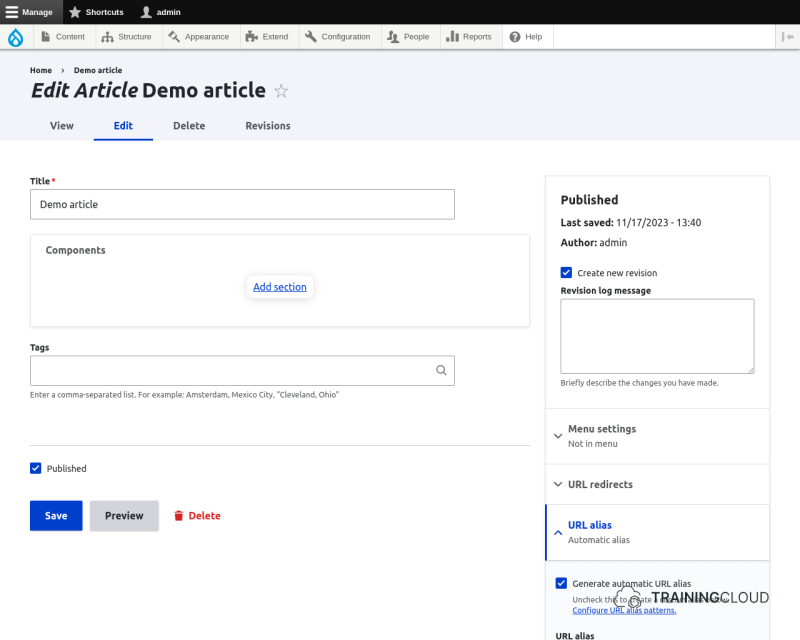
→ Hover over the Components field to see the layout and content management interface:
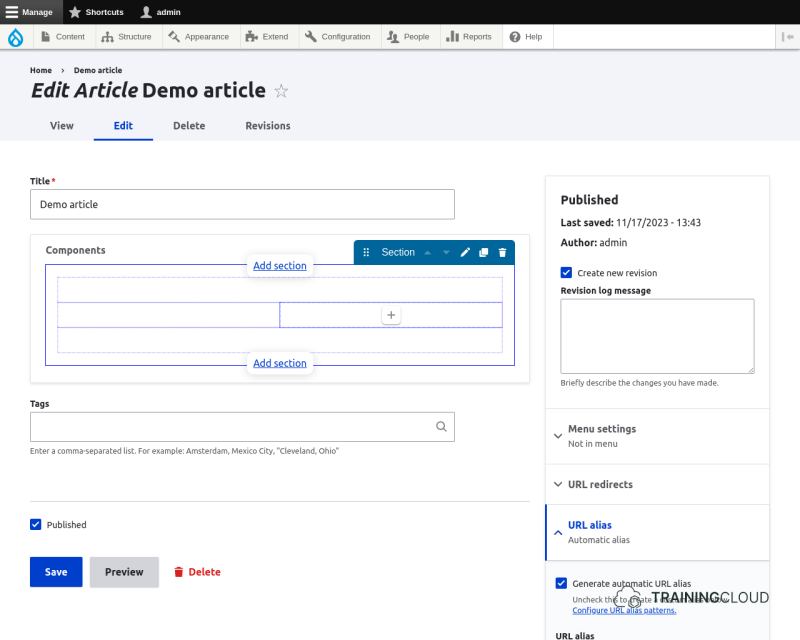
→ Hover over any layout region and click the + button to add one or more paragraphs.
Activity 2
- Configure the Article CT in such a way that it's possible to use the following paragraph layouts:
- 1 column
- 2 columns
- 3 columns
- Create an article with 3 columns, each column containing one Rich Text paragraph with some content.
- Edit the same article again and try to find the layout container paragraph's settings:
- What do you think will happen if you try to change the layout from 3 columns to 2 columns?
- Change from 3 to 2 columns. Was your prediction correct?
Conclusion
The Layout Paragraphs module adds flexible layout features to the Paragraphs system without much additional configuration.
Other modules can make additional layouts available, using the Core Layout API, which also drives the layout mechanism used by the Core Layout Builder mechanism, to which Layout Paragraphs is a "competitor".
Summary
Steps required to set up Layout Paragraphs:
- Create a layout container paragraph
- Enable its Layout Paragraph behaviour.
- Select one or more layouts.
- No need to add any fields.
- Add a paragraphs field to any Content Type
- Set its form widget to "Layout Paragraphs".
- Optionally select "Require paragraphs to be added inside a layout"
- Set its display format to "Layout Paragraphs"
You can change from one layout to another. If the new layout contains fewer regions, the interface will ask you to specify where the "orphaned" components should go.